> ## Documentation Index
> Fetch the complete documentation index at: https://ai-development-environment.mintlify.site/llms.txt
> Use this file to discover all available pages before exploring further.
# Agent details
> Inspect one enrolled machine's hardware, capabilities, codebases, and jobs.
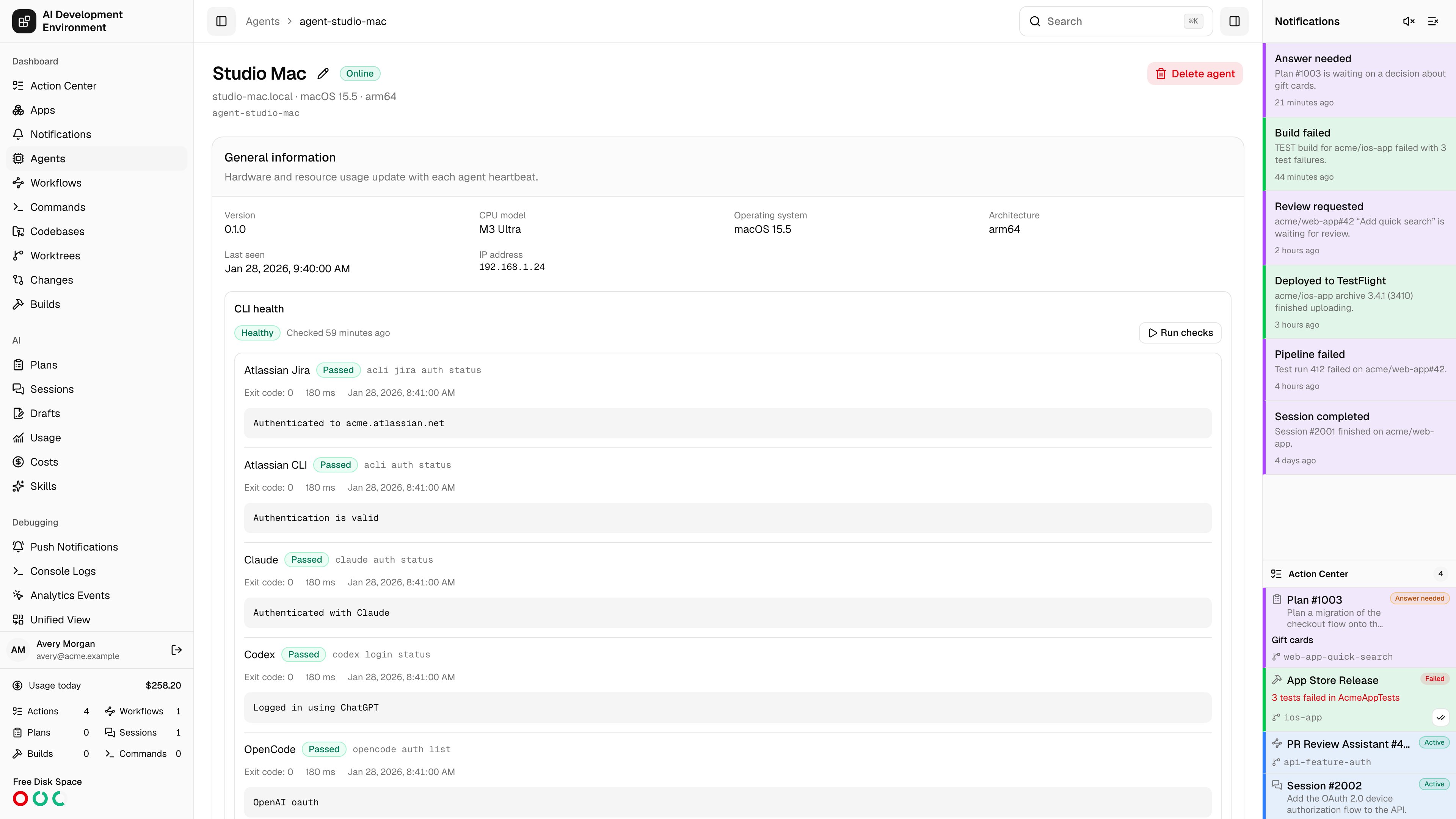
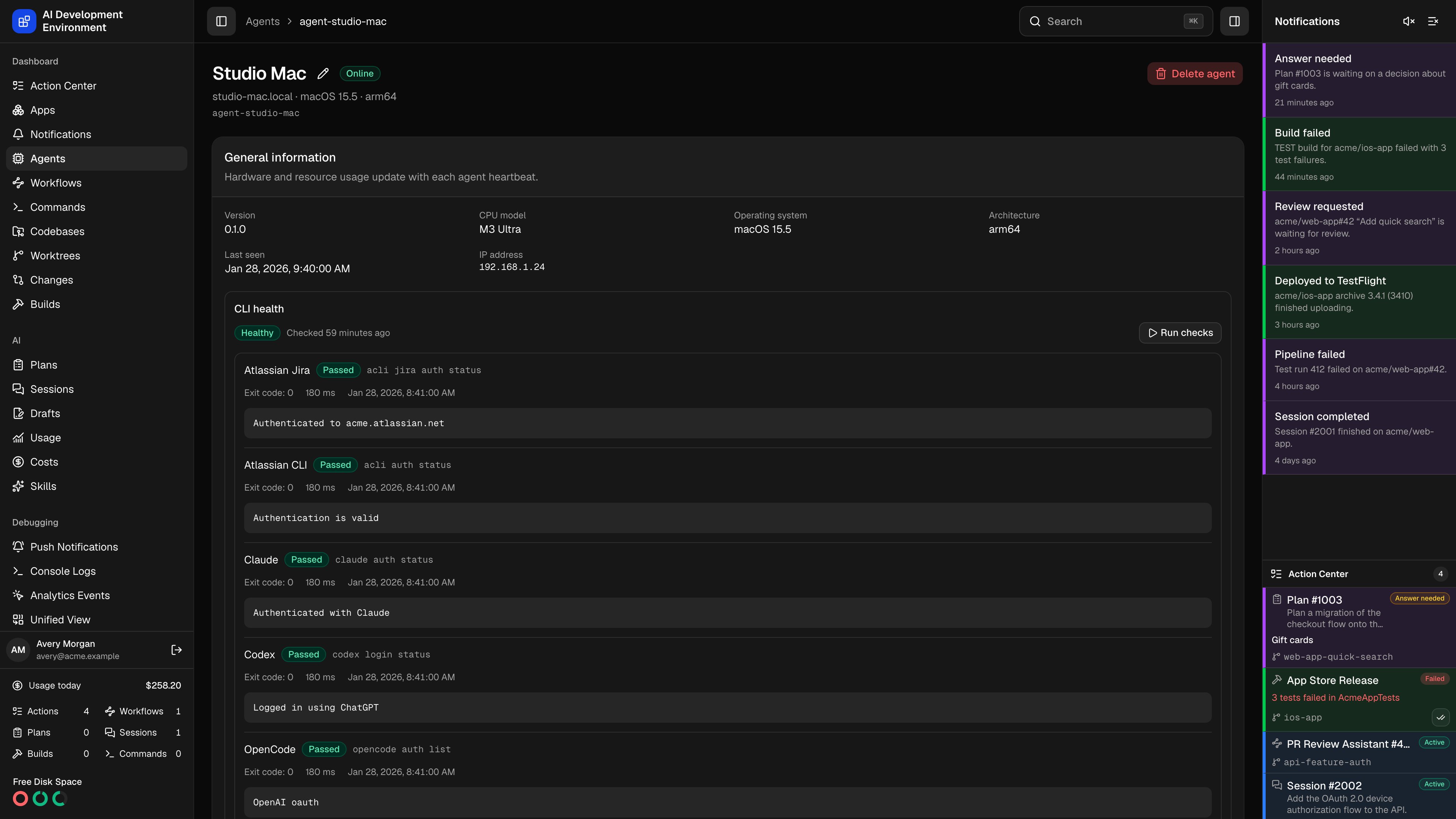 The agent details page at `/agents/{id}` is the full control surface for one enrolled machine or container: what it is, what it can do, what it is hosting, how often it checks in, and where it puts things on disk.
## Renaming an agent
The pencil beside the agent's name edits it in place. Type the new name, then **Save**. Names are 1–200 characters and do not have to be unique, and the change propagates live to every page listing that agent.
The name is the control plane's label for the machine, not its hostname. Renaming touches nothing on the machine itself and does not require the agent to be online.
## General information
Hardware and resource figures come from the agent's heartbeat, so they are as fresh as the heartbeat interval allows.
| Field | Notes |
| ---------------- | ------------------------------------------------- |
| Version | The running `control-agent` build |
| CPU model | Reported by the agent, or **Unavailable** |
| Operating system | Reported macOS, Linux, or Windows kernel version |
| Architecture | For example `arm64` |
| IP address | The address the agent reported at connection time |
| Last seen | Time of the most recent heartbeat, or **Never** |
| Memory | Used and free, with a usage bar |
| Disk space | Used and free for the agent's volume |
### CLI health
The **CLI health** section appears in the **General information** card. It uses the same current definitions and latest completed result as the [System Status page](/system/status), including the agent's overall badge, connection state, last-check time, and cached indicator.
Commands and badges are visible immediately. Expand a command to inspect its exact shell command, exit code, duration, timestamp, standard output, standard error, timeout state, and output-truncation notice. Output stays collapsed by default.
Select **Run checks** to refresh this agent. The button is unavailable while the agent is offline, while a run is already active, or when an older agent does not advertise the `cli.health` capability. Offline agents retain their most recent cached output.
See [CLI health checks](/system/cli-health-checks) for the built-in command list, custom check settings, execution limits, and shell security guidance.
## Capabilities
An agent advertises the set of job kinds it knows how to execute. Because capabilities are declared by the agent itself, an older `control-agent` build simply advertises fewer of them — which is how the UI decides whether a feature is available on that machine.
The Linux container agent advertises portable codebase, worktree, command, workflow, coverage, skill, and AI-run capabilities. Xcode build data, iOS builds, and signing assets remain available only from a macOS agent.
Search by capability name. The table shows each capability and its **kind**.
Expanding a capability reveals a JSON payload editor, pre-filled with a sample payload shaped for that capability.
**Invoke capability** queues the job and shows the live response inline.
Capabilities come in two kinds. A **job** is durable work that appears in job history with its own id and log stream. An **event** is a fire-and-forget signal — the codebase reconcile event, for example, requests an immediate scan and takes no payload.
Capabilities can only be invoked while the agent is connected. When it is offline, the page tells you to connect it first.
## Codebases
Every codebase registered on this agent, with its repository and current status. Use this to confirm what a given Mac is actually hosting before you send work to it. Full branch and stash management lives on the [codebase details page](/codebases/codebase-detail).
## Job history
Durable jobs that have run on this agent, newest first, with **Job** kind, **Status**, **Created**, and **Finished** columns. Selecting a row opens the [job details page](/agents/job-detail) with its live log.
Statuses are **Queued**, **Running**, **Cancelling**, **Succeeded**, **Failed**, **Cancelled**, and **Timed out**.
## Agent cadence
Four intervals control how often this agent performs recurring work. Codebase scan and Git fetch start from the global codebase defaults; saving here pins this agent's own values. All values are whole numbers of seconds.
| Setting | What it drives | Range |
| -------------------------- | ------------------------------------------------------------------------------------------------------------------ | ---------- |
| Codebase scan | Inspects registered repositories and reports branch, sync, availability, and worktree state | 10 – 3600 |
| Durable job reconciliation | Queries the control plane for queued, running, or cancelled jobs so work recovers after missed events or a restart | 5 – 3600 |
| Git fetch | Runs `git fetch origin` when a registered codebase has not fetched within the interval | 60 – 86400 |
| Agent heartbeat | Reports connection liveness, agent inventory, and current resource usage | 5 – 300 |
Shorter intervals mean fresher data and more load. The heartbeat is the cheapest to lower; the codebase scan is the most expensive on a Mac hosting many repositories.
## Directories
The folder on this agent that contains its repositories. Worktree paths inside it are displayed relative to this folder, which keeps long absolute paths out of the UI.
Browse the agent's filesystem to pick a directory, or **Clear directory** to unset it. Browsing requires the agent to be online and recent enough to advertise the directory-browse capability.
Chooses where this agent stores Xcode's DerivedData, in one of three modes:
* **Default Xcode location** — leave Xcode's own behavior alone.
* **Custom absolute directory** — one fixed path on this agent.
* **Relative to every worktree** — a folder name checked beneath every active tracked worktree, giving each checkout its own DerivedData.
Build logs, copied products, archives, and exports are written into one folder per build. The default is the base repository directory with `/Builds` appended. Override it with a custom absolute directory, or **Use base repository default** to go back.
The page shows the **effective directory** so you can confirm what will actually be used.
## Deleting an agent
**Delete agent** permanently removes the agent along with all of its jobs and codebase registrations. It is confirmed by name and cannot be undone.
Deleting an agent does not touch anything on the machine itself — repositories, worktrees, and build output stay on disk. To manage that machine again you have to enroll it afresh.
## Related pages
The list of enrolled machines and the enrollment flow.
Repositories and checkouts registered across every agent.
The agent details page at `/agents/{id}` is the full control surface for one enrolled machine or container: what it is, what it can do, what it is hosting, how often it checks in, and where it puts things on disk.
## Renaming an agent
The pencil beside the agent's name edits it in place. Type the new name, then **Save**. Names are 1–200 characters and do not have to be unique, and the change propagates live to every page listing that agent.
The name is the control plane's label for the machine, not its hostname. Renaming touches nothing on the machine itself and does not require the agent to be online.
## General information
Hardware and resource figures come from the agent's heartbeat, so they are as fresh as the heartbeat interval allows.
| Field | Notes |
| ---------------- | ------------------------------------------------- |
| Version | The running `control-agent` build |
| CPU model | Reported by the agent, or **Unavailable** |
| Operating system | Reported macOS, Linux, or Windows kernel version |
| Architecture | For example `arm64` |
| IP address | The address the agent reported at connection time |
| Last seen | Time of the most recent heartbeat, or **Never** |
| Memory | Used and free, with a usage bar |
| Disk space | Used and free for the agent's volume |
### CLI health
The **CLI health** section appears in the **General information** card. It uses the same current definitions and latest completed result as the [System Status page](/system/status), including the agent's overall badge, connection state, last-check time, and cached indicator.
Commands and badges are visible immediately. Expand a command to inspect its exact shell command, exit code, duration, timestamp, standard output, standard error, timeout state, and output-truncation notice. Output stays collapsed by default.
Select **Run checks** to refresh this agent. The button is unavailable while the agent is offline, while a run is already active, or when an older agent does not advertise the `cli.health` capability. Offline agents retain their most recent cached output.
See [CLI health checks](/system/cli-health-checks) for the built-in command list, custom check settings, execution limits, and shell security guidance.
## Capabilities
An agent advertises the set of job kinds it knows how to execute. Because capabilities are declared by the agent itself, an older `control-agent` build simply advertises fewer of them — which is how the UI decides whether a feature is available on that machine.
The Linux container agent advertises portable codebase, worktree, command, workflow, coverage, skill, and AI-run capabilities. Xcode build data, iOS builds, and signing assets remain available only from a macOS agent.
Search by capability name. The table shows each capability and its **kind**.
Expanding a capability reveals a JSON payload editor, pre-filled with a sample payload shaped for that capability.
**Invoke capability** queues the job and shows the live response inline.
Capabilities come in two kinds. A **job** is durable work that appears in job history with its own id and log stream. An **event** is a fire-and-forget signal — the codebase reconcile event, for example, requests an immediate scan and takes no payload.
Capabilities can only be invoked while the agent is connected. When it is offline, the page tells you to connect it first.
## Codebases
Every codebase registered on this agent, with its repository and current status. Use this to confirm what a given Mac is actually hosting before you send work to it. Full branch and stash management lives on the [codebase details page](/codebases/codebase-detail).
## Job history
Durable jobs that have run on this agent, newest first, with **Job** kind, **Status**, **Created**, and **Finished** columns. Selecting a row opens the [job details page](/agents/job-detail) with its live log.
Statuses are **Queued**, **Running**, **Cancelling**, **Succeeded**, **Failed**, **Cancelled**, and **Timed out**.
## Agent cadence
Four intervals control how often this agent performs recurring work. Codebase scan and Git fetch start from the global codebase defaults; saving here pins this agent's own values. All values are whole numbers of seconds.
| Setting | What it drives | Range |
| -------------------------- | ------------------------------------------------------------------------------------------------------------------ | ---------- |
| Codebase scan | Inspects registered repositories and reports branch, sync, availability, and worktree state | 10 – 3600 |
| Durable job reconciliation | Queries the control plane for queued, running, or cancelled jobs so work recovers after missed events or a restart | 5 – 3600 |
| Git fetch | Runs `git fetch origin` when a registered codebase has not fetched within the interval | 60 – 86400 |
| Agent heartbeat | Reports connection liveness, agent inventory, and current resource usage | 5 – 300 |
Shorter intervals mean fresher data and more load. The heartbeat is the cheapest to lower; the codebase scan is the most expensive on a Mac hosting many repositories.
## Directories
The folder on this agent that contains its repositories. Worktree paths inside it are displayed relative to this folder, which keeps long absolute paths out of the UI.
Browse the agent's filesystem to pick a directory, or **Clear directory** to unset it. Browsing requires the agent to be online and recent enough to advertise the directory-browse capability.
Chooses where this agent stores Xcode's DerivedData, in one of three modes:
* **Default Xcode location** — leave Xcode's own behavior alone.
* **Custom absolute directory** — one fixed path on this agent.
* **Relative to every worktree** — a folder name checked beneath every active tracked worktree, giving each checkout its own DerivedData.
Build logs, copied products, archives, and exports are written into one folder per build. The default is the base repository directory with `/Builds` appended. Override it with a custom absolute directory, or **Use base repository default** to go back.
The page shows the **effective directory** so you can confirm what will actually be used.
## Deleting an agent
**Delete agent** permanently removes the agent along with all of its jobs and codebase registrations. It is confirmed by name and cannot be undone.
Deleting an agent does not touch anything on the machine itself — repositories, worktrees, and build output stay on disk. To manage that machine again you have to enroll it afresh.
## Related pages
The list of enrolled machines and the enrollment flow.
Repositories and checkouts registered across every agent.