> ## Documentation Index
> Fetch the complete documentation index at: https://ai-development-environment.mintlify.site/llms.txt
> Use this file to discover all available pages before exploring further.
# New run
> Start a managed Plan or Session in a selected worktree.
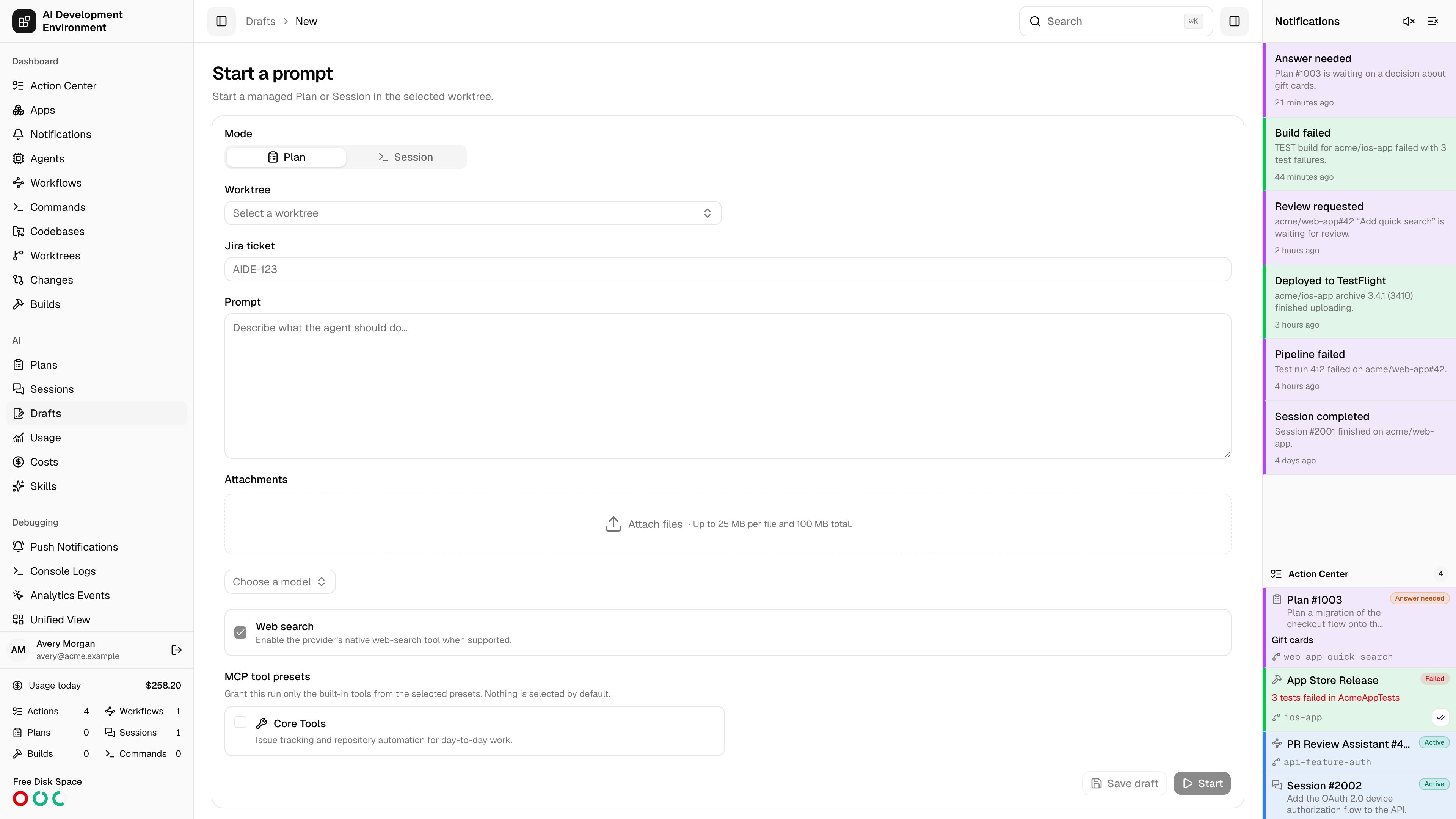
 The new run page at `/runs/new` is the single form for starting AI work: pick a mode, a worktree, a model, and the tools the run may use, write the prompt, then start it or save it as a draft. It opens preset from wherever you came from — `?kind=plan` or `?kind=session` from the two list pages, `?worktree={id}` from a worktree's **New session** and **New plan** buttons, and `?draft={id}` when you reopen a saved [draft](/ai/drafts).
## Filling in the form
**Plan** surveys the codebase and proposes work without changing it. **Session** implements with write access. You can switch modes at any point before starting.
The picker lists every worktree across every enrolled machine, labelled *repository · branch · agent*. Search matches the folder, ticket key, and ticket title as well as the visible label, so you can find a worktree by whatever you happen to remember about it. A worktree on an offline agent, or one that is not currently available, is listed but not selectable. The chosen worktree's full path is shown underneath. On a phone the picker opens as a full-screen search dialog, which stays in view when the keyboard opens.
Selecting a worktree that already has a ticket fills the field in for you. Typing a valid key — `AIDE-123` — loads a preview card with the ticket's status, type, priority, and summary so you can confirm you have the right one before starting.
A resizable Markdown field. This becomes the run's initial prompt and is what the list pages show in the prompt column.
Files are uploaded as you add them and travel with the prompt. Up to 25 MB per file and 100 MB in total.
The catalog is fetched for the selected worktree, so it reflects what that agent can actually run. See below.
Nothing is selected by default. Each preset you tick grants the run a named set of built-in tools, and only those.
**Start** creates the run and takes you straight to its detail page. **Save draft** stores the whole configuration under [Drafts](/ai/drafts) instead.
## Choosing the model
The picker is grouped by tool — Codex, Claude, OpenCode — and a tool that serves more than one catalog gets a heading per group, because the difference between them is usually a billing one. Alongside each model sits its effort scale.
Effort is not a shared scale: Codex ranks six levels, Claude five, OpenCode two. The effort icon draws the model's whole ramp and lights the part you have reached, so **high** reads correctly as mid-scale on one tool and near the top on another. **Auto** hands the choice to the provider and is drawn as a plain chip rather than a position on the scale.
Models you use get remembered as **Recent**, and you can pin any tool-model-effort combination as a **Preset** for one-click reuse. A preset is the whole triple — *Opus / high* and *Opus / max* are different choices, so effort is part of its identity.
**Web search** enables the provider's own web-search tool, and is available only where the selected tool supports it. Switching tools resets the model, effort, and web-search choice to that tool's defaults.
## What makes Start available
**Save draft** needs only a worktree, a prompt, a tool, and a model. **Start** is stricter, and stays disabled until all of the following hold:
| Requirement | Why |
| ---------------------------------------------- | ----------------------------------------------------- |
| A worktree is selected and its agent is online | The run executes on that machine |
| The prompt is not empty | It is the run's initial input |
| The selected tool reports itself available | The catalog says the tool is installed and usable |
| The chosen model exists in that tool's catalog | Switching tools clears the model for this reason |
| The agent advertises `runs.provider.` | The Mac must be capable of running that specific tool |
Choosing **Session** shows the reminder that Sessions run without approval prompts and with unrestricted access. An active Session alone does not prevent creation. The new Session remains **Queued** until the worktree's Session lane has capacity.
## Notes
* Starting a run from a draft consumes the draft — it is removed once the run is created.
* Attachments uploaded here are held against the draft or the run's first input; they appear on the prompt card of the detail page as downloadable files.
* The control plane checks free disk space on the worktree before a run may start.
* Runs started from this page use the defaults: unlimited concurrent Plans and one active Session per worktree. Workflow steps and GraphQL clients can override the same-kind limit from `0` through `32`, where `0` means unlimited.
## Related pages
Configurations saved here, ready to start later.
Where read-only runs land once started.
Where implementation runs land once started.
The MCP tool presets this page grants from.
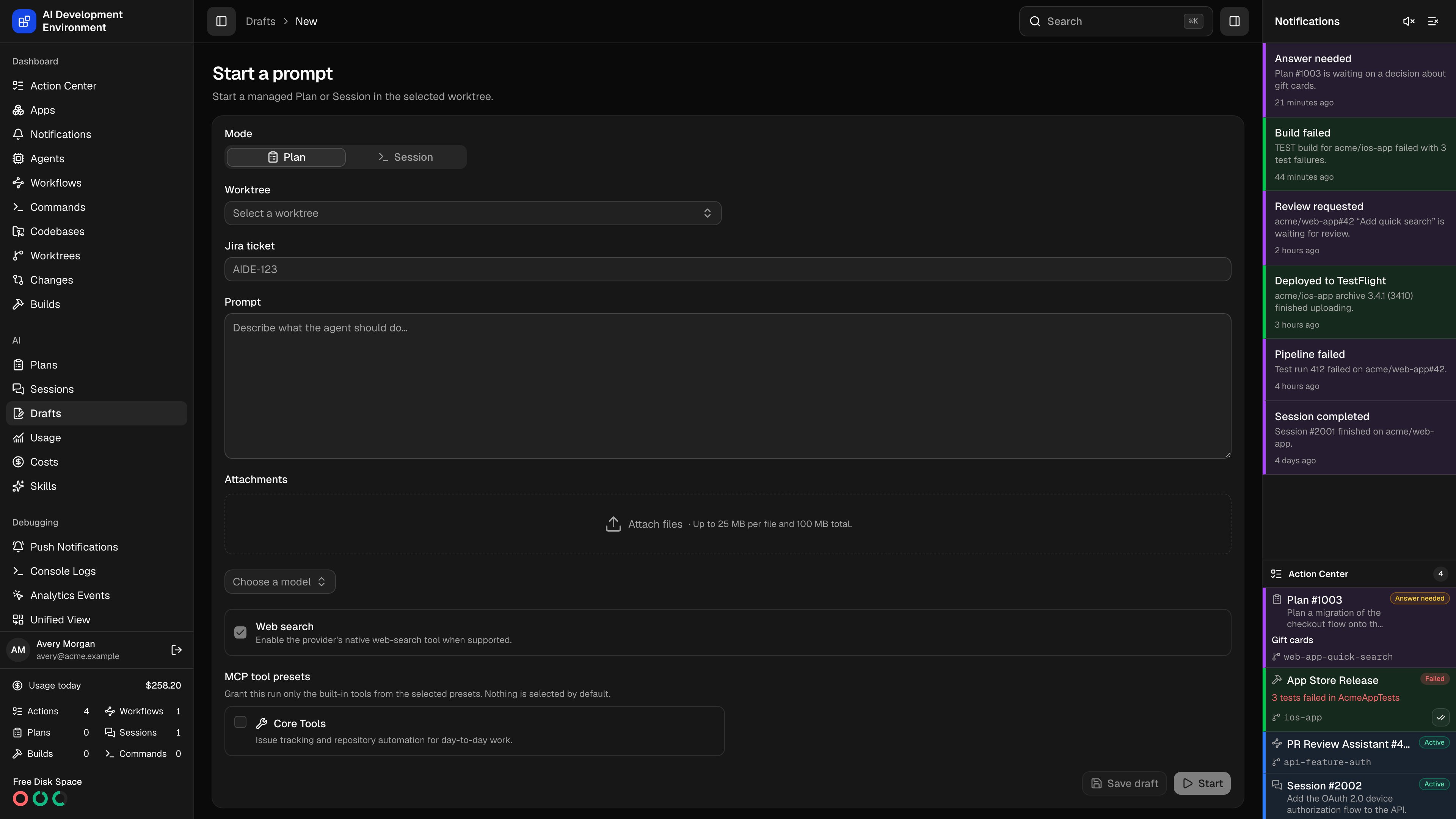
The new run page at `/runs/new` is the single form for starting AI work: pick a mode, a worktree, a model, and the tools the run may use, write the prompt, then start it or save it as a draft. It opens preset from wherever you came from — `?kind=plan` or `?kind=session` from the two list pages, `?worktree={id}` from a worktree's **New session** and **New plan** buttons, and `?draft={id}` when you reopen a saved [draft](/ai/drafts).
## Filling in the form
**Plan** surveys the codebase and proposes work without changing it. **Session** implements with write access. You can switch modes at any point before starting.
The picker lists every worktree across every enrolled machine, labelled *repository · branch · agent*. Search matches the folder, ticket key, and ticket title as well as the visible label, so you can find a worktree by whatever you happen to remember about it. A worktree on an offline agent, or one that is not currently available, is listed but not selectable. The chosen worktree's full path is shown underneath. On a phone the picker opens as a full-screen search dialog, which stays in view when the keyboard opens.
Selecting a worktree that already has a ticket fills the field in for you. Typing a valid key — `AIDE-123` — loads a preview card with the ticket's status, type, priority, and summary so you can confirm you have the right one before starting.
A resizable Markdown field. This becomes the run's initial prompt and is what the list pages show in the prompt column.
Files are uploaded as you add them and travel with the prompt. Up to 25 MB per file and 100 MB in total.
The catalog is fetched for the selected worktree, so it reflects what that agent can actually run. See below.
Nothing is selected by default. Each preset you tick grants the run a named set of built-in tools, and only those.
**Start** creates the run and takes you straight to its detail page. **Save draft** stores the whole configuration under [Drafts](/ai/drafts) instead.
## Choosing the model
The picker is grouped by tool — Codex, Claude, OpenCode — and a tool that serves more than one catalog gets a heading per group, because the difference between them is usually a billing one. Alongside each model sits its effort scale.
Effort is not a shared scale: Codex ranks six levels, Claude five, OpenCode two. The effort icon draws the model's whole ramp and lights the part you have reached, so **high** reads correctly as mid-scale on one tool and near the top on another. **Auto** hands the choice to the provider and is drawn as a plain chip rather than a position on the scale.
Models you use get remembered as **Recent**, and you can pin any tool-model-effort combination as a **Preset** for one-click reuse. A preset is the whole triple — *Opus / high* and *Opus / max* are different choices, so effort is part of its identity.
**Web search** enables the provider's own web-search tool, and is available only where the selected tool supports it. Switching tools resets the model, effort, and web-search choice to that tool's defaults.
## What makes Start available
**Save draft** needs only a worktree, a prompt, a tool, and a model. **Start** is stricter, and stays disabled until all of the following hold:
| Requirement | Why |
| ---------------------------------------------- | ----------------------------------------------------- |
| A worktree is selected and its agent is online | The run executes on that machine |
| The prompt is not empty | It is the run's initial input |
| The selected tool reports itself available | The catalog says the tool is installed and usable |
| The chosen model exists in that tool's catalog | Switching tools clears the model for this reason |
| The agent advertises `runs.provider.` | The Mac must be capable of running that specific tool |
Choosing **Session** shows the reminder that Sessions run without approval prompts and with unrestricted access. An active Session alone does not prevent creation. The new Session remains **Queued** until the worktree's Session lane has capacity.
## Notes
* Starting a run from a draft consumes the draft — it is removed once the run is created.
* Attachments uploaded here are held against the draft or the run's first input; they appear on the prompt card of the detail page as downloadable files.
* The control plane checks free disk space on the worktree before a run may start.
* Runs started from this page use the defaults: unlimited concurrent Plans and one active Session per worktree. Workflow steps and GraphQL clients can override the same-kind limit from `0` through `32`, where `0` means unlimited.
## Related pages
Configurations saved here, ready to start later.
Where read-only runs land once started.
Where implementation runs land once started.
The MCP tool presets this page grants from.