> ## Documentation Index
> Fetch the complete documentation index at: https://ai-development-environment.mintlify.site/llms.txt
> Use this file to discover all available pages before exploring further.
# Build configuration details
> Inspect a saved configuration, edit its Xcode settings, and review its build history.
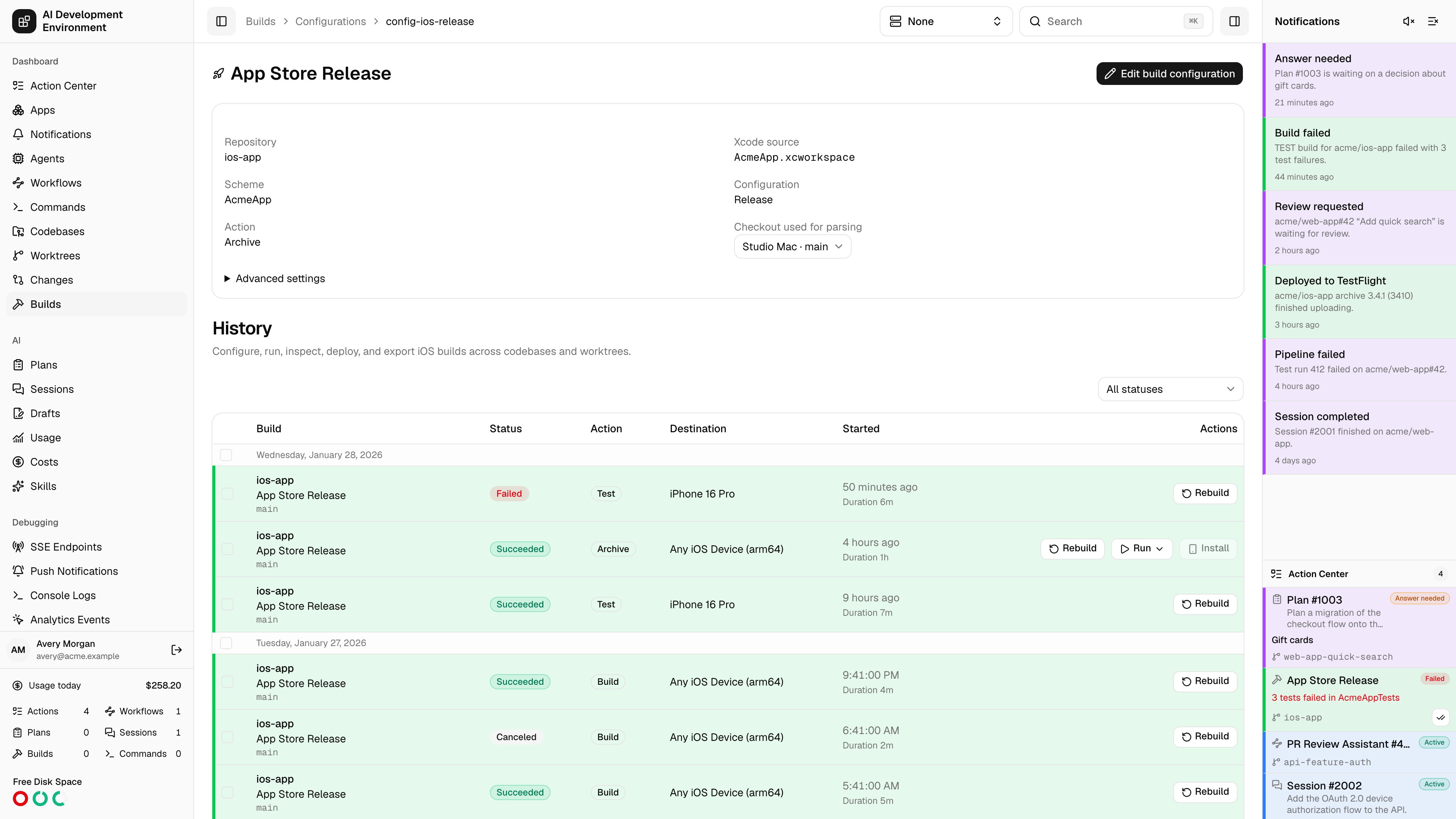
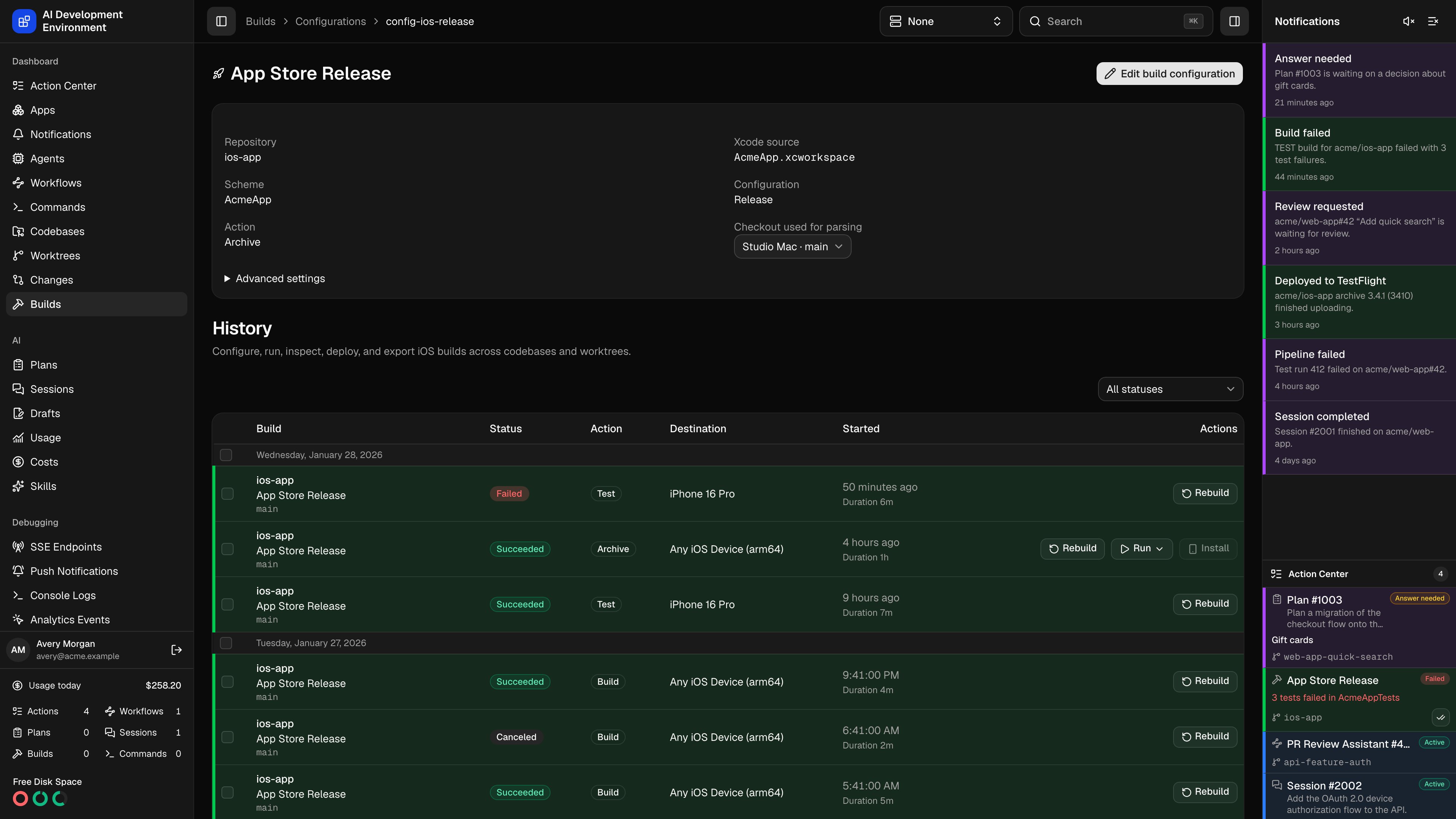 Open a saved configuration from **Builds → Configurations**, or select its name on a build row or detail page. The route is `/builds/configurations/[configurationId]`.
Use the **Configurations** breadcrumb to return to the configuration list.
## Inspect and edit
The page shows the configuration's icon, repository, source path, scheme, Xcode configuration, and default action. Expand **Advanced settings** to inspect build and export options.
Select an available checkout for parsing, then choose **Edit build configuration**. Source discovery and validation run on that checkout's agent. A green **Valid** badge means the selected source, scheme, and Xcode configuration are available in that checkout. Saving updates future builds; existing build snapshots keep their captured settings.
The native app offers **Configurations** on Builds, with configuration details and an **Edit** action. Repository settings also provide an **iOS App project** screen for creating and removing configurations.
## Build history
History is filtered to this saved configuration across its repository's worktrees and agents. Older records load in pages. Open a build to inspect its logs and artifacts.
A build retains the configuration name captured when it started. If the saved configuration is deleted, that name remains visible without a link. **Custom** identifies an explicitly requested one-time configuration; it does not identify an imported coverage record or a deleted saved configuration.
## Custom builds
Select **Custom** in Start Build to enter source and build settings for one run. This creates no saved configuration or configuration-details page. Rebuilding a Custom build uses the settings captured in its snapshot, subject to current repository, agent, destination, and script validation.
## Related pages
Start saved or Custom builds and manage scripts.
Manage the repository's iOS App project.
Open a saved configuration from **Builds → Configurations**, or select its name on a build row or detail page. The route is `/builds/configurations/[configurationId]`.
Use the **Configurations** breadcrumb to return to the configuration list.
## Inspect and edit
The page shows the configuration's icon, repository, source path, scheme, Xcode configuration, and default action. Expand **Advanced settings** to inspect build and export options.
Select an available checkout for parsing, then choose **Edit build configuration**. Source discovery and validation run on that checkout's agent. A green **Valid** badge means the selected source, scheme, and Xcode configuration are available in that checkout. Saving updates future builds; existing build snapshots keep their captured settings.
The native app offers **Configurations** on Builds, with configuration details and an **Edit** action. Repository settings also provide an **iOS App project** screen for creating and removing configurations.
## Build history
History is filtered to this saved configuration across its repository's worktrees and agents. Older records load in pages. Open a build to inspect its logs and artifacts.
A build retains the configuration name captured when it started. If the saved configuration is deleted, that name remains visible without a link. **Custom** identifies an explicitly requested one-time configuration; it does not identify an imported coverage record or a deleted saved configuration.
## Custom builds
Select **Custom** in Start Build to enter source and build settings for one run. This creates no saved configuration or configuration-details page. Rebuilding a Custom build uses the settings captured in its snapshot, subject to current repository, agent, destination, and script validation.
## Related pages
Start saved or Custom builds and manage scripts.
Manage the repository's iOS App project.