> ## Documentation Index
> Fetch the complete documentation index at: https://ai-development-environment.mintlify.site/llms.txt
> Use this file to discover all available pages before exploring further.
# Changes
> Review every change in a worktree, with coverage overlaid on the code.
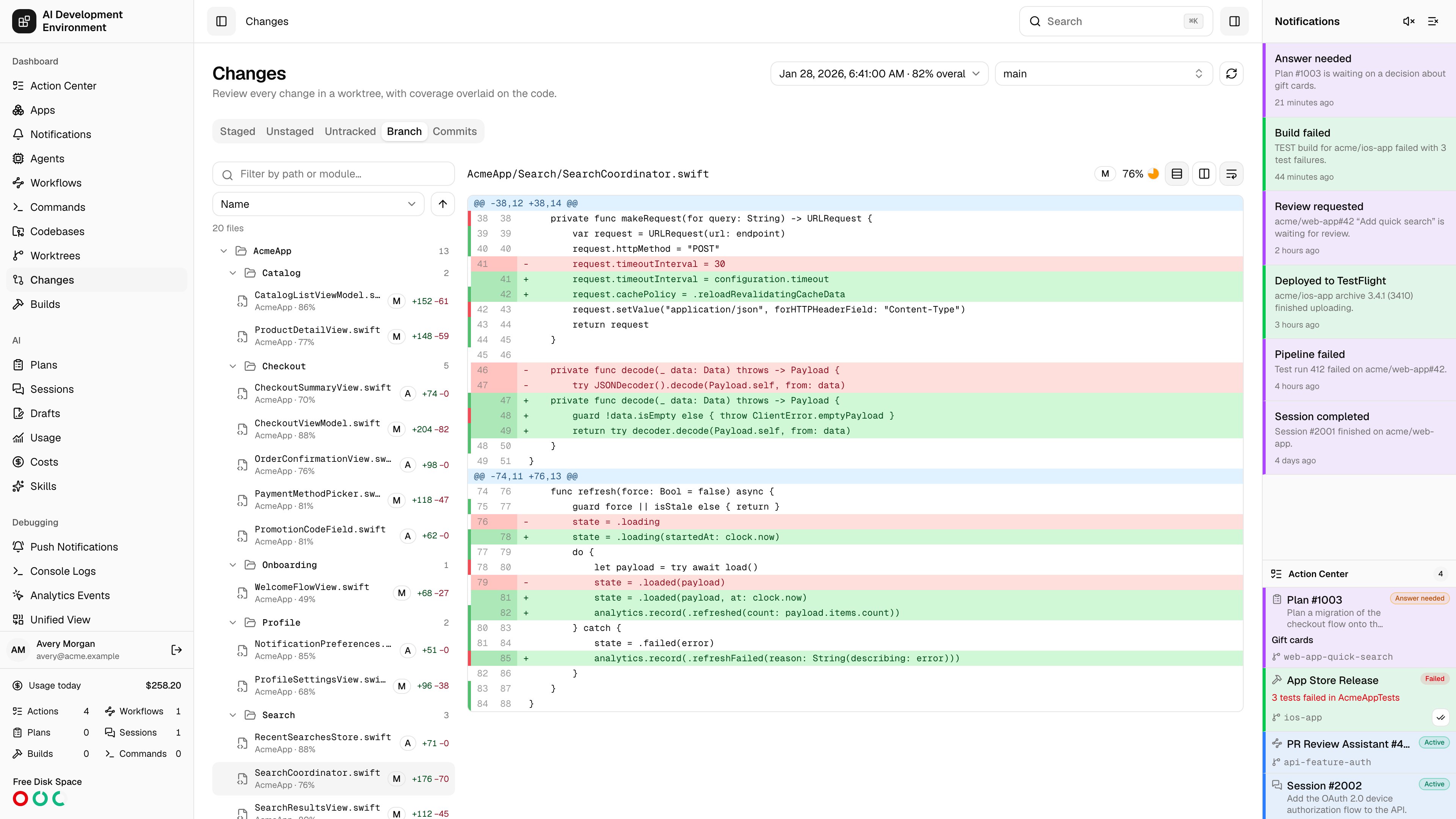
 The **Changes** page at `/changes` is a full-window diff reviewer. Pick a worktree, choose what to compare, walk the file tree, and read the diff with a build's code coverage painted onto the lines.
It is the same view a pull request gives you, but against the checkout on your Mac — before the branch is pushed.
## Choosing what to review
The selector lists every worktree across every enrolled agent, searchable by branch, repository, and path. The page opens on the first one rather than an empty state.
**Staged**, **Unstaged**, and **Untracked** read the working tree. **Branch** compares against the base branch. **Commits** adds a commit list and diffs one commit at a time.
Overlays a build's coverage on the diff. The picker only appears when the worktree has at least one ready report; pending and failed reports have no line data to show.
**Refresh** re-inspects the worktree, which is what you want after committing or staging something while the page is open. You can [commit from the worktree itself](/worktrees/worktrees#committing-changes) once the review is done.
When the selected worktree is linked to a pull request, the page also shows its number and title below the diff.
Commits and diffs come from the Mac that owns the checkout, so the agent has to be online. The page reports the reason when a diff cannot be read.
## The file list
Files are grouped into a folder tree, with single-child folders collapsed onto one row the way an editor tree does it. Each row carries the file name, its change type, and `+`/`−` line counts.
| Control | What it does |
| ---------------------------- | ------------------------------------------------------------ |
| **Filter by path or module** | Narrows the tree to matching files |
| **Sort** | Name, Module, Coverage, Additions, Deletions, or Change type |
| Direction toggle | Reverses the sort |
Sorting by **Coverage** replaces the change counts with a coverage ring per file, turning the sidebar into a worklist you can order from lower to higher coverage or reverse for the strongest-covered files. Files the report did not measure show an em dash.
Very large change sets are truncated, and the list says so rather than pretending it is complete.
## Reading a diff
Switch between **Unified view** and **Side-by-side view**, and use **Toggle line wrapping** for long lines. Hunks keep their `@@` headers, so you can see where in the file each change sits.
Changed images open **Side by side**. Switch to **Overlap** and adjust **Image transparency** to blend the revisions, or choose **Difference** to render a pixel-level mask. The difference view includes a sensitivity slider and red, green, or red-on-faded-white mask colors. It reports the percentage of changed pixels, and a side with no image says so.
Files with no textual changes, binary files, and diffs past the 2 MiB display limit are labeled rather than rendered.
A parsed text diff above 5,000 rows pauses before mounting. Choose **Render it anyway** when you still need the complete file.
## The coverage overlay
With a report selected, a thin strip runs down the edge of the diff: green where the tests executed the line, red where they never reached it, and blank for anything the report says nothing about — comments, declarations, deleted lines, and files it never measured. The selected file's overall coverage shows next to its path, and each file in the tree carries its own percentage.
Coverage is measured at a particular revision. When the worktree has moved on since the report was generated, the page says **Measured at a different revision** and dims the overlay instead of hiding it — line numbers may have shifted, but a stale reading still beats none.
Coverage reports come from builds. Generate one from a [build's details page](/builds/build-detail), or [import an LCOV or Istanbul report](/builds/build-coverage#importing-coverage-from-other-test-runners). Then use **View changes with coverage** on the coverage report to land here with that report already selected.
## Sharing a view
The URL tracks the worktree, scope, selected file, commit, coverage report, view mode, and wrap setting. Copying the address bar hands someone the exact diff you are looking at.
## Related pages
One checkout's status, actions, working tree, and coverage history.
The full report behind the overlay, file by file and target by target.
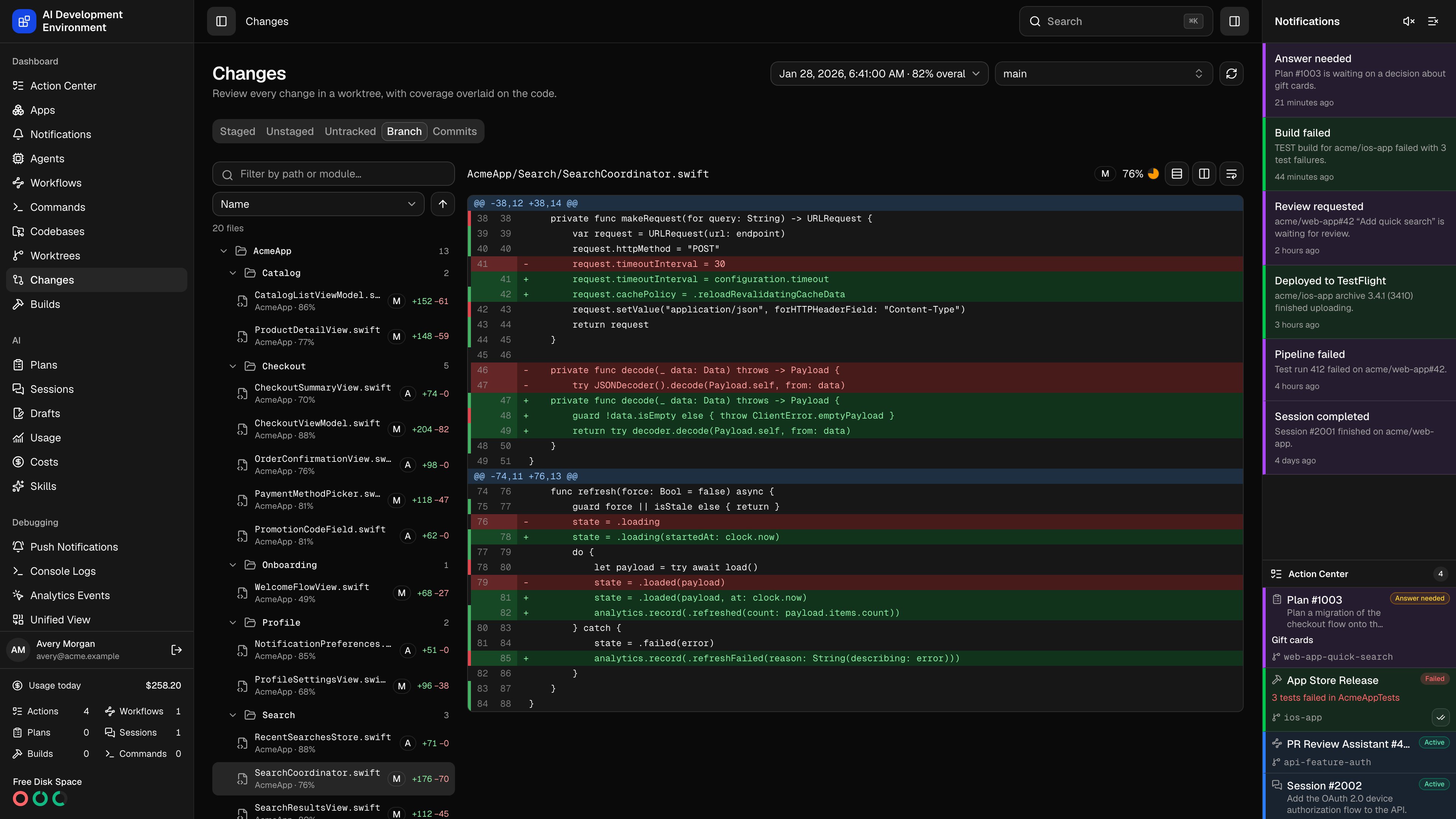
The **Changes** page at `/changes` is a full-window diff reviewer. Pick a worktree, choose what to compare, walk the file tree, and read the diff with a build's code coverage painted onto the lines.
It is the same view a pull request gives you, but against the checkout on your Mac — before the branch is pushed.
## Choosing what to review
The selector lists every worktree across every enrolled agent, searchable by branch, repository, and path. The page opens on the first one rather than an empty state.
**Staged**, **Unstaged**, and **Untracked** read the working tree. **Branch** compares against the base branch. **Commits** adds a commit list and diffs one commit at a time.
Overlays a build's coverage on the diff. The picker only appears when the worktree has at least one ready report; pending and failed reports have no line data to show.
**Refresh** re-inspects the worktree, which is what you want after committing or staging something while the page is open. You can [commit from the worktree itself](/worktrees/worktrees#committing-changes) once the review is done.
When the selected worktree is linked to a pull request, the page also shows its number and title below the diff.
Commits and diffs come from the Mac that owns the checkout, so the agent has to be online. The page reports the reason when a diff cannot be read.
## The file list
Files are grouped into a folder tree, with single-child folders collapsed onto one row the way an editor tree does it. Each row carries the file name, its change type, and `+`/`−` line counts.
| Control | What it does |
| ---------------------------- | ------------------------------------------------------------ |
| **Filter by path or module** | Narrows the tree to matching files |
| **Sort** | Name, Module, Coverage, Additions, Deletions, or Change type |
| Direction toggle | Reverses the sort |
Sorting by **Coverage** replaces the change counts with a coverage ring per file, turning the sidebar into a worklist you can order from lower to higher coverage or reverse for the strongest-covered files. Files the report did not measure show an em dash.
Very large change sets are truncated, and the list says so rather than pretending it is complete.
## Reading a diff
Switch between **Unified view** and **Side-by-side view**, and use **Toggle line wrapping** for long lines. Hunks keep their `@@` headers, so you can see where in the file each change sits.
Changed images open **Side by side**. Switch to **Overlap** and adjust **Image transparency** to blend the revisions, or choose **Difference** to render a pixel-level mask. The difference view includes a sensitivity slider and red, green, or red-on-faded-white mask colors. It reports the percentage of changed pixels, and a side with no image says so.
Files with no textual changes, binary files, and diffs past the 2 MiB display limit are labeled rather than rendered.
A parsed text diff above 5,000 rows pauses before mounting. Choose **Render it anyway** when you still need the complete file.
## The coverage overlay
With a report selected, a thin strip runs down the edge of the diff: green where the tests executed the line, red where they never reached it, and blank for anything the report says nothing about — comments, declarations, deleted lines, and files it never measured. The selected file's overall coverage shows next to its path, and each file in the tree carries its own percentage.
Coverage is measured at a particular revision. When the worktree has moved on since the report was generated, the page says **Measured at a different revision** and dims the overlay instead of hiding it — line numbers may have shifted, but a stale reading still beats none.
Coverage reports come from builds. Generate one from a [build's details page](/builds/build-detail), or [import an LCOV or Istanbul report](/builds/build-coverage#importing-coverage-from-other-test-runners). Then use **View changes with coverage** on the coverage report to land here with that report already selected.
## Sharing a view
The URL tracks the worktree, scope, selected file, commit, coverage report, view mode, and wrap setting. Copying the address bar hands someone the exact diff you are looking at.
## Related pages
One checkout's status, actions, working tree, and coverage history.
The full report behind the overlay, file by file and target by target.