> ## Documentation Index
> Fetch the complete documentation index at: https://ai-development-environment.mintlify.site/llms.txt
> Use this file to discover all available pages before exploring further.
# Action Center
> Live work, decisions, failures, and builds waiting to run.
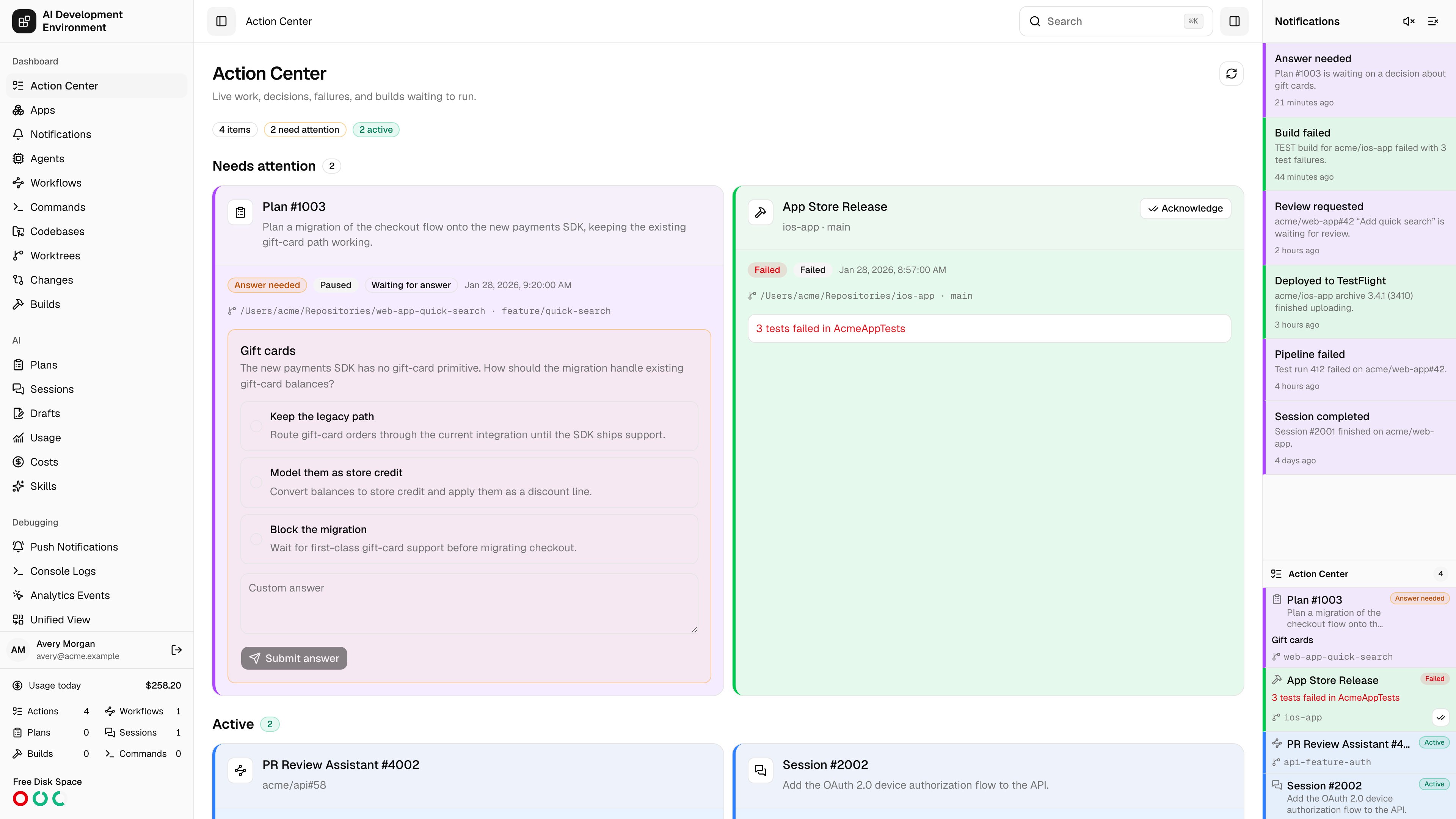
 The **Action Center** is the home screen at `/`. It is a single queue built from four different resource types — AI Plans, AI Sessions, iOS builds, and workflow runs — so anything that is running, stuck, failed, or waiting on you shows up in one list instead of five separate pages.
Nothing is added by hand. The control plane derives the list from the current state of each resource, so an item disappears on its own as soon as the underlying work moves on.
## What appears here
An item is a resource plus the reason it earned a place in the queue.
A read-only codebase survey. Appears while it is **Queued**, **In progress**, or **Paused**, and after it **fails**.
An AI run that edits a worktree. Same rule as Plans — queued, in progress, paused, or failed.
An iOS build that is queued, preparing, running, or failed — plus successful builds that have never been run on a device.
A workflow run that is queued, running, pausing, paused, waiting, blocked, or failed.
Archived Plans, Sessions, and workflow runs are excluded entirely.
## Why an item appears
Every item carries one **reason** badge. The reason also sets the item's position — the list is sorted by reason first, then by most recently updated.
| Reason | Badge | Meaning |
| ------------- | ------- | ------------------------------------------------------------------------- |
| Answer needed | Amber | A pending question batch is waiting on your input. |
| Blocked | Neutral | A workflow run is blocked, or a Plan or Session landed in a failed phase. |
| Failed | Red | The resource finished in a failed state and has not been acknowledged. |
| Ready to run | Blue | A successful build produced a runnable app that has never been deployed. |
| Active | Green | Work is queued or in progress and needs nothing from you. |
The first four are grouped under **Needs attention**. Only **Active** items land in the **Active** section.
For a workflow run, **Blocked** simply means the run's status is `BLOCKED`.
For a Plan or Session, the status is still in progress but its **phase** ended in a failure — any phase whose name ends in `_FAILED`, plus the special `IMPORTED_ACTIVE_COLLISION` phase, which means an imported run collided with one that was already active.
A build is offered as ready to run only when every one of these holds:
* It is the most recent build for its worktree, configuration, and destination combination.
* Its status is **Succeeded**.
* Its worktree is still present on disk and marked available.
* It produced a runnable app artifact.
* It has no deployment records — nobody has installed or run it yet.
Run it straight from the card. The controls default to the destination the build was made for.
Each failed item gets a **failure fingerprint** built from its kind, id, generation, and the time it finished. Acknowledging stores that fingerprint and hides the item.
Because the finish time is part of the fingerprint, a later failure of the same resource produces a new fingerprint and reappears. Acknowledging never suppresses a future failure.
## Using the page
Three badges under the title show the total item count, how many need attention, and how many are active. They reflect the whole queue, not just the page you have loaded.
Items are already ordered by urgency — questions first, then blocked, failed, and ready-to-run. Each card links to the full Plan, Session, build, or run.
Pick from the offered options, or type a **Custom answer** when the question allows one, then **Submit answer**. See below for the details.
**Acknowledge** clears a failed item from the queue without touching the underlying resource.
The list loads 50 items at a time. **Load more** appends the next page.
### Answering a question
Question batches come from Plans and Sessions directly, and from workflow runs by way of the step attempt that raised them — the card labels the source as **Question from …**.
* **Single choice** questions render as radio options. Picking an option clears any custom text you typed, and typing custom text clears the selection.
* **Multiple choice** questions render as checkboxes, and a custom answer is appended alongside whatever you checked.
* **Custom answer** is only offered when the question permits it.
* **Submit answer** stays disabled until every question in the batch has either a selection or non-empty custom text.
Answers are submitted for the whole batch at once. If a batch asks three questions, all three must be answered before you can submit.
## Mini Action Center
The app shell carries a compact copy of the same queue in the sidebar, showing the total count and a condensed row per item — title, reason badge, the first pending question, any error, and the linked worktree. It shares state with the full page, so answering or acknowledging in one place updates the other immediately.
## Live updates
The queue subscribes to an `actionCenterChanged` subscription and refetches whenever the control plane signals a change. It also refetches on every reconnect, so a dropped WebSocket cannot leave stale items on screen. **Refresh** forces the same reload by hand.
When a Plan, Session, build, or workflow run is tied to a worktree, the card shows the worktree's folder and branch and inherits its highlight color as a left border stripe — useful for telling parallel work on the same repository apart at a glance.
## Related pages
Route the same events to the sidebar, browser alerts, Web Push, or the iOS app.
Open a blocked or waiting run to repair its session data or replay a step.
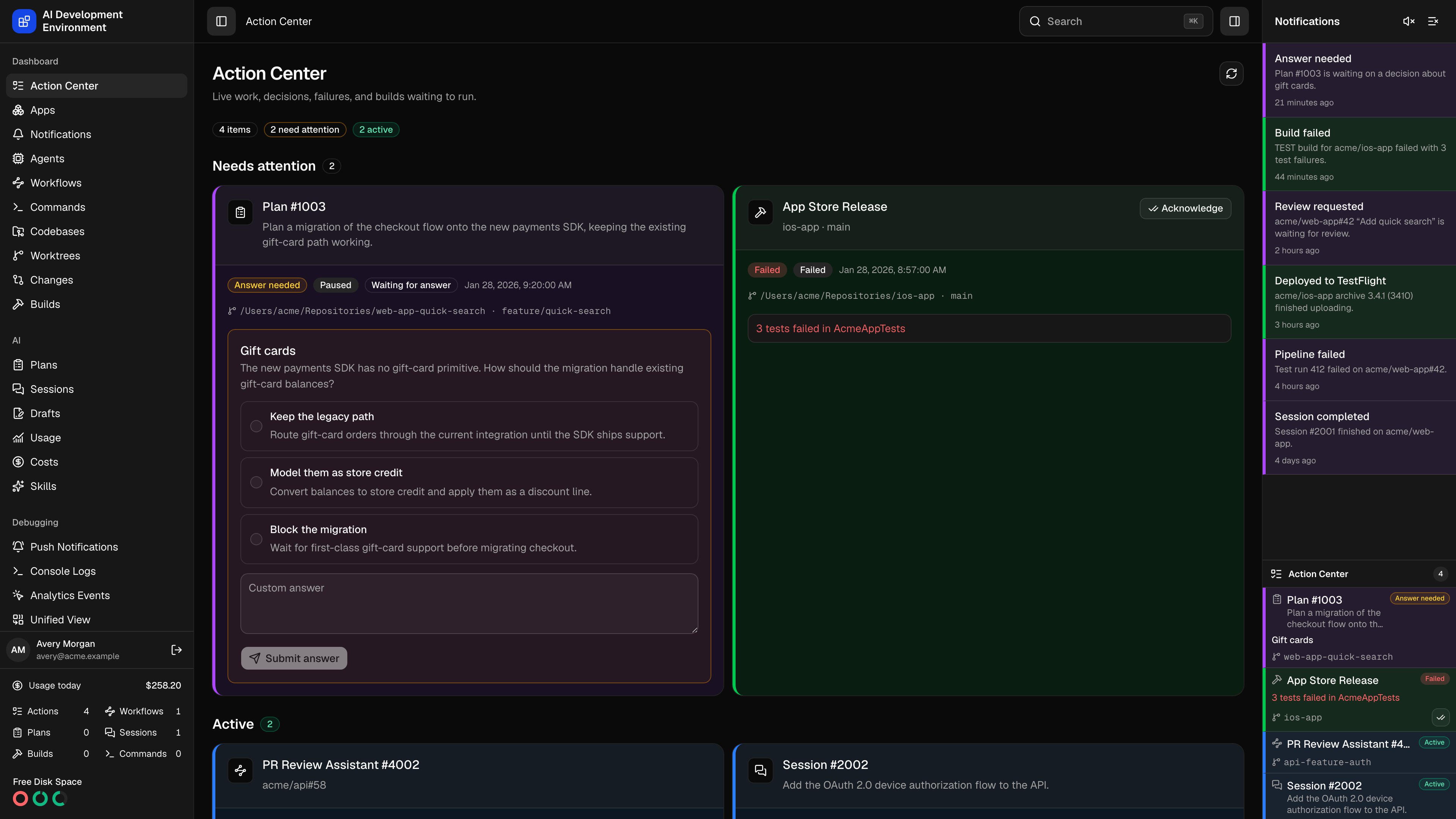
The **Action Center** is the home screen at `/`. It is a single queue built from four different resource types — AI Plans, AI Sessions, iOS builds, and workflow runs — so anything that is running, stuck, failed, or waiting on you shows up in one list instead of five separate pages.
Nothing is added by hand. The control plane derives the list from the current state of each resource, so an item disappears on its own as soon as the underlying work moves on.
## What appears here
An item is a resource plus the reason it earned a place in the queue.
A read-only codebase survey. Appears while it is **Queued**, **In progress**, or **Paused**, and after it **fails**.
An AI run that edits a worktree. Same rule as Plans — queued, in progress, paused, or failed.
An iOS build that is queued, preparing, running, or failed — plus successful builds that have never been run on a device.
A workflow run that is queued, running, pausing, paused, waiting, blocked, or failed.
Archived Plans, Sessions, and workflow runs are excluded entirely.
## Why an item appears
Every item carries one **reason** badge. The reason also sets the item's position — the list is sorted by reason first, then by most recently updated.
| Reason | Badge | Meaning |
| ------------- | ------- | ------------------------------------------------------------------------- |
| Answer needed | Amber | A pending question batch is waiting on your input. |
| Blocked | Neutral | A workflow run is blocked, or a Plan or Session landed in a failed phase. |
| Failed | Red | The resource finished in a failed state and has not been acknowledged. |
| Ready to run | Blue | A successful build produced a runnable app that has never been deployed. |
| Active | Green | Work is queued or in progress and needs nothing from you. |
The first four are grouped under **Needs attention**. Only **Active** items land in the **Active** section.
For a workflow run, **Blocked** simply means the run's status is `BLOCKED`.
For a Plan or Session, the status is still in progress but its **phase** ended in a failure — any phase whose name ends in `_FAILED`, plus the special `IMPORTED_ACTIVE_COLLISION` phase, which means an imported run collided with one that was already active.
A build is offered as ready to run only when every one of these holds:
* It is the most recent build for its worktree, configuration, and destination combination.
* Its status is **Succeeded**.
* Its worktree is still present on disk and marked available.
* It produced a runnable app artifact.
* It has no deployment records — nobody has installed or run it yet.
Run it straight from the card. The controls default to the destination the build was made for.
Each failed item gets a **failure fingerprint** built from its kind, id, generation, and the time it finished. Acknowledging stores that fingerprint and hides the item.
Because the finish time is part of the fingerprint, a later failure of the same resource produces a new fingerprint and reappears. Acknowledging never suppresses a future failure.
## Using the page
Three badges under the title show the total item count, how many need attention, and how many are active. They reflect the whole queue, not just the page you have loaded.
Items are already ordered by urgency — questions first, then blocked, failed, and ready-to-run. Each card links to the full Plan, Session, build, or run.
Pick from the offered options, or type a **Custom answer** when the question allows one, then **Submit answer**. See below for the details.
**Acknowledge** clears a failed item from the queue without touching the underlying resource.
The list loads 50 items at a time. **Load more** appends the next page.
### Answering a question
Question batches come from Plans and Sessions directly, and from workflow runs by way of the step attempt that raised them — the card labels the source as **Question from …**.
* **Single choice** questions render as radio options. Picking an option clears any custom text you typed, and typing custom text clears the selection.
* **Multiple choice** questions render as checkboxes, and a custom answer is appended alongside whatever you checked.
* **Custom answer** is only offered when the question permits it.
* **Submit answer** stays disabled until every question in the batch has either a selection or non-empty custom text.
Answers are submitted for the whole batch at once. If a batch asks three questions, all three must be answered before you can submit.
## Mini Action Center
The app shell carries a compact copy of the same queue in the sidebar, showing the total count and a condensed row per item — title, reason badge, the first pending question, any error, and the linked worktree. It shares state with the full page, so answering or acknowledging in one place updates the other immediately.
## Live updates
The queue subscribes to an `actionCenterChanged` subscription and refetches whenever the control plane signals a change. It also refetches on every reconnect, so a dropped WebSocket cannot leave stale items on screen. **Refresh** forces the same reload by hand.
When a Plan, Session, build, or workflow run is tied to a worktree, the card shows the worktree's folder and branch and inherits its highlight color as a left border stripe — useful for telling parallel work on the same repository apart at a glance.
## Related pages
Route the same events to the sidebar, browser alerts, Web Push, or the iOS app.
Open a blocked or waiting run to repair its session data or replay a step.