> ## Documentation Index
> Fetch the complete documentation index at: https://ai-development-environment.mintlify.site/llms.txt
> Use this file to discover all available pages before exploring further.
# Push Notifications
> Compose, validate, target, queue, and inspect Apple push notifications.
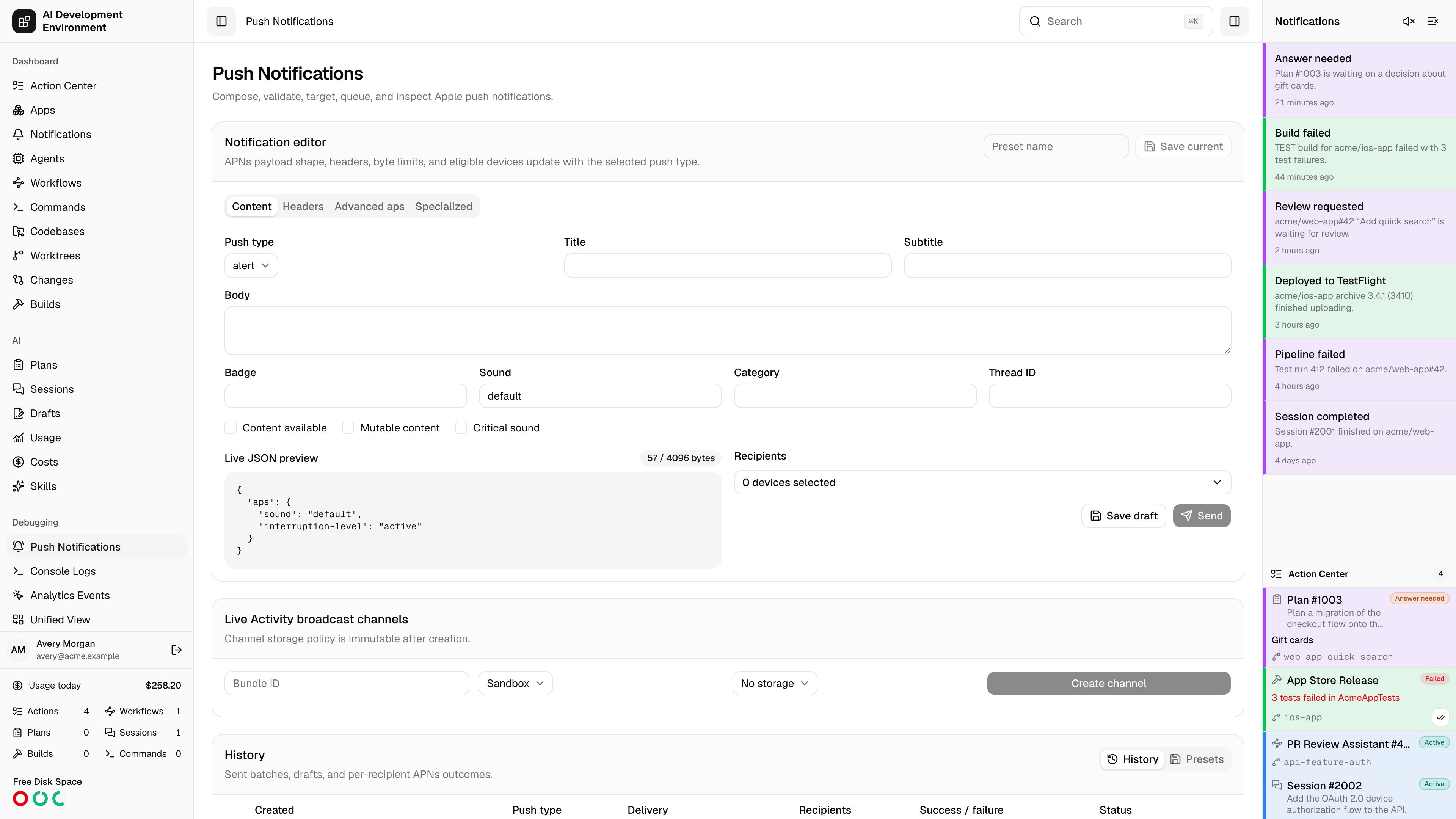
 The **Push Notifications** page at `/push-notifications` sends real Apple Push Notification service (APNs) payloads to your own devices and keeps every send on record. It covers all eleven APNs push types, validates the payload and headers before anything leaves the control plane, and reports what APNs said about each individual recipient — status, reason, `apns-id`, attempts, and round-trip time.
This console is for the apps *you* build here. The alerts the dashboard raises about its own work go out over a separate channel with its own device list — see [Notifications](/notifications). The two share the APNs token credential and nothing else.
## Before you can send
On [Settings](/system/settings), add either a **token key** (`.p8` with its Team ID and Key ID) or one or more **certificates** (password-protected `.p12`, bound to a topic and environment). Token authentication covers apps, Live Activities, VoIP, and everything except MDM; MDM wake-ups require a certificate. The [credential service](/system/credentials) holds the key, certificate, and companion settings in the selected backend.
Your app posts its APNs token to `POST /api/ios/apns-devices` with the topic, environment, display name, and the push types it supports. Registrations show up as recipients here and on [Devices](/system/devices).
Devices registered by the control plane's own iOS app use a different endpoint and are not recipients here. They are listed on [Notifications](/notifications#registered-devices).
Recipients are matched by exact topic. The **APNs topic** you type in the editor must equal the topic the device registered with — including the suffix a specialized push type requires.
## Notification editor
The editor is organized into four tabs, and its available fields, byte limit, and eligible devices all change with the selected **Push type**.
**Push type**, then the alert body itself: **Title**, **Subtitle**, **Body**, **Badge**, **Sound**, **Category**, **Thread ID**, and the toggles **Content available**, **Mutable content**, and **Critical sound** with its **Sound volume**.
**APNs topic**, **Priority** (1, 5, or 10), **APNs ID** (a UUID), **Expiration** (a Unix timestamp, or `0` to deliver once or not at all), and **Collapse ID**. When the push type is `mdm`, a **Certificate credential** selector appears here — every other push type authenticates with the token key.
Localization keys and arguments for title, subtitle, and body; **Launch image**; **Summary argument** and count; **Target content ID**; **Interruption level** (`passive`, `active`, `time-sensitive`, `critical`); **Relevance score**; and **Custom root JSON** for keys that sit beside `aps`.
Live Activity fields — **Timestamp**, **Event** (`start`, `update`, `end`), **Attributes type**, **Content state JSON**, **Attributes JSON**, **Stale date**, **Dismissal date**, and **Request an input push token** — plus contextual help for MDM and for framework-specific types.
### Push types and their rules
| Push type | Required topic suffix | Priority |
| -------------- | ------------------------- | ----------- |
| `alert` | — | 5 or 10 |
| `background` | — | 5 only |
| `complication` | `.complication` | 5 or 10 |
| `controls` | `.push-type.controls` | 5 or 10 |
| `fileprovider` | `.pushkit.fileprovider` | 5 or 10 |
| `liveactivity` | `.push-type.liveactivity` | 5 or 10 |
| `location` | `.location-query` | 1, 5, or 10 |
| `mdm` | — | 10 only |
| `pushtotalk` | `.voip-ptt` | 10 only |
| `voip` | `.voip` | 10 only |
| `widgets` | `.push-type.widgets` | 5 or 10 |
Priority 1 is accepted only for `location` notifications. Background pushes must omit `alert`, `badge`, and `sound`, and `content-available: 1` is set for you. Alert pushes require at least one `aps` field. MDM payloads contain only `mdm` — no `aps`, no custom root keys — and each recipient's own PushMagic is substituted at send time.
### Live preview and the byte budget
The **Live JSON preview** shows the exact payload that will be sent, with a badge counting bytes against the limit: **4096 bytes**, or **5120** for `voip`. The badge turns red when you exceed it, and any validation problem — a bad topic suffix, an out-of-range relevance score, malformed custom JSON — replaces the preview with the specific error. **Send** stays disabled until the payload validates.
Validation is not just client-side courtesy. The server revalidates the editor on save, on send, and on resend, so a payload stored in a preset or in history is always one APNs would accept.
## Choosing recipients
A device is **eligible** when its registration is active, its topic matches the topic in the editor, and its supported push types include the selected type. Anything else is hidden, which is usually why a device you expect is missing.
| Mode | When it is offered | What it targets |
| ------------------------------- | ------------------- | ------------------------------------------------------------------------- |
| **Selected devices** | Always | The registrations you check in the picker |
| **All eligible devices** | Always | Every eligible registration, resolved at send time |
| **One-off Live Activity token** | `liveactivity` only | A single token you paste, as HEX or Base64, against sandbox or production |
| **Broadcast channel** | `liveactivity` only | A channel whose bundle ID matches the topic |
Tokens are validated as exactly 32 bytes. A one-off token is stored only for the duration of the send and deleted afterwards — which is why such a batch cannot be resent later.
## Sending, drafts, and presets
* **Send** validates, queues a batch, and starts delivering immediately. Every send carries a request ID, so a retried submission returns the original batch instead of double-sending.
* **Save draft** stores a validated payload with no recipients. It appears in **History** with the status `DRAFT`, ready to load, target, and send later.
* **Save current** names the payload and headers as a **preset**. Presets never include recipients — you choose those each time you send.
## Live Activity broadcast channels
The **Live Activity broadcast channels** card creates channels through APNs itself and lists the ones you have.
* Provide a **Bundle ID**, an environment, and a storage policy of **No storage** or **Most recent message**.
* Creating and deleting a channel requires token authentication; certificates cannot be used for channel management.
* The storage policy is fixed once the channel exists.
* Deleting a channel removes it at APNs as well. Presets and history keep only its identifier.
## History
The 100 most recent sends and drafts are listed newest first, with **Created**, **Push type**, **Delivery** mode, **Recipients**, a **Success / failure** count, and **Status**.
| Batch status | Meaning |
| ------------ | -------------------------------------- |
| `DRAFT` | Saved payload with no recipients |
| `QUEUED` | Accepted, waiting to be delivered |
| `SENDING` | Deliveries in flight |
| `SUCCEEDED` | Every recipient succeeded |
| `PARTIAL` | Some recipients succeeded, some failed |
| `FAILED` | Every recipient failed |
Expanding a row shows the stored payload and headers as formatted JSON, then one card per recipient with the delivery status, HTTP code, APNs reason, attempt count, duration, and `apns-id`. A workflow panel on the same row lets you attach a batch to workflow automation.
Row actions: **Load into editor**, **Save as preset**, **Resend**, and **Delete**. **Clear all history** removes every completed send and draft.
Queued and sending batches cannot be deleted, and **Clear all history** skips them. Drafts cannot be resent — load one, choose recipients, and send it. One-off Live Activity token batches cannot be resent either, because the token was discarded after delivery.
## How delivery works
The batch is written with one delivery row per recipient and claimed for sending in a single step, so two workers can never process the same batch.
Up to 16 deliveries run concurrently over HTTP/2 to `api.sandbox.push.apple.com` or `api.push.apple.com`, chosen per recipient from that registration's environment. Token authentication reuses a signed JWT for its lifetime.
HTTP 429, 500, and 503 are retried up to four attempts total, honoring `Retry-After` when APNs sends it and backing off exponentially otherwise. The final attempt count is recorded on the delivery.
Each delivery stores the HTTP status, APNs reason, timestamp, `apns-id`, attempts, and duration. The batch then settles as succeeded, partial, or failed.
Failures feed back into the rest of the system. A `410 Unregistered` — with a timestamp no older than the last registration — or a `400 BadDeviceToken` or `DeviceTokenNotForTopic` marks the registration **invalid**, so it stops appearing as an eligible recipient. Other failures record the reason against the registration without deactivating it. Token or certificate errors are written back to the credential, so [Settings](/system/settings) shows the last error and the last successful use.
If the control plane restarts mid-send, a recovery pass reclaims queued batches and any batch that has been sending for more than two minutes, requeues their unfinished deliveries, and continues. It also runs on a 30-second interval, so nothing is left stranded.
## Live updates
The page subscribes to push notification changes: batch and delivery status, new registrations, credential changes, channels, and presets all update in place while you watch a send progress.
## Related pages
APNs token key and certificate credentials, with test and rotation.
Enrolled iPhones and iPads, including their APNs registrations.
The dashboard's own alerts — sidebar, browser, and Web Push.
`sendPushNotification`, `pushNotificationHistory`, and the rest of the push graph.
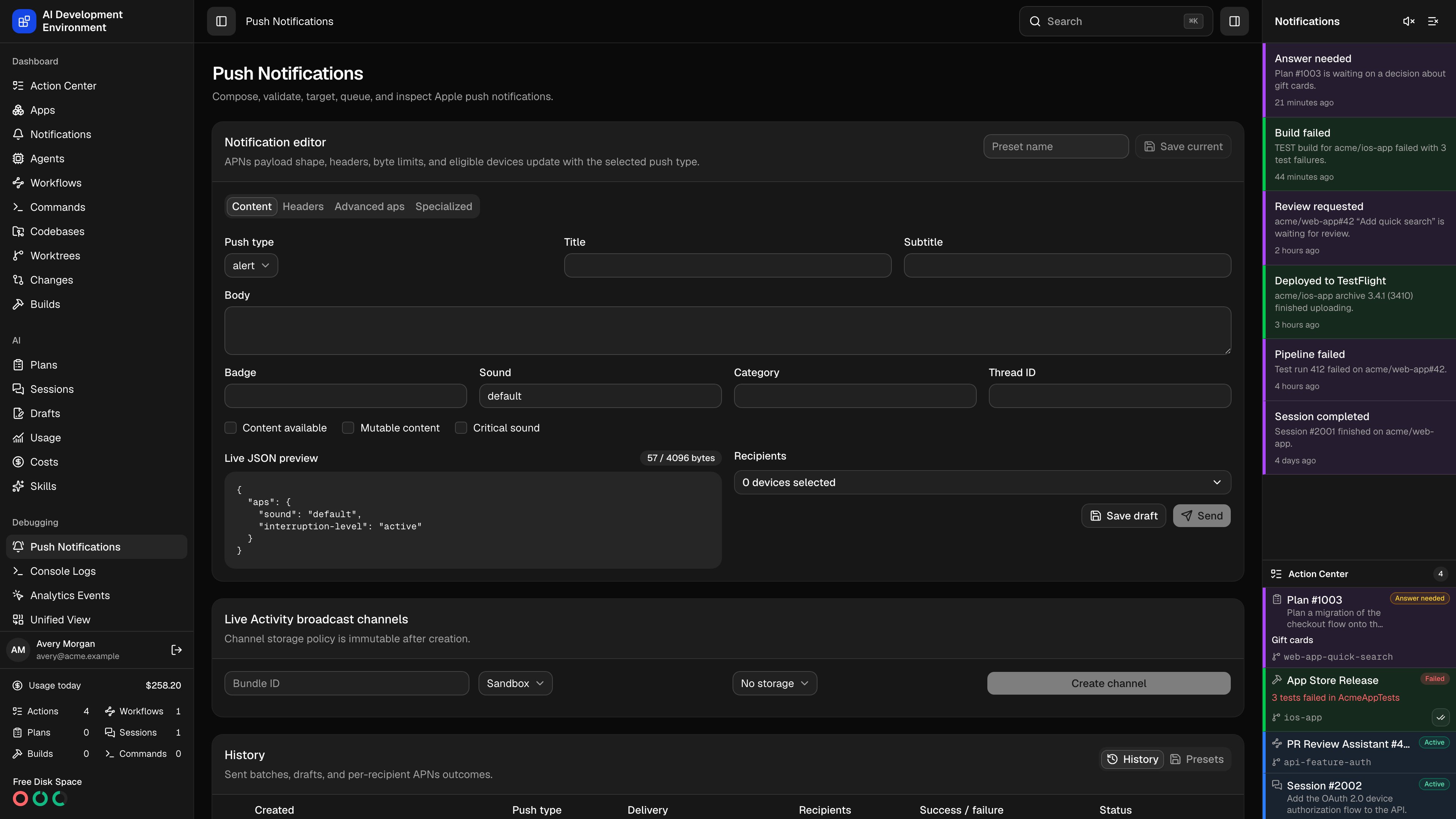
The **Push Notifications** page at `/push-notifications` sends real Apple Push Notification service (APNs) payloads to your own devices and keeps every send on record. It covers all eleven APNs push types, validates the payload and headers before anything leaves the control plane, and reports what APNs said about each individual recipient — status, reason, `apns-id`, attempts, and round-trip time.
This console is for the apps *you* build here. The alerts the dashboard raises about its own work go out over a separate channel with its own device list — see [Notifications](/notifications). The two share the APNs token credential and nothing else.
## Before you can send
On [Settings](/system/settings), add either a **token key** (`.p8` with its Team ID and Key ID) or one or more **certificates** (password-protected `.p12`, bound to a topic and environment). Token authentication covers apps, Live Activities, VoIP, and everything except MDM; MDM wake-ups require a certificate. The [credential service](/system/credentials) holds the key, certificate, and companion settings in the selected backend.
Your app posts its APNs token to `POST /api/ios/apns-devices` with the topic, environment, display name, and the push types it supports. Registrations show up as recipients here and on [Devices](/system/devices).
Devices registered by the control plane's own iOS app use a different endpoint and are not recipients here. They are listed on [Notifications](/notifications#registered-devices).
Recipients are matched by exact topic. The **APNs topic** you type in the editor must equal the topic the device registered with — including the suffix a specialized push type requires.
## Notification editor
The editor is organized into four tabs, and its available fields, byte limit, and eligible devices all change with the selected **Push type**.
**Push type**, then the alert body itself: **Title**, **Subtitle**, **Body**, **Badge**, **Sound**, **Category**, **Thread ID**, and the toggles **Content available**, **Mutable content**, and **Critical sound** with its **Sound volume**.
**APNs topic**, **Priority** (1, 5, or 10), **APNs ID** (a UUID), **Expiration** (a Unix timestamp, or `0` to deliver once or not at all), and **Collapse ID**. When the push type is `mdm`, a **Certificate credential** selector appears here — every other push type authenticates with the token key.
Localization keys and arguments for title, subtitle, and body; **Launch image**; **Summary argument** and count; **Target content ID**; **Interruption level** (`passive`, `active`, `time-sensitive`, `critical`); **Relevance score**; and **Custom root JSON** for keys that sit beside `aps`.
Live Activity fields — **Timestamp**, **Event** (`start`, `update`, `end`), **Attributes type**, **Content state JSON**, **Attributes JSON**, **Stale date**, **Dismissal date**, and **Request an input push token** — plus contextual help for MDM and for framework-specific types.
### Push types and their rules
| Push type | Required topic suffix | Priority |
| -------------- | ------------------------- | ----------- |
| `alert` | — | 5 or 10 |
| `background` | — | 5 only |
| `complication` | `.complication` | 5 or 10 |
| `controls` | `.push-type.controls` | 5 or 10 |
| `fileprovider` | `.pushkit.fileprovider` | 5 or 10 |
| `liveactivity` | `.push-type.liveactivity` | 5 or 10 |
| `location` | `.location-query` | 1, 5, or 10 |
| `mdm` | — | 10 only |
| `pushtotalk` | `.voip-ptt` | 10 only |
| `voip` | `.voip` | 10 only |
| `widgets` | `.push-type.widgets` | 5 or 10 |
Priority 1 is accepted only for `location` notifications. Background pushes must omit `alert`, `badge`, and `sound`, and `content-available: 1` is set for you. Alert pushes require at least one `aps` field. MDM payloads contain only `mdm` — no `aps`, no custom root keys — and each recipient's own PushMagic is substituted at send time.
### Live preview and the byte budget
The **Live JSON preview** shows the exact payload that will be sent, with a badge counting bytes against the limit: **4096 bytes**, or **5120** for `voip`. The badge turns red when you exceed it, and any validation problem — a bad topic suffix, an out-of-range relevance score, malformed custom JSON — replaces the preview with the specific error. **Send** stays disabled until the payload validates.
Validation is not just client-side courtesy. The server revalidates the editor on save, on send, and on resend, so a payload stored in a preset or in history is always one APNs would accept.
## Choosing recipients
A device is **eligible** when its registration is active, its topic matches the topic in the editor, and its supported push types include the selected type. Anything else is hidden, which is usually why a device you expect is missing.
| Mode | When it is offered | What it targets |
| ------------------------------- | ------------------- | ------------------------------------------------------------------------- |
| **Selected devices** | Always | The registrations you check in the picker |
| **All eligible devices** | Always | Every eligible registration, resolved at send time |
| **One-off Live Activity token** | `liveactivity` only | A single token you paste, as HEX or Base64, against sandbox or production |
| **Broadcast channel** | `liveactivity` only | A channel whose bundle ID matches the topic |
Tokens are validated as exactly 32 bytes. A one-off token is stored only for the duration of the send and deleted afterwards — which is why such a batch cannot be resent later.
## Sending, drafts, and presets
* **Send** validates, queues a batch, and starts delivering immediately. Every send carries a request ID, so a retried submission returns the original batch instead of double-sending.
* **Save draft** stores a validated payload with no recipients. It appears in **History** with the status `DRAFT`, ready to load, target, and send later.
* **Save current** names the payload and headers as a **preset**. Presets never include recipients — you choose those each time you send.
## Live Activity broadcast channels
The **Live Activity broadcast channels** card creates channels through APNs itself and lists the ones you have.
* Provide a **Bundle ID**, an environment, and a storage policy of **No storage** or **Most recent message**.
* Creating and deleting a channel requires token authentication; certificates cannot be used for channel management.
* The storage policy is fixed once the channel exists.
* Deleting a channel removes it at APNs as well. Presets and history keep only its identifier.
## History
The 100 most recent sends and drafts are listed newest first, with **Created**, **Push type**, **Delivery** mode, **Recipients**, a **Success / failure** count, and **Status**.
| Batch status | Meaning |
| ------------ | -------------------------------------- |
| `DRAFT` | Saved payload with no recipients |
| `QUEUED` | Accepted, waiting to be delivered |
| `SENDING` | Deliveries in flight |
| `SUCCEEDED` | Every recipient succeeded |
| `PARTIAL` | Some recipients succeeded, some failed |
| `FAILED` | Every recipient failed |
Expanding a row shows the stored payload and headers as formatted JSON, then one card per recipient with the delivery status, HTTP code, APNs reason, attempt count, duration, and `apns-id`. A workflow panel on the same row lets you attach a batch to workflow automation.
Row actions: **Load into editor**, **Save as preset**, **Resend**, and **Delete**. **Clear all history** removes every completed send and draft.
Queued and sending batches cannot be deleted, and **Clear all history** skips them. Drafts cannot be resent — load one, choose recipients, and send it. One-off Live Activity token batches cannot be resent either, because the token was discarded after delivery.
## How delivery works
The batch is written with one delivery row per recipient and claimed for sending in a single step, so two workers can never process the same batch.
Up to 16 deliveries run concurrently over HTTP/2 to `api.sandbox.push.apple.com` or `api.push.apple.com`, chosen per recipient from that registration's environment. Token authentication reuses a signed JWT for its lifetime.
HTTP 429, 500, and 503 are retried up to four attempts total, honoring `Retry-After` when APNs sends it and backing off exponentially otherwise. The final attempt count is recorded on the delivery.
Each delivery stores the HTTP status, APNs reason, timestamp, `apns-id`, attempts, and duration. The batch then settles as succeeded, partial, or failed.
Failures feed back into the rest of the system. A `410 Unregistered` — with a timestamp no older than the last registration — or a `400 BadDeviceToken` or `DeviceTokenNotForTopic` marks the registration **invalid**, so it stops appearing as an eligible recipient. Other failures record the reason against the registration without deactivating it. Token or certificate errors are written back to the credential, so [Settings](/system/settings) shows the last error and the last successful use.
If the control plane restarts mid-send, a recovery pass reclaims queued batches and any batch that has been sending for more than two minutes, requeues their unfinished deliveries, and continues. It also runs on a 30-second interval, so nothing is left stranded.
## Live updates
The page subscribes to push notification changes: batch and delivery status, new registrations, credential changes, channels, and presets all update in place while you watch a send progress.
## Related pages
APNs token key and certificate credentials, with test and rotation.
Enrolled iPhones and iPads, including their APNs registrations.
The dashboard's own alerts — sidebar, browser, and Web Push.
`sendPushNotification`, `pushNotificationHistory`, and the rest of the push graph.