> ## Documentation Index
> Fetch the complete documentation index at: https://ai-development-environment.mintlify.site/llms.txt
> Use this file to discover all available pages before exploring further.
# Set up GitLab
> Connect GitLab.com or one self-hosted GitLab instance with an access token.
AIDE supports GitHub, GitLab, or both at the same time. Each provider appears as a separate navigation section only after its primary access token has been verified. **Settings** stays available when neither provider is configured.
## Requirements
* GitLab.com or GitLab 19.2 and newer
* An HTTPS instance URL
* A personal, project, or group access token with the `api` scope
* Access to each project you want AIDE to manage
The token's actual GitLab role and subscription tier determine which projects and actions are available. AIDE does not turn a lower-permission token into an administrator token.
## Connect an instance
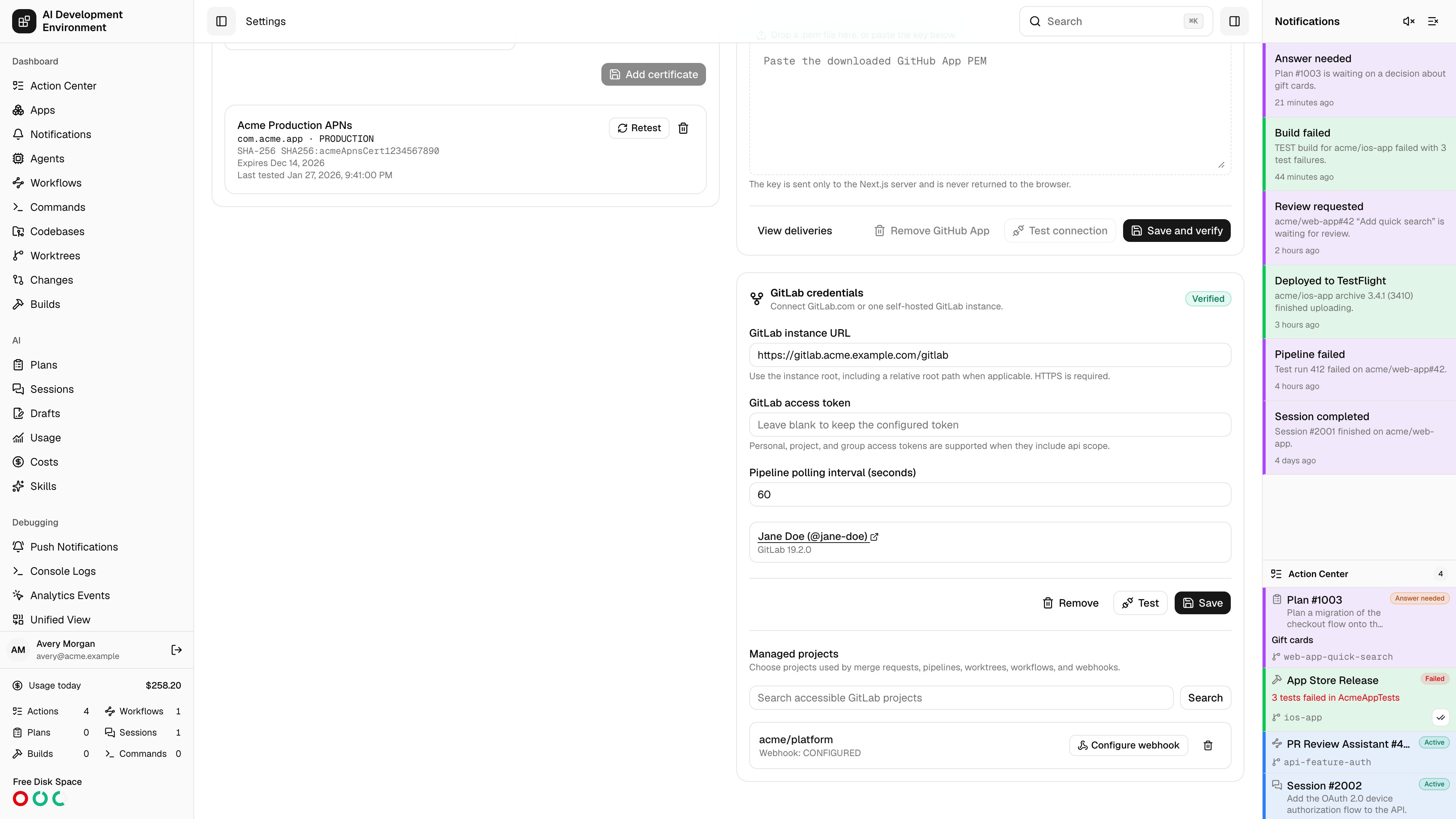
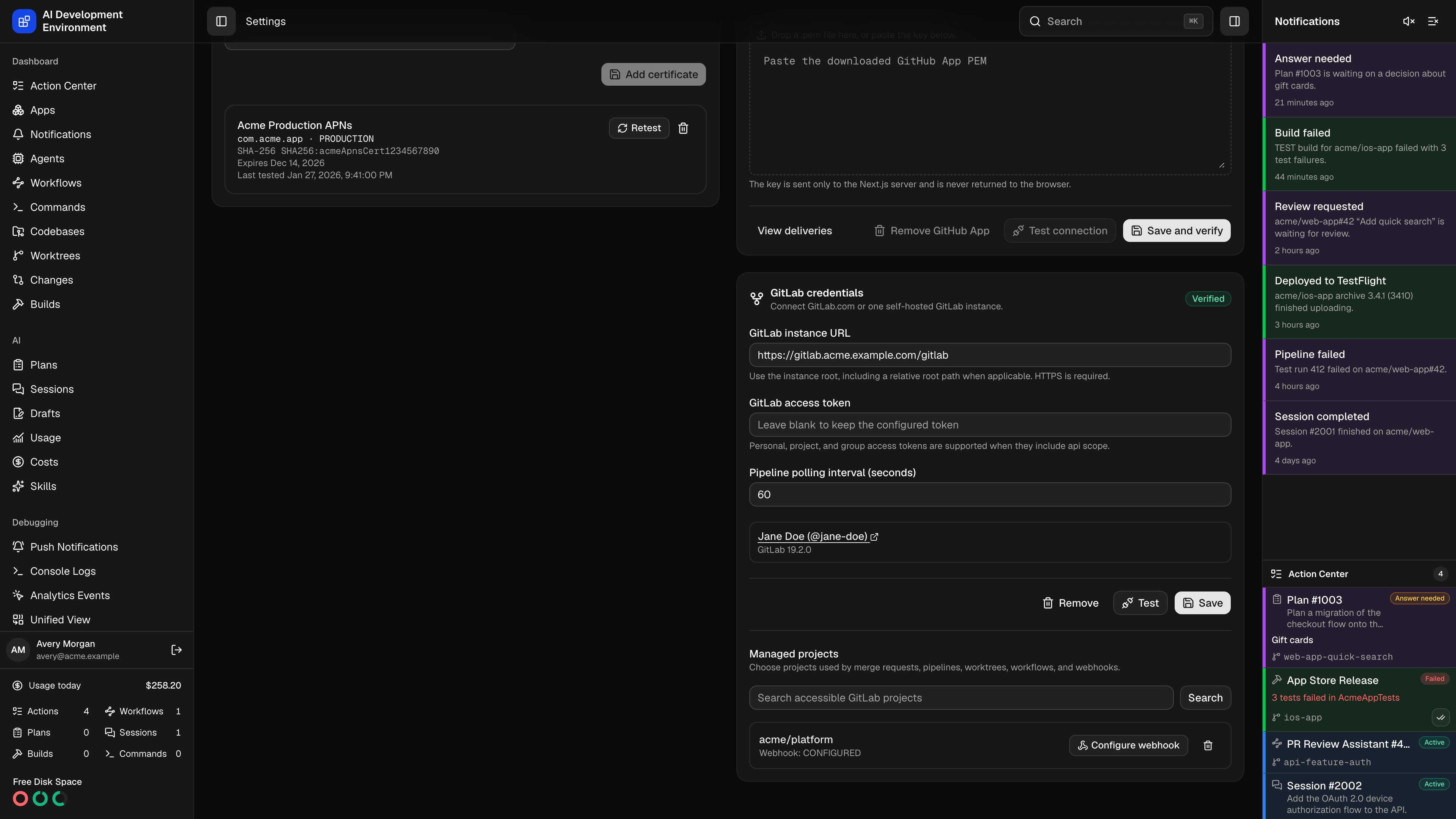
Go to **Settings → Integrations → GitLab**.
Use `https://gitlab.com` or the root of your self-hosted installation, such as `https://code.example.com/gitlab`. Do not include `/api/v4`, credentials, a query, or a fragment.
Paste a token with the `api` scope. AIDE sends it as `PRIVATE-TOKEN` only to the configured HTTPS origin and relative root.
AIDE calls `/api/v4/user` and `/api/v4/version`. Self-hosted versions older than 19.2 are rejected.
After verification, the settings card shows the GitLab identity, server version, and managed projects. The GitLab section appears immediately in web and iOS navigation.
 Never put a GitLab token in an environment variable committed to source control, a fixture, documentation, or an app log. AIDE stores it through the configured encrypted credential backend.
## Clear the integration
**Clear credentials** first tries to remove every project hook created by AIDE. If GitLab rejects cleanup, AIDE lists the affected projects and keeps the credentials so you can retry. **Force clear** removes the local credential after an explicit warning and can leave orphaned hooks in GitLab.
Removing GitLab does not affect GitHub. If GitLab is the current page, the navigation refreshes and moves to a valid destination.
## Related pages
Choose projects and configure hooks.
Configure relative roots and private certificate authorities.
Never put a GitLab token in an environment variable committed to source control, a fixture, documentation, or an app log. AIDE stores it through the configured encrypted credential backend.
## Clear the integration
**Clear credentials** first tries to remove every project hook created by AIDE. If GitLab rejects cleanup, AIDE lists the affected projects and keeps the credentials so you can retry. **Force clear** removes the local credential after an explicit warning and can leave orphaned hooks in GitLab.
Removing GitLab does not affect GitHub. If GitLab is the current page, the navigation refreshes and moves to a valid destination.
## Related pages
Choose projects and configure hooks.
Configure relative roots and private certificate authorities.