> ## Documentation Index
> Fetch the complete documentation index at: https://ai-development-environment.mintlify.site/llms.txt
> Use this file to discover all available pages before exploring further.
# Notifications
> Review notification history and choose how each event reaches you.
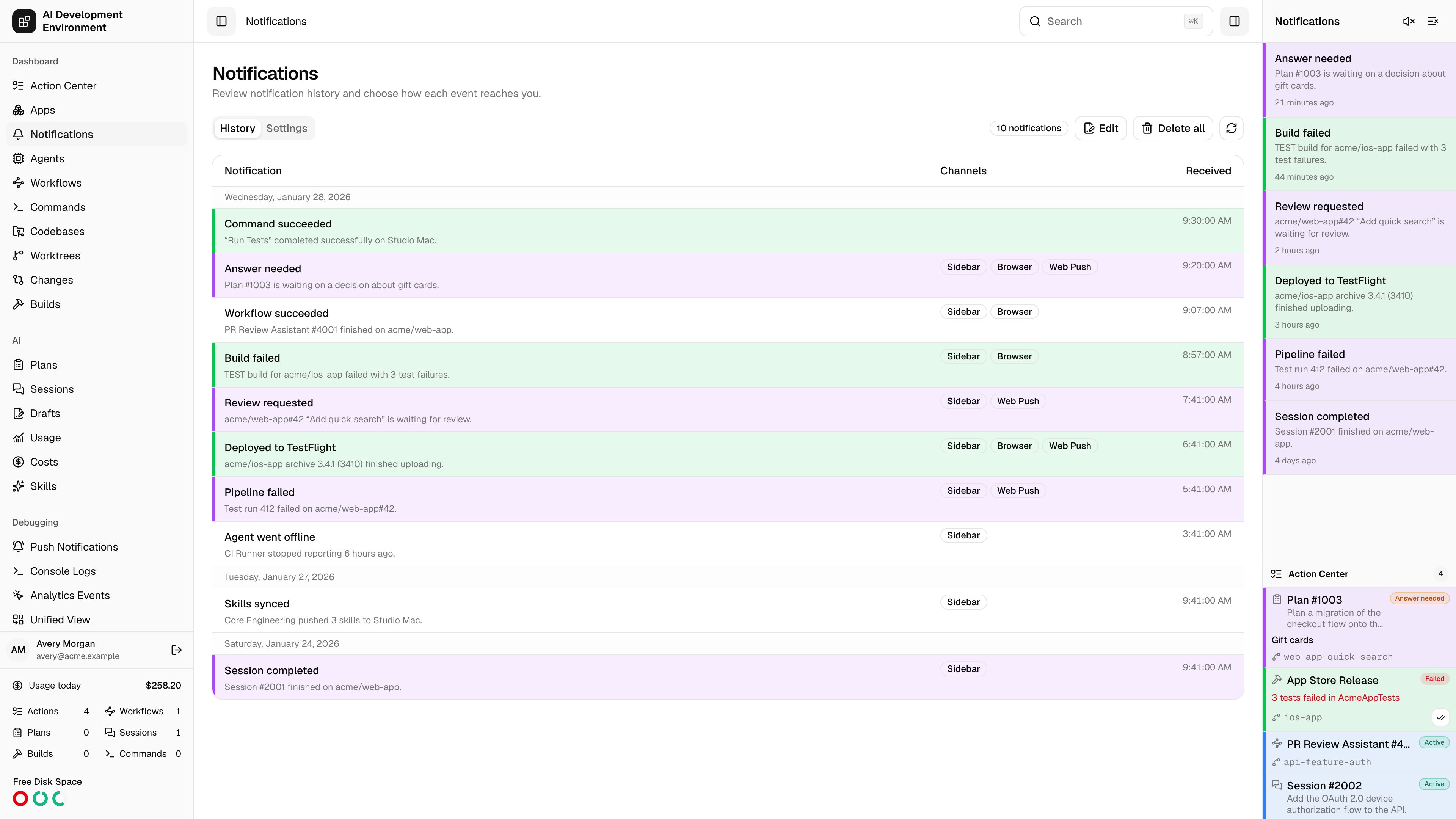
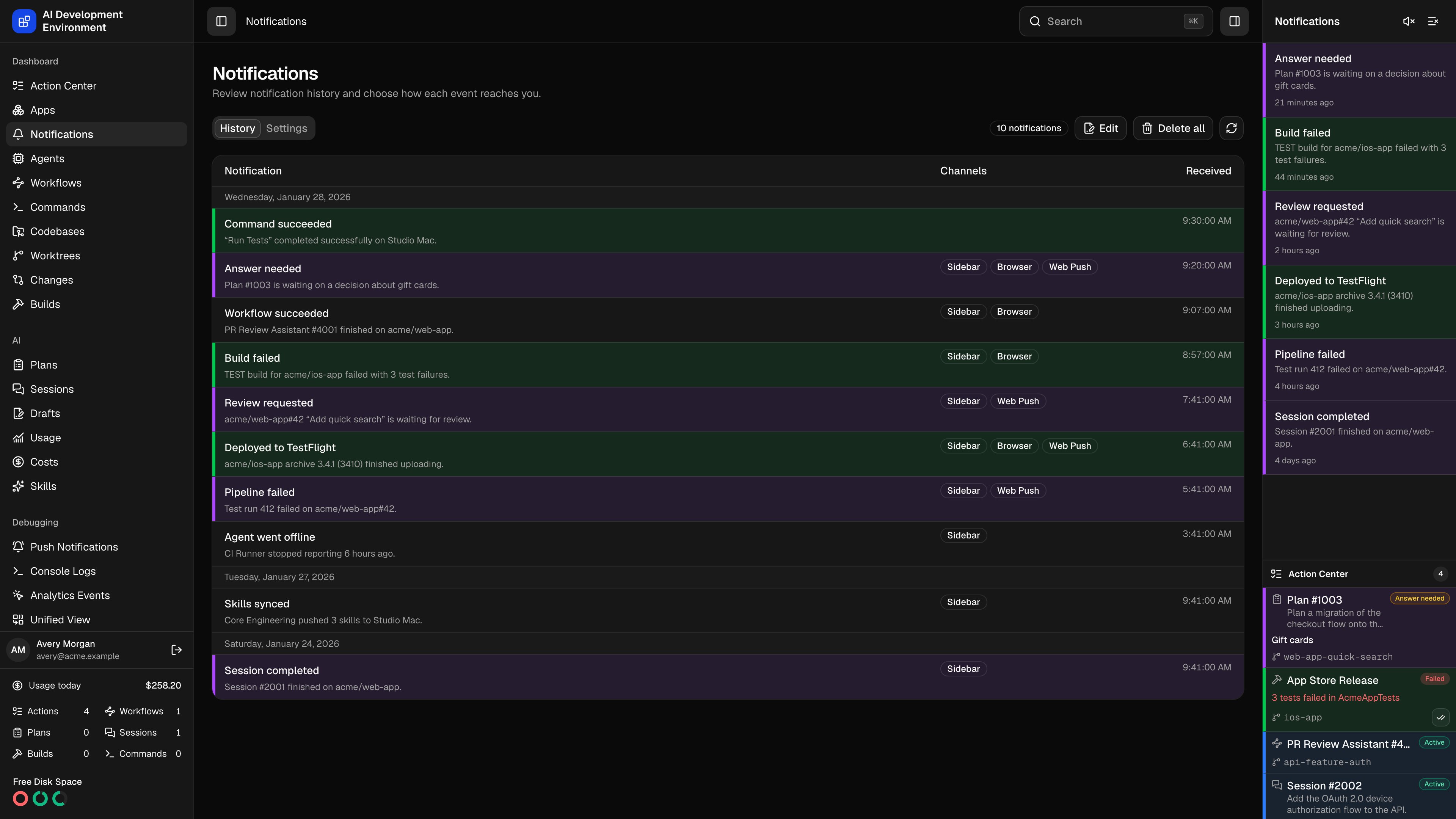 The **Notifications** page at `/notifications` has two jobs: it is the permanent record of every notification the control plane has raised, and it is where you decide which of four delivery channels each event type uses.
The page has two tabs — **History** and **Settings**.
## Delivery channels
Every notification type can be routed to four independent channels. They are evaluated when the notification is created and the decision is stored on the record itself, so changing a preference affects future notifications rather than rewriting past ones.
| Channel | Where it shows | Requirements |
| ------------ | -------------------------------------------------------- | ---------------------------------------------------------------- |
| **Sidebar** | The notification panel inside the app shell | None — always available |
| **Browser** | A native OS notification from the open tab | Notification permission granted, tab loaded |
| **Web Push** | An OS notification delivered even when the app is closed | A registered push subscription per browser |
| **Native** | An APNs alert on the iOS app for this control plane | APNs token credentials saved, and at least one registered device |
Channels are independent, not a fallback chain. Turning on both **Browser** and **Web Push** for the same type means you get two alerts for one event.
## Notification types
Types are grouped into five categories on the **Settings** tab. Every type defaults to **Sidebar**, **Browser**, and **Native** on, and **Web Push** off — except **Plan or session cancelled**, which defaults to Sidebar only.
| Type | Fires when |
| ------------------- | ------------------------------------- |
| iOS build succeeded | An iOS build finishes successfully. |
| iOS build failed | An iOS build finishes with a failure. |
| Type | Fires when |
| --------------------- | ---------------------------------------- |
| Command run succeeded | A saved command finishes successfully. |
| Command run failed | A saved command finishes with a failure. |
| Type | Fires when |
| ------------------------ | -------------------------------------------------- |
| GitHub Actions succeeded | A GitHub Actions workflow finishes successfully. |
| GitHub Actions failed | A GitHub Actions workflow finishes with a failure. |
Merge-request reviews and discussions, pipeline and job results, retries, and auto-retry outcomes link back to the configured GitLab.com or self-hosted instance.
GitLab events arrive from signed project hooks when available and from polling fallback otherwise. GitHub and GitLab notification preferences and links remain provider-scoped when both are connected.
| Type | Fires when |
| ------------------------------------- | ------------------------------------------------------------- |
| Plan or session needs an answer | A managed Plan or Session asks for user input. |
| Plan or session completed | A managed Plan or Session completes successfully. |
| Plan or session failed | A managed Plan or Session fails. |
| Plan or session cancelled | A managed Plan or Session is cancelled. |
| Plan or session paused after recovery | A managed Plan or Session is paused after its agent restarts. |
| Type | Fires when |
| ------------------------------ | ------------------------------------------------ |
| Workflow message | A workflow sends a generic notification. |
| Workflow needs attention | A workflow is waiting for data or a decision. |
| Workflow completed | A workflow run completes successfully. |
| Workflow failed | A workflow run fails. |
| Workflow paused after recovery | A workflow pauses while recovering durable work. |
Individual workflows can opt out of their own success notifications without changing the global preference — see [Workflow editor](/workflows/workflow-edit).
## History
Notifications are grouped into local-day sections, newest first, and load 100 at a time. Scrolling to the bottom loads the next page automatically.
Each entry links to the resource that raised it — a build, a worktree, a Plan or Session, or a workflow run. Entries tied to a worktree inherit its highlight color.
**Edit** turns on selection. Select individual notifications, a whole day, or **Select all**, then **Delete selected**. **Delete all** permanently clears history and cannot be undone.
Mute or unmute the arrival chime, dismiss a single item, or **Clear sidebar** to empty the panel. Clearing the sidebar dismisses items from the panel only — they stay in history.
The sound preference is stored per browser in local storage, so muting on your laptop does not mute your desktop.
## Settings
### Notification types
A grid of every type with a **Sidebar**, **Browser**, **Web Push**, and **Native** toggle in each row. Each toggle saves on change.
### Browser delivery
Browser permission and Web Push subscription are configured separately for each browser you use.
**Enable** requests notification permission. The page reports whether permission has not been requested yet, has been granted, or is blocked in browser settings — a blocked permission has to be cleared in the browser itself.
**Subscribe** registers this browser with the control plane. The server generates a VAPID key pair on first use and stores the private key through the [credential service](/system/credentials), so there is no manual key configuration.
**Test** sends a real push to one subscribed browser. If the push service reports the subscription as gone, the row is deleted automatically and the page tells you it expired.
### Subscribed browsers
Every subscription is listed with a detected browser name, the push service host, locale, and last-seen time — the browser you are currently using is marked **Current**. **Remove** deletes a subscription; that browser can subscribe again later.
Web Push requires a supported browser and a secure HTTPS context. On iPhone or iPad you must install the app first from **Share → Add to Home Screen**; Safari will not allow a subscription from a normal tab.
### Native notifications
The **Native notifications** card reports whether this control plane can deliver over Apple Push Notification service, and how many devices are registered to receive it.
The card has no subscribe button of its own, unlike **Browser** and **Web Push**. A device opts itself in from the iOS app's own notification settings and posts its APNs token to the control plane, so the card reports what the server can see. The per-type **Native** toggles in the grid above still decide which events go out.
| What the card says | What to do |
| ---------------------------------------- | ------------------------------------------------------------------------------------------------------------------------- |
| Add the APNs provider key in Settings | **Configure** takes you there — save the Team ID, Key ID, and `.p8` under [Settings](/system/settings#push-notifications) |
| Register a device from the iOS app | Turn on notifications in the iOS app for this control plane |
| Registered devices receive notifications | Nothing — the channel is live, and the card shows the device count |
Native delivery uses the same APNs token credential as the [push notification console](/debugging/push-notifications). Configuring it once covers both.
### Registered devices
Every device that has registered is listed with its name, model and OS version, app version and build, APNs environment, and last registration time. A device that has never reported a model shows its abbreviated token instead, which is enough to tell two phones apart.
| Action | Effect |
| ---------- | ----------------------------------------------------------------------------------------------- |
| **Test** | Sends a real alert to that one device and reports the APNs rejection reason if it does not land |
| **Remove** | Deletes the registration. The device can register again from the app |
A device whose token APNs rejects as dead — `BadDeviceToken`, `DeviceTokenNotForTopic`, `Unregistered`, or a `410` — is marked **Inactive** and skipped on later sends. Every other failure is treated as transient, so the device keeps its place and gets retried. The most recent rejection reason shows on the row either way.
Alerts are sent to every active device at once, expire after an hour, and carry a deep link so tapping one opens the resource that raised it. Notifications that share a dedupe key collapse into a single alert on the device.
## Live updates
The page subscribes to notification changes and applies them in place — creations, dismissals, deletions, sidebar clears, history clears, preference updates, and device registrations or removals all arrive without a reload.
## Related pages
The queue of work that is live, blocked, failed, or waiting on an answer.
Compose and send Apple push notifications to devices belonging to apps you build here — a separate system from this page's native channel.
The **Notifications** page at `/notifications` has two jobs: it is the permanent record of every notification the control plane has raised, and it is where you decide which of four delivery channels each event type uses.
The page has two tabs — **History** and **Settings**.
## Delivery channels
Every notification type can be routed to four independent channels. They are evaluated when the notification is created and the decision is stored on the record itself, so changing a preference affects future notifications rather than rewriting past ones.
| Channel | Where it shows | Requirements |
| ------------ | -------------------------------------------------------- | ---------------------------------------------------------------- |
| **Sidebar** | The notification panel inside the app shell | None — always available |
| **Browser** | A native OS notification from the open tab | Notification permission granted, tab loaded |
| **Web Push** | An OS notification delivered even when the app is closed | A registered push subscription per browser |
| **Native** | An APNs alert on the iOS app for this control plane | APNs token credentials saved, and at least one registered device |
Channels are independent, not a fallback chain. Turning on both **Browser** and **Web Push** for the same type means you get two alerts for one event.
## Notification types
Types are grouped into five categories on the **Settings** tab. Every type defaults to **Sidebar**, **Browser**, and **Native** on, and **Web Push** off — except **Plan or session cancelled**, which defaults to Sidebar only.
| Type | Fires when |
| ------------------- | ------------------------------------- |
| iOS build succeeded | An iOS build finishes successfully. |
| iOS build failed | An iOS build finishes with a failure. |
| Type | Fires when |
| --------------------- | ---------------------------------------- |
| Command run succeeded | A saved command finishes successfully. |
| Command run failed | A saved command finishes with a failure. |
| Type | Fires when |
| ------------------------ | -------------------------------------------------- |
| GitHub Actions succeeded | A GitHub Actions workflow finishes successfully. |
| GitHub Actions failed | A GitHub Actions workflow finishes with a failure. |
Merge-request reviews and discussions, pipeline and job results, retries, and auto-retry outcomes link back to the configured GitLab.com or self-hosted instance.
GitLab events arrive from signed project hooks when available and from polling fallback otherwise. GitHub and GitLab notification preferences and links remain provider-scoped when both are connected.
| Type | Fires when |
| ------------------------------------- | ------------------------------------------------------------- |
| Plan or session needs an answer | A managed Plan or Session asks for user input. |
| Plan or session completed | A managed Plan or Session completes successfully. |
| Plan or session failed | A managed Plan or Session fails. |
| Plan or session cancelled | A managed Plan or Session is cancelled. |
| Plan or session paused after recovery | A managed Plan or Session is paused after its agent restarts. |
| Type | Fires when |
| ------------------------------ | ------------------------------------------------ |
| Workflow message | A workflow sends a generic notification. |
| Workflow needs attention | A workflow is waiting for data or a decision. |
| Workflow completed | A workflow run completes successfully. |
| Workflow failed | A workflow run fails. |
| Workflow paused after recovery | A workflow pauses while recovering durable work. |
Individual workflows can opt out of their own success notifications without changing the global preference — see [Workflow editor](/workflows/workflow-edit).
## History
Notifications are grouped into local-day sections, newest first, and load 100 at a time. Scrolling to the bottom loads the next page automatically.
Each entry links to the resource that raised it — a build, a worktree, a Plan or Session, or a workflow run. Entries tied to a worktree inherit its highlight color.
**Edit** turns on selection. Select individual notifications, a whole day, or **Select all**, then **Delete selected**. **Delete all** permanently clears history and cannot be undone.
Mute or unmute the arrival chime, dismiss a single item, or **Clear sidebar** to empty the panel. Clearing the sidebar dismisses items from the panel only — they stay in history.
The sound preference is stored per browser in local storage, so muting on your laptop does not mute your desktop.
## Settings
### Notification types
A grid of every type with a **Sidebar**, **Browser**, **Web Push**, and **Native** toggle in each row. Each toggle saves on change.
### Browser delivery
Browser permission and Web Push subscription are configured separately for each browser you use.
**Enable** requests notification permission. The page reports whether permission has not been requested yet, has been granted, or is blocked in browser settings — a blocked permission has to be cleared in the browser itself.
**Subscribe** registers this browser with the control plane. The server generates a VAPID key pair on first use and stores the private key through the [credential service](/system/credentials), so there is no manual key configuration.
**Test** sends a real push to one subscribed browser. If the push service reports the subscription as gone, the row is deleted automatically and the page tells you it expired.
### Subscribed browsers
Every subscription is listed with a detected browser name, the push service host, locale, and last-seen time — the browser you are currently using is marked **Current**. **Remove** deletes a subscription; that browser can subscribe again later.
Web Push requires a supported browser and a secure HTTPS context. On iPhone or iPad you must install the app first from **Share → Add to Home Screen**; Safari will not allow a subscription from a normal tab.
### Native notifications
The **Native notifications** card reports whether this control plane can deliver over Apple Push Notification service, and how many devices are registered to receive it.
The card has no subscribe button of its own, unlike **Browser** and **Web Push**. A device opts itself in from the iOS app's own notification settings and posts its APNs token to the control plane, so the card reports what the server can see. The per-type **Native** toggles in the grid above still decide which events go out.
| What the card says | What to do |
| ---------------------------------------- | ------------------------------------------------------------------------------------------------------------------------- |
| Add the APNs provider key in Settings | **Configure** takes you there — save the Team ID, Key ID, and `.p8` under [Settings](/system/settings#push-notifications) |
| Register a device from the iOS app | Turn on notifications in the iOS app for this control plane |
| Registered devices receive notifications | Nothing — the channel is live, and the card shows the device count |
Native delivery uses the same APNs token credential as the [push notification console](/debugging/push-notifications). Configuring it once covers both.
### Registered devices
Every device that has registered is listed with its name, model and OS version, app version and build, APNs environment, and last registration time. A device that has never reported a model shows its abbreviated token instead, which is enough to tell two phones apart.
| Action | Effect |
| ---------- | ----------------------------------------------------------------------------------------------- |
| **Test** | Sends a real alert to that one device and reports the APNs rejection reason if it does not land |
| **Remove** | Deletes the registration. The device can register again from the app |
A device whose token APNs rejects as dead — `BadDeviceToken`, `DeviceTokenNotForTopic`, `Unregistered`, or a `410` — is marked **Inactive** and skipped on later sends. Every other failure is treated as transient, so the device keeps its place and gets retried. The most recent rejection reason shows on the row either way.
Alerts are sent to every active device at once, expire after an hour, and carry a deep link so tapping one opens the resource that raised it. Notifications that share a dedupe key collapse into a single alert on the device.
## Live updates
The page subscribes to notification changes and applies them in place — creations, dismissals, deletions, sidebar clears, history clears, preference updates, and device registrations or removals all arrive without a reload.
## Related pages
The queue of work that is live, blocked, failed, or waiting on an answer.
Compose and send Apple push notifications to devices belonging to apps you build here — a separate system from this page's native channel.