> ## Documentation Index
> Fetch the complete documentation index at: https://ai-development-environment.mintlify.site/llms.txt
> Use this file to discover all available pages before exploring further.
# Enroll device
> Install a temporary signed profile to send a device's development identifier securely.
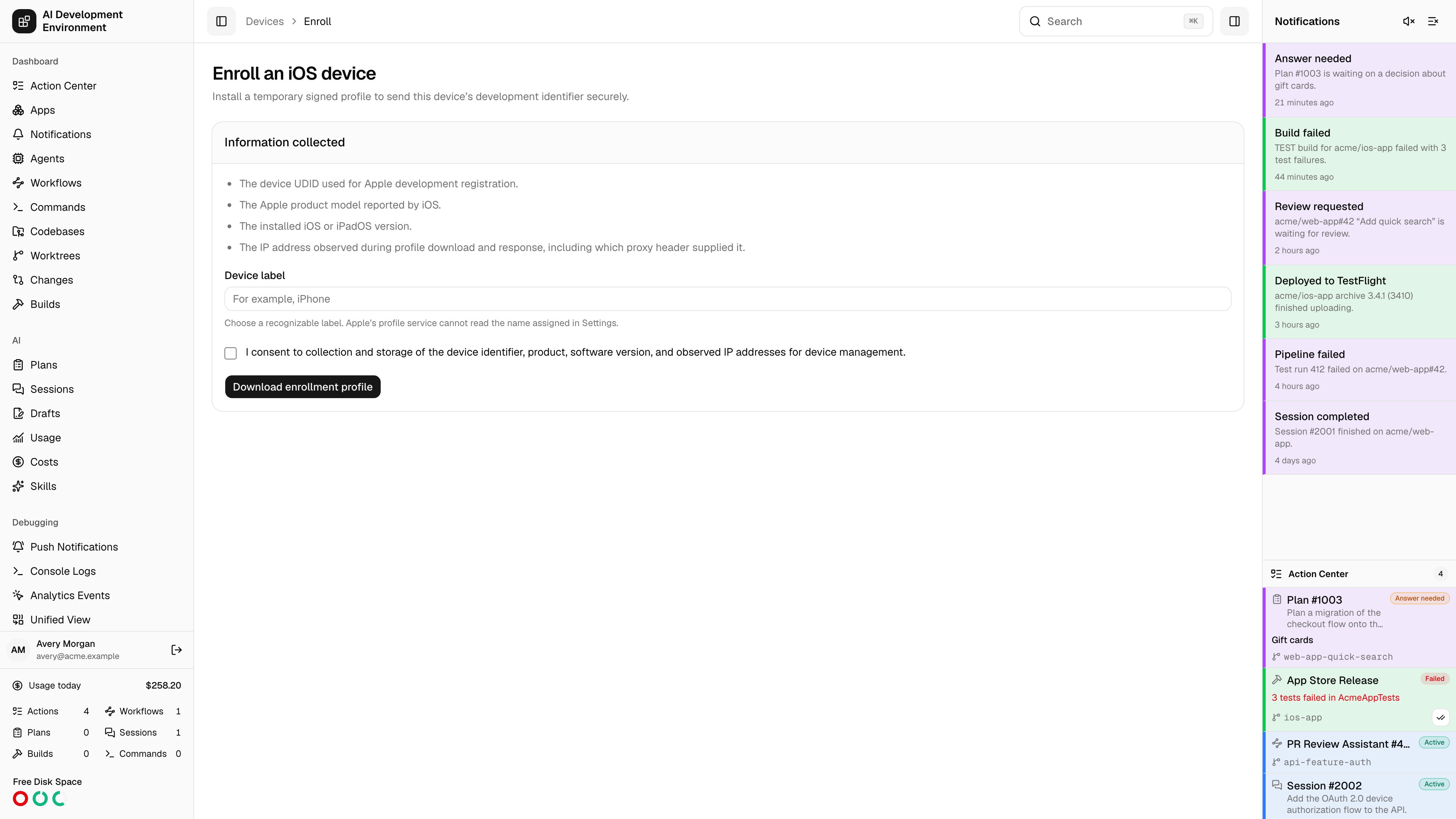
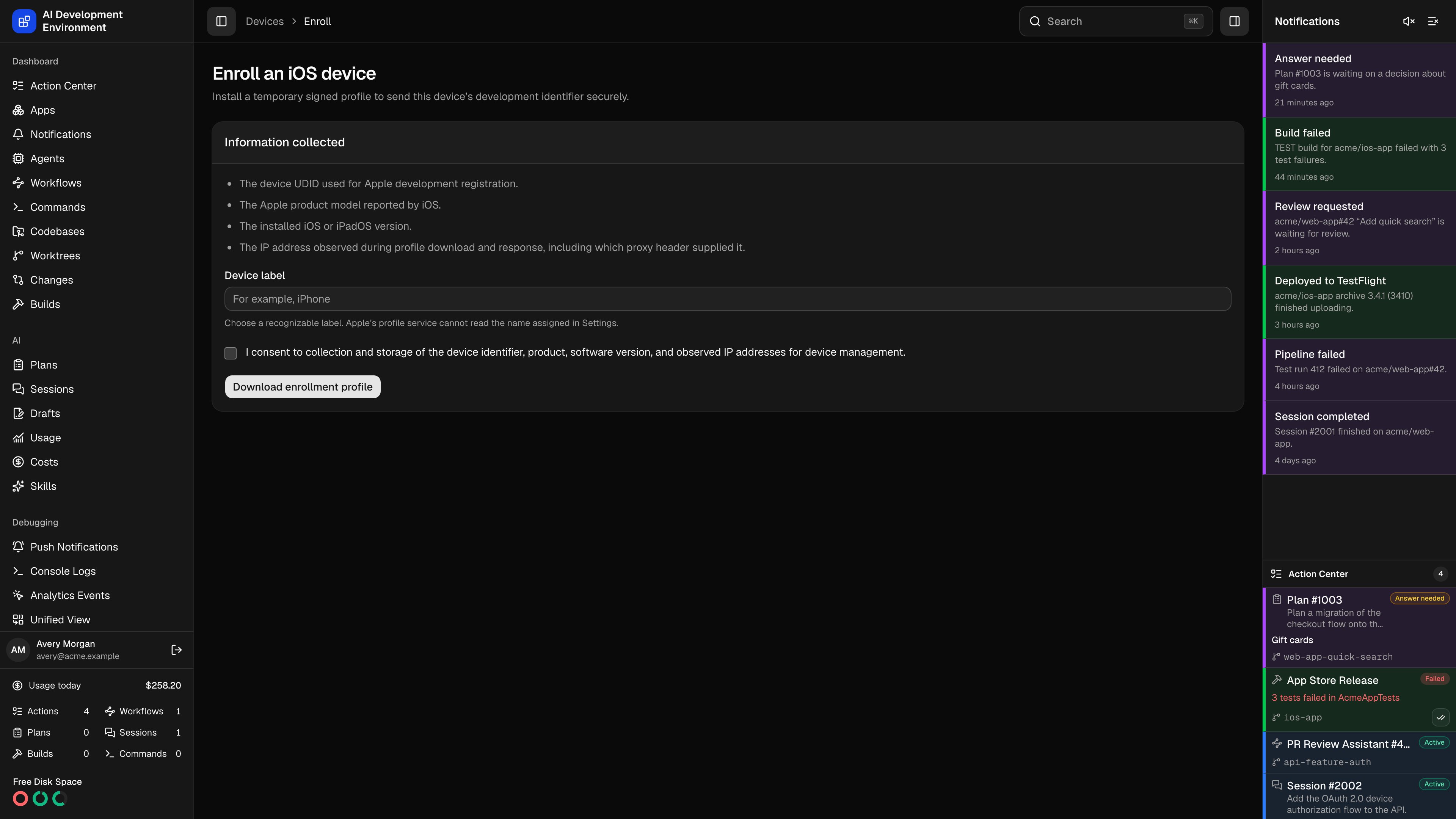 The enroll device page at `/devices/enroll` collects an iPhone or iPad's development identifier without anyone having to read a UDID off a screen. You give the device a label, download a temporary signed profile, and install it — iOS reports the identifier back to the server itself.
The profile uses Apple's Profile Service payload, the same mechanism that over-the-air enrollment sites use. It is temporary, single-purpose, and requests three attributes and nothing else.
## Using the page
Apple's profile service cannot read the name set in iOS Settings, so this label is the only human-readable name the device will ever have here. *iPhone* is a poor choice once you have three of them; *Dana's iPhone 15* is not.
The checkbox covers the device identifier, product, software version, and observed IP addresses. The page lists each item and why it is collected before you agree.
**Download enrollment profile** produces a signed `.mobileconfig`. Get it onto the target device — AirDrop, or opening the same page on the device itself, both work.
In iOS, open **Settings → Profile Downloaded** and install. The device posts its response, and it appears on the [Devices](/system/devices) page within seconds.
## How the flow works
1. You open the authenticated `/devices/enroll` page, supply a device label, and consent to the disclosed collection. The server mints an enrollment token and issues a profile signed with the enrollment signer.
2. iOS installs the profile, which requests exactly `UDID`, `PRODUCT`, and `VERSION`, and carries the token as its challenge.
3. iOS posts a CMS-signed response to `/api/public/ios/profile-response`. The server verifies Apple's signature, checks that the returned challenge matches the token, consumes the token, and records the device.
The IP address is captured at two points — when the profile is downloaded and when the response arrives — along with which proxy header supplied it. Both are visible on the [device detail](/system/device-detail) page.
## Requirements
Enrollment is disabled unless the server is reachable at a public HTTPS address, because iOS posts the device response directly to it and refuses to install a profile whose callback it cannot trust.
If the page reports *Enrollment is disabled because this address is not public HTTPS*, put the server behind a publicly trusted HTTPS reverse proxy, or set `PUBLIC_BASE_URL` to the address iOS should call back.
The enrollment profile is signed with a self-signed certificate, so iOS displays it as **Unverified**. That is expected. What matters is the organization name shown on the install screen — confirm it matches the name configured in [Settings](/system/settings) before installing.
## Security properties
The enrollment endpoints are public by necessity, so the token is the whole security boundary and is treated accordingly.
| Property | Detail |
| -------------------------- | ---------------------------------------------------------------------------------------------------------------------------------------- |
| **Token strength** | 256 bits of randomness per enrollment |
| **Lifetime** | 30 minutes from issue |
| **Storage** | Only a SHA-256 hash is stored — the token itself is never persisted |
| **Single use** | Consumed atomically, so two simultaneous responses cannot both succeed |
| **Challenge binding** | The response is rejected unless the challenge it returns matches the token it was issued with |
| **Signature verification** | The CMS response must verify against Apple's device certificate chain |
| **Replay handling** | An identical retry returns the same device (iOS does retry). A *different* response against a consumed token is rejected with a conflict |
| **Retention** | Expired enrollments never attached to a device are deleted after seven days |
## The profile signer
The first enrollment automatically generates a ten-year RSA-2048/SHA-256 self-signed signer. Its certificate and private key live in the [database](/reference/database) and are excluded from ordinary logs and list views.
The organization name and reverse-DNS profile identifier shown in iOS are configured in [Settings](/system/settings), where the signer can also be regenerated.
Regenerating the signer issues future profiles under a new key and certificate. Profiles already downloaded keep working until their tokens expire, so an enrollment in progress is not broken — but the fingerprint testers saw previously will no longer match.
## Notes
* A device enrolled a second time matches on UDID and updates the existing record, refreshing product and iOS version rather than creating a duplicate.
* The enrollment profile serves no purpose once the response is sent. Testers can delete it from **Settings → General → VPN & Device Management** immediately.
* Failed responses are recorded against the enrollment with a failure code, visible in the device's enrollment history.
## Related pages
Where enrolled devices land, and how they reach Apple.
Organization name, profile identifier, and the enrollment signer.
The enroll device page at `/devices/enroll` collects an iPhone or iPad's development identifier without anyone having to read a UDID off a screen. You give the device a label, download a temporary signed profile, and install it — iOS reports the identifier back to the server itself.
The profile uses Apple's Profile Service payload, the same mechanism that over-the-air enrollment sites use. It is temporary, single-purpose, and requests three attributes and nothing else.
## Using the page
Apple's profile service cannot read the name set in iOS Settings, so this label is the only human-readable name the device will ever have here. *iPhone* is a poor choice once you have three of them; *Dana's iPhone 15* is not.
The checkbox covers the device identifier, product, software version, and observed IP addresses. The page lists each item and why it is collected before you agree.
**Download enrollment profile** produces a signed `.mobileconfig`. Get it onto the target device — AirDrop, or opening the same page on the device itself, both work.
In iOS, open **Settings → Profile Downloaded** and install. The device posts its response, and it appears on the [Devices](/system/devices) page within seconds.
## How the flow works
1. You open the authenticated `/devices/enroll` page, supply a device label, and consent to the disclosed collection. The server mints an enrollment token and issues a profile signed with the enrollment signer.
2. iOS installs the profile, which requests exactly `UDID`, `PRODUCT`, and `VERSION`, and carries the token as its challenge.
3. iOS posts a CMS-signed response to `/api/public/ios/profile-response`. The server verifies Apple's signature, checks that the returned challenge matches the token, consumes the token, and records the device.
The IP address is captured at two points — when the profile is downloaded and when the response arrives — along with which proxy header supplied it. Both are visible on the [device detail](/system/device-detail) page.
## Requirements
Enrollment is disabled unless the server is reachable at a public HTTPS address, because iOS posts the device response directly to it and refuses to install a profile whose callback it cannot trust.
If the page reports *Enrollment is disabled because this address is not public HTTPS*, put the server behind a publicly trusted HTTPS reverse proxy, or set `PUBLIC_BASE_URL` to the address iOS should call back.
The enrollment profile is signed with a self-signed certificate, so iOS displays it as **Unverified**. That is expected. What matters is the organization name shown on the install screen — confirm it matches the name configured in [Settings](/system/settings) before installing.
## Security properties
The enrollment endpoints are public by necessity, so the token is the whole security boundary and is treated accordingly.
| Property | Detail |
| -------------------------- | ---------------------------------------------------------------------------------------------------------------------------------------- |
| **Token strength** | 256 bits of randomness per enrollment |
| **Lifetime** | 30 minutes from issue |
| **Storage** | Only a SHA-256 hash is stored — the token itself is never persisted |
| **Single use** | Consumed atomically, so two simultaneous responses cannot both succeed |
| **Challenge binding** | The response is rejected unless the challenge it returns matches the token it was issued with |
| **Signature verification** | The CMS response must verify against Apple's device certificate chain |
| **Replay handling** | An identical retry returns the same device (iOS does retry). A *different* response against a consumed token is rejected with a conflict |
| **Retention** | Expired enrollments never attached to a device are deleted after seven days |
## The profile signer
The first enrollment automatically generates a ten-year RSA-2048/SHA-256 self-signed signer. Its certificate and private key live in the [database](/reference/database) and are excluded from ordinary logs and list views.
The organization name and reverse-DNS profile identifier shown in iOS are configured in [Settings](/system/settings), where the signer can also be regenerated.
Regenerating the signer issues future profiles under a new key and certificate. Profiles already downloaded keep working until their tokens expire, so an enrollment in progress is not broken — but the fingerprint testers saw previously will no longer match.
## Notes
* A device enrolled a second time matches on UDID and updates the existing record, refreshing product and iOS version rather than creating a duplicate.
* The enrollment profile serves no purpose once the response is sent. Testers can delete it from **Settings → General → VPN & Device Management** immediately.
* Failed responses are recorded against the enrollment with a failure code, visible in the device's enrollment history.
## Related pages
Where enrolled devices land, and how they reach Apple.
Organization name, profile identifier, and the enrollment signer.