> ## Documentation Index
> Fetch the complete documentation index at: https://ai-development-environment.mintlify.site/llms.txt
> Use this file to discover all available pages before exploring further.
# Settings
> Configure development tools, Apple services, and external integrations.
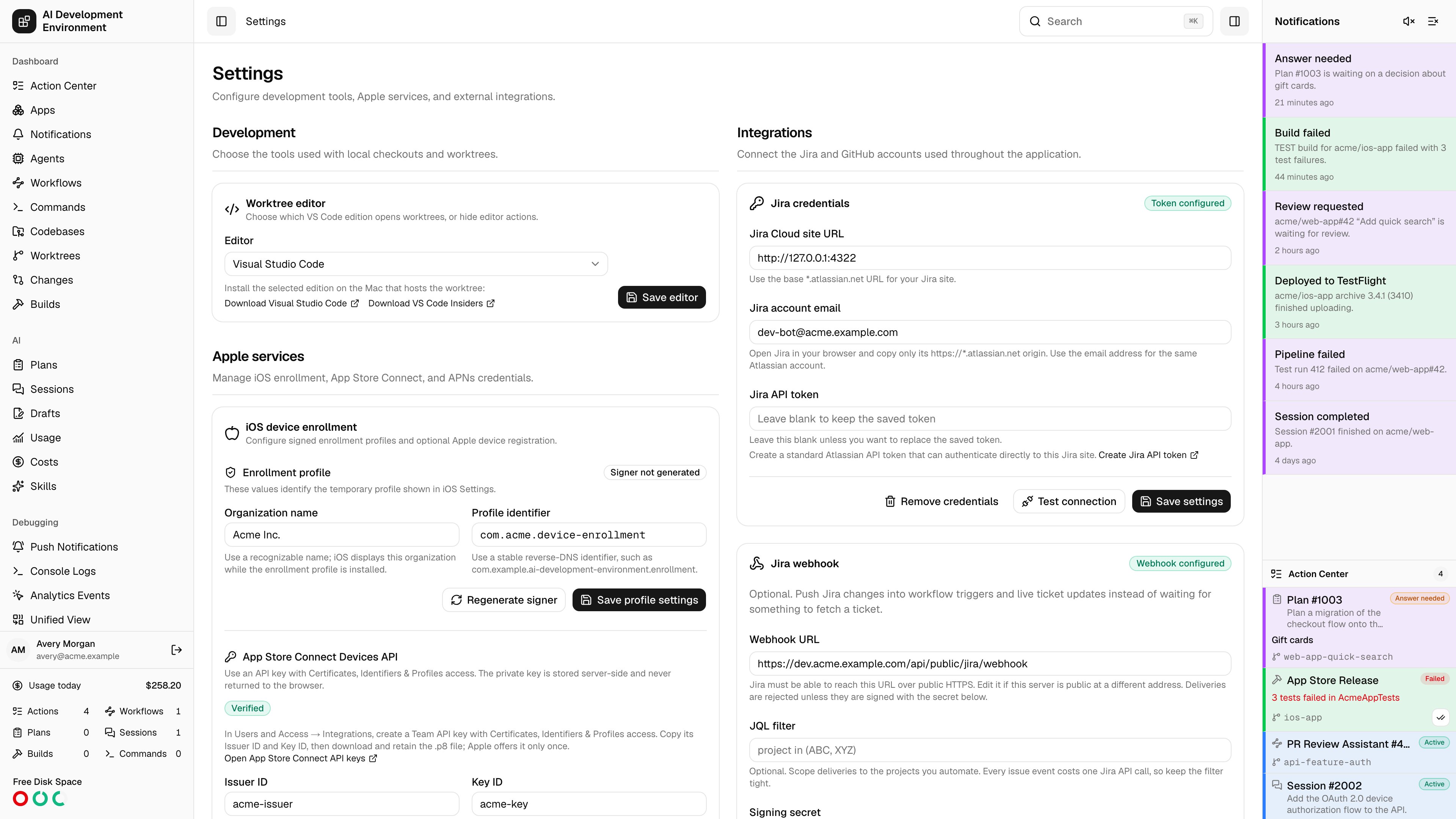
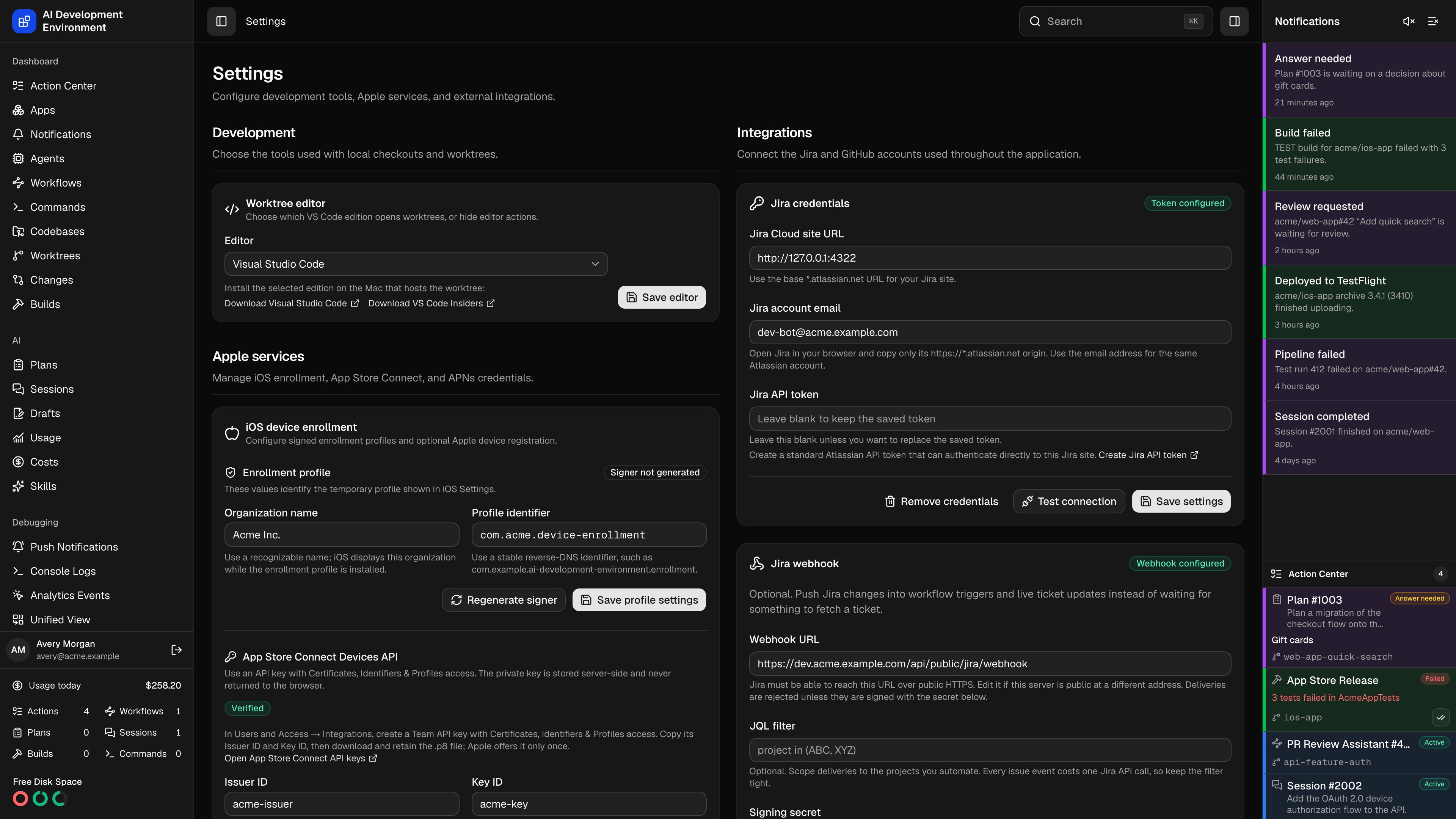 The **Settings** page at `/settings` is where the app is connected to everything outside itself: the editor it opens worktrees in, the Apple services it signs and pushes with, and the Jira, GitHub, GitLab, and cache accounts it reads from.
Every credential-backed value entered here is written through the server-only credential service. That includes secrets and the connection settings required to use them, such as service URLs and public key identifiers. Secret values are stored server-side and never returned to the browser. The [Credentials](/system/credentials) page shows metadata for every stored item without exposing its payload.
When `CREDENTIAL_VAULT_READ_ONLY=true`, credential-backed fields and destructive credential actions are disabled. You can still use existing credentials, run available connection tests, and edit settings that remain in the application database, such as polling intervals.
The page is organized into three groups.
## Development
### Worktree editor
Choose which editor the **Open in editor** actions launch: **Visual Studio Code**, **Visual Studio Code - Insiders**, or **None**, which hides the editor buttons entirely.
The chosen edition has to be installed on the machine that *hosts* the worktree, not on the machine running your browser — the action runs on the agent.
## Apple services
### iOS device enrollment
Two independent halves: the profile signer that makes enrollment work at all, and the App Store Connect key that makes Apple registration possible.
**Enrollment profile** controls what a tester sees when installing the profile:
| Field | Notes |
| ---------------------- | ---------------------------------------------------------------------------------------------- |
| **Organization name** | Displayed by iOS while the enrollment profile is installed. Use a name a tester will recognize |
| **Profile identifier** | A stable reverse-DNS identifier, such as `com.example.ai-development-environment.enrollment` |
The card reports **Signer ready** or **Signer not generated**, with the certificate's creation and expiry dates. Because the certificate is self-signed, iOS shows the profile as **Unverified** — the organization name is what a tester should be checking.
**Regenerate signer** issues future profiles under a new private key and certificate. Profiles already downloaded can still return their device response until their tokens expire, so an enrollment in flight survives — but the identity testers saw before will not match.
**App Store Connect Devices API** enables registering enrolled devices with Apple:
In App Store Connect, go to **Users and Access → Integrations** and create a Team API key with **Certificates, Identifiers & Profiles** access.
Copy the Issuer ID and Key ID, then download the `.p8` file. Apple offers it exactly once — retain it.
Paste, drop, or choose the `.p8`. Only ES256 PKCS#8 keys are accepted. **Save and verify** tests the credentials against Apple before storing them.
The card shows **Verified** or **Not verified**, the last verification time, and the error from any failed test. **Retest** re-checks without re-entering anything; **Clear credentials** disables registration until another key is saved.
### Push notifications
Both APNs authentication mechanisms are supported, and they can coexist.
**Token authentication (.p8)** is the recommended path for apps, Live Activities, and VoIP. Provide the **Team ID** from your Apple Developer membership details, the **Key ID**, and the `.p8` from a key created with APNs enabled. Dropping a new `.p8` rotates the key.
The token key does double duty. Besides the [push notification console](/debugging/push-notifications), it is what lets the control plane deliver its own alerts to the iOS app over the [native notification channel](/notifications#native-notifications). Until it is saved, that channel reports itself as unconfigured.
**Certificate authentication (.p12)** is required for MDM wake-ups. Multiple topic-bound certificates are supported, each with:
| Field | Notes |
| ----------------------- | ------------------------------------------------------------------------------------------------ |
| **Credential name** | How the certificate is labeled here |
| **Topic** | The app bundle ID or MDM topic the certificate is bound to |
| **Environment** | Sandbox or production |
| **.p12 and passphrase** | Export the certificate *and* its private key from Keychain Access as a password-protected `.p12` |
Each certificate shows its expiry and last test time and can be retested individually.
## Integrations
### Jira
Connect the Jira Cloud account used for tickets, boards, and workflow triggers.
| Field | Notes |
| ----------------------- | ------------------------------------------------------------------------------ |
| **Jira Cloud site URL** | The base `*.atlassian.net` origin, with no path |
| **Jira account email** | The Atlassian account that owns the token |
| **Jira API token** | A standard Atlassian API token. Leave blank when saving to keep the stored one |
**Test connection** verifies the credentials without saving. **Remove credentials** deletes the email and token and clears cached Jira data.
Changing the Jira site removes all saved Jira projects, sources, and cached data — you are asked to confirm first. It also clears the webhook secret.
### Jira webhook
Once Jira credentials are saved, a **Jira webhook** card appears. The webhook is optional: it pushes Jira changes into workflow triggers and live ticket updates instead of waiting for something to fetch a ticket.
| Field | Notes |
| ------------------ | ----------------------------------------------------------------------------------------------------------------------------- |
| **Webhook URL** | An address Jira can reach over public HTTPS. Edit it when this server is public at a different address than it sees itself at |
| **JQL filter** | Optional scope, such as `project in (ABC, XYZ)`. Every issue event costs one Jira API call, so keep it tight |
| **Signing secret** | Shown once when generated manually; nothing to copy when registered through Jira |
| Action | What it does |
| ----------------------- | --------------------------------------------------------------------------------------------------------------------------------------------------- |
| **Register in Jira** | Creates the webhook using the saved API token, subscribes it to the relevant events, and stores the secret on both sides |
| **Update registration** | Registering again after editing the URL or filter updates the same webhook in place rather than creating a second one |
| **Generate secret** | The fallback when the token's account is not a Jira admin: mints a secret to paste into **Settings → System → WebHooks** in Jira along with the URL |
| **Rotate secret** | Replaces the secret — in Jira too, when the webhook is registered |
| **Disable webhook** | Deletes the secret and, for a registered webhook, removes it from Jira |
The card shows the time and outcome of the most recent delivery and links to [Jira Webhooks](/jira/webhooks) for the full log and the manual setup steps.
### GitLab credentials
Connect GitLab.com or one self-hosted GitLab 19.2+ instance. Enter the HTTPS instance root and a personal, project, or group access token with the `api` scope. Saving verifies both the current user and server version.
The instance root may include a relative installation path such as `https://code.example.com/gitlab`. It must not include credentials, `/api/v4`, a query, or a fragment. Private network hosts are allowed. Private certificate authorities are configured for the server process with `NODE_EXTRA_CA_CERTS`; there is no insecure TLS setting.
After verification, add the projects AIDE should manage. A Maintainer or Owner token can create the signed project hook automatically. Lower-permission tokens receive a manual callback URL, event checklist, and one-time signing token while the rest of the integration remains usable.
See [Set up GitLab](/gitlab/setup) for the complete flow.
### GitHub credentials
A personal access token for pull requests, review threads, and workflow-run details.
Use a fine-grained token limited to the repositories used here, granting **Actions: read**, **Checks: read**, **Pull requests: read and write**, and **Contents: read and write** for merging. **Email addresses: read** is optional and only affects commit-email choices.
**Actions notification and Auto Retry interval** sets the polling cadence in seconds, from 30 to 3600. It drives Auto Retry polling always, and notification polling only when a signed GitHub App webhook is unavailable — the current mode is visible on the [Polling](/system/polling) page.
Removing GitHub credentials keeps managed repositories and Jira regex settings.
### GitHub App pipeline retries
Rerunning GitHub Actions workflows needs more than a personal token, so this card connects your own GitHub App.
Give it a unique name. Use this deployment's URL as the Homepage URL and leave the callback URL empty.
**Repository permissions → Actions** must be **Read and write**. For enhanced live updates, also grant **Checks** and **Commit statuses** read access.
Enable webhooks and select the **Workflow run** event. Saving here generates the secret and configures the URL through GitHub for you.
Create the app, generate a private key, then install it on only the repositories this deployment should control.
The **App ID** is on the app's settings page. The **installation ID** is the final number in the URL of the app's Configure page. Paste both here along with the downloaded PEM.
Once verified, the card reports which app is connected to which account, the Actions permission and repository selection, the Checks and commit-status permissions, and the configured webhook URL.
Two states are worth recognizing:
* **Webhook needs setup** — credentials verified, but GitHub reports webhooks are not enabled. Enable them, select **Workflow run**, and save again.
* **Webhook unavailable** — this deployment has no public HTTPS origin. Personal-token polling keeps working; live delivery does not.
**Rotate key and verify** replaces the private key. Removing the App keeps the personal token and managed repositories.
### Actions Cache Server
Connect a GitHub Actions Cache Server to manage its entries from the [Actions Cache](/github/actions-cache) page.
| Field | Notes |
| ------------------ | ------------------------------------------------------------------------------------------------ |
| **Base URL** | The management API base URL, including any path prefix |
| **API key** | Sent as the `x-api-key` header on every request. Leave blank when saving to keep the current key |
| **Custom headers** | Only needed when an authentication proxy requires them |
Removing these settings hides the Actions Cache page until it is reconfigured.
## Notes
* Credential-backed settings are stored server-side. Secret values are never returned to the browser.
* Saving GitHub, GitHub App, GitLab, Jira, App Store Connect, and cache-server credentials verifies the connection before it is used, so a bad value fails at save time rather than at first use.
* Every secret field follows the same convention: leave it blank to keep the stored value, enter a new value to replace it.
* A read-only Vault disables credential-backed inputs and removals. Update shared values from a read-write install.
* Registering the Jira webhook needs the **Administer Jira** global permission on the account that owns the API token. Without it, Jira answers `403` and the card falls back to the manual steps.
## Related pages
Where everything saved here is stored, and how well it is protected.
The delivery log for the webhook configured on this page.
The **Settings** page at `/settings` is where the app is connected to everything outside itself: the editor it opens worktrees in, the Apple services it signs and pushes with, and the Jira, GitHub, GitLab, and cache accounts it reads from.
Every credential-backed value entered here is written through the server-only credential service. That includes secrets and the connection settings required to use them, such as service URLs and public key identifiers. Secret values are stored server-side and never returned to the browser. The [Credentials](/system/credentials) page shows metadata for every stored item without exposing its payload.
When `CREDENTIAL_VAULT_READ_ONLY=true`, credential-backed fields and destructive credential actions are disabled. You can still use existing credentials, run available connection tests, and edit settings that remain in the application database, such as polling intervals.
The page is organized into three groups.
## Development
### Worktree editor
Choose which editor the **Open in editor** actions launch: **Visual Studio Code**, **Visual Studio Code - Insiders**, or **None**, which hides the editor buttons entirely.
The chosen edition has to be installed on the machine that *hosts* the worktree, not on the machine running your browser — the action runs on the agent.
## Apple services
### iOS device enrollment
Two independent halves: the profile signer that makes enrollment work at all, and the App Store Connect key that makes Apple registration possible.
**Enrollment profile** controls what a tester sees when installing the profile:
| Field | Notes |
| ---------------------- | ---------------------------------------------------------------------------------------------- |
| **Organization name** | Displayed by iOS while the enrollment profile is installed. Use a name a tester will recognize |
| **Profile identifier** | A stable reverse-DNS identifier, such as `com.example.ai-development-environment.enrollment` |
The card reports **Signer ready** or **Signer not generated**, with the certificate's creation and expiry dates. Because the certificate is self-signed, iOS shows the profile as **Unverified** — the organization name is what a tester should be checking.
**Regenerate signer** issues future profiles under a new private key and certificate. Profiles already downloaded can still return their device response until their tokens expire, so an enrollment in flight survives — but the identity testers saw before will not match.
**App Store Connect Devices API** enables registering enrolled devices with Apple:
In App Store Connect, go to **Users and Access → Integrations** and create a Team API key with **Certificates, Identifiers & Profiles** access.
Copy the Issuer ID and Key ID, then download the `.p8` file. Apple offers it exactly once — retain it.
Paste, drop, or choose the `.p8`. Only ES256 PKCS#8 keys are accepted. **Save and verify** tests the credentials against Apple before storing them.
The card shows **Verified** or **Not verified**, the last verification time, and the error from any failed test. **Retest** re-checks without re-entering anything; **Clear credentials** disables registration until another key is saved.
### Push notifications
Both APNs authentication mechanisms are supported, and they can coexist.
**Token authentication (.p8)** is the recommended path for apps, Live Activities, and VoIP. Provide the **Team ID** from your Apple Developer membership details, the **Key ID**, and the `.p8` from a key created with APNs enabled. Dropping a new `.p8` rotates the key.
The token key does double duty. Besides the [push notification console](/debugging/push-notifications), it is what lets the control plane deliver its own alerts to the iOS app over the [native notification channel](/notifications#native-notifications). Until it is saved, that channel reports itself as unconfigured.
**Certificate authentication (.p12)** is required for MDM wake-ups. Multiple topic-bound certificates are supported, each with:
| Field | Notes |
| ----------------------- | ------------------------------------------------------------------------------------------------ |
| **Credential name** | How the certificate is labeled here |
| **Topic** | The app bundle ID or MDM topic the certificate is bound to |
| **Environment** | Sandbox or production |
| **.p12 and passphrase** | Export the certificate *and* its private key from Keychain Access as a password-protected `.p12` |
Each certificate shows its expiry and last test time and can be retested individually.
## Integrations
### Jira
Connect the Jira Cloud account used for tickets, boards, and workflow triggers.
| Field | Notes |
| ----------------------- | ------------------------------------------------------------------------------ |
| **Jira Cloud site URL** | The base `*.atlassian.net` origin, with no path |
| **Jira account email** | The Atlassian account that owns the token |
| **Jira API token** | A standard Atlassian API token. Leave blank when saving to keep the stored one |
**Test connection** verifies the credentials without saving. **Remove credentials** deletes the email and token and clears cached Jira data.
Changing the Jira site removes all saved Jira projects, sources, and cached data — you are asked to confirm first. It also clears the webhook secret.
### Jira webhook
Once Jira credentials are saved, a **Jira webhook** card appears. The webhook is optional: it pushes Jira changes into workflow triggers and live ticket updates instead of waiting for something to fetch a ticket.
| Field | Notes |
| ------------------ | ----------------------------------------------------------------------------------------------------------------------------- |
| **Webhook URL** | An address Jira can reach over public HTTPS. Edit it when this server is public at a different address than it sees itself at |
| **JQL filter** | Optional scope, such as `project in (ABC, XYZ)`. Every issue event costs one Jira API call, so keep it tight |
| **Signing secret** | Shown once when generated manually; nothing to copy when registered through Jira |
| Action | What it does |
| ----------------------- | --------------------------------------------------------------------------------------------------------------------------------------------------- |
| **Register in Jira** | Creates the webhook using the saved API token, subscribes it to the relevant events, and stores the secret on both sides |
| **Update registration** | Registering again after editing the URL or filter updates the same webhook in place rather than creating a second one |
| **Generate secret** | The fallback when the token's account is not a Jira admin: mints a secret to paste into **Settings → System → WebHooks** in Jira along with the URL |
| **Rotate secret** | Replaces the secret — in Jira too, when the webhook is registered |
| **Disable webhook** | Deletes the secret and, for a registered webhook, removes it from Jira |
The card shows the time and outcome of the most recent delivery and links to [Jira Webhooks](/jira/webhooks) for the full log and the manual setup steps.
### GitLab credentials
Connect GitLab.com or one self-hosted GitLab 19.2+ instance. Enter the HTTPS instance root and a personal, project, or group access token with the `api` scope. Saving verifies both the current user and server version.
The instance root may include a relative installation path such as `https://code.example.com/gitlab`. It must not include credentials, `/api/v4`, a query, or a fragment. Private network hosts are allowed. Private certificate authorities are configured for the server process with `NODE_EXTRA_CA_CERTS`; there is no insecure TLS setting.
After verification, add the projects AIDE should manage. A Maintainer or Owner token can create the signed project hook automatically. Lower-permission tokens receive a manual callback URL, event checklist, and one-time signing token while the rest of the integration remains usable.
See [Set up GitLab](/gitlab/setup) for the complete flow.
### GitHub credentials
A personal access token for pull requests, review threads, and workflow-run details.
Use a fine-grained token limited to the repositories used here, granting **Actions: read**, **Checks: read**, **Pull requests: read and write**, and **Contents: read and write** for merging. **Email addresses: read** is optional and only affects commit-email choices.
**Actions notification and Auto Retry interval** sets the polling cadence in seconds, from 30 to 3600. It drives Auto Retry polling always, and notification polling only when a signed GitHub App webhook is unavailable — the current mode is visible on the [Polling](/system/polling) page.
Removing GitHub credentials keeps managed repositories and Jira regex settings.
### GitHub App pipeline retries
Rerunning GitHub Actions workflows needs more than a personal token, so this card connects your own GitHub App.
Give it a unique name. Use this deployment's URL as the Homepage URL and leave the callback URL empty.
**Repository permissions → Actions** must be **Read and write**. For enhanced live updates, also grant **Checks** and **Commit statuses** read access.
Enable webhooks and select the **Workflow run** event. Saving here generates the secret and configures the URL through GitHub for you.
Create the app, generate a private key, then install it on only the repositories this deployment should control.
The **App ID** is on the app's settings page. The **installation ID** is the final number in the URL of the app's Configure page. Paste both here along with the downloaded PEM.
Once verified, the card reports which app is connected to which account, the Actions permission and repository selection, the Checks and commit-status permissions, and the configured webhook URL.
Two states are worth recognizing:
* **Webhook needs setup** — credentials verified, but GitHub reports webhooks are not enabled. Enable them, select **Workflow run**, and save again.
* **Webhook unavailable** — this deployment has no public HTTPS origin. Personal-token polling keeps working; live delivery does not.
**Rotate key and verify** replaces the private key. Removing the App keeps the personal token and managed repositories.
### Actions Cache Server
Connect a GitHub Actions Cache Server to manage its entries from the [Actions Cache](/github/actions-cache) page.
| Field | Notes |
| ------------------ | ------------------------------------------------------------------------------------------------ |
| **Base URL** | The management API base URL, including any path prefix |
| **API key** | Sent as the `x-api-key` header on every request. Leave blank when saving to keep the current key |
| **Custom headers** | Only needed when an authentication proxy requires them |
Removing these settings hides the Actions Cache page until it is reconfigured.
## Notes
* Credential-backed settings are stored server-side. Secret values are never returned to the browser.
* Saving GitHub, GitHub App, GitLab, Jira, App Store Connect, and cache-server credentials verifies the connection before it is used, so a bad value fails at save time rather than at first use.
* Every secret field follows the same convention: leave it blank to keep the stored value, enter a new value to replace it.
* A read-only Vault disables credential-backed inputs and removals. Update shared values from a read-write install.
* Registering the Jira webhook needs the **Administer Jira** global permission on the account that owns the API token. Without it, Jira answers `403` and the card falls back to the manual steps.
## Related pages
Where everything saved here is stored, and how well it is protected.
The delivery log for the webhook configured on this page.