> ## Documentation Index
> Fetch the complete documentation index at: https://ai-development-environment.mintlify.site/llms.txt
> Use this file to discover all available pages before exploring further.
# Tailscale Serve
> Manage node-level Tailscale Serve routes as shared fleet templates.
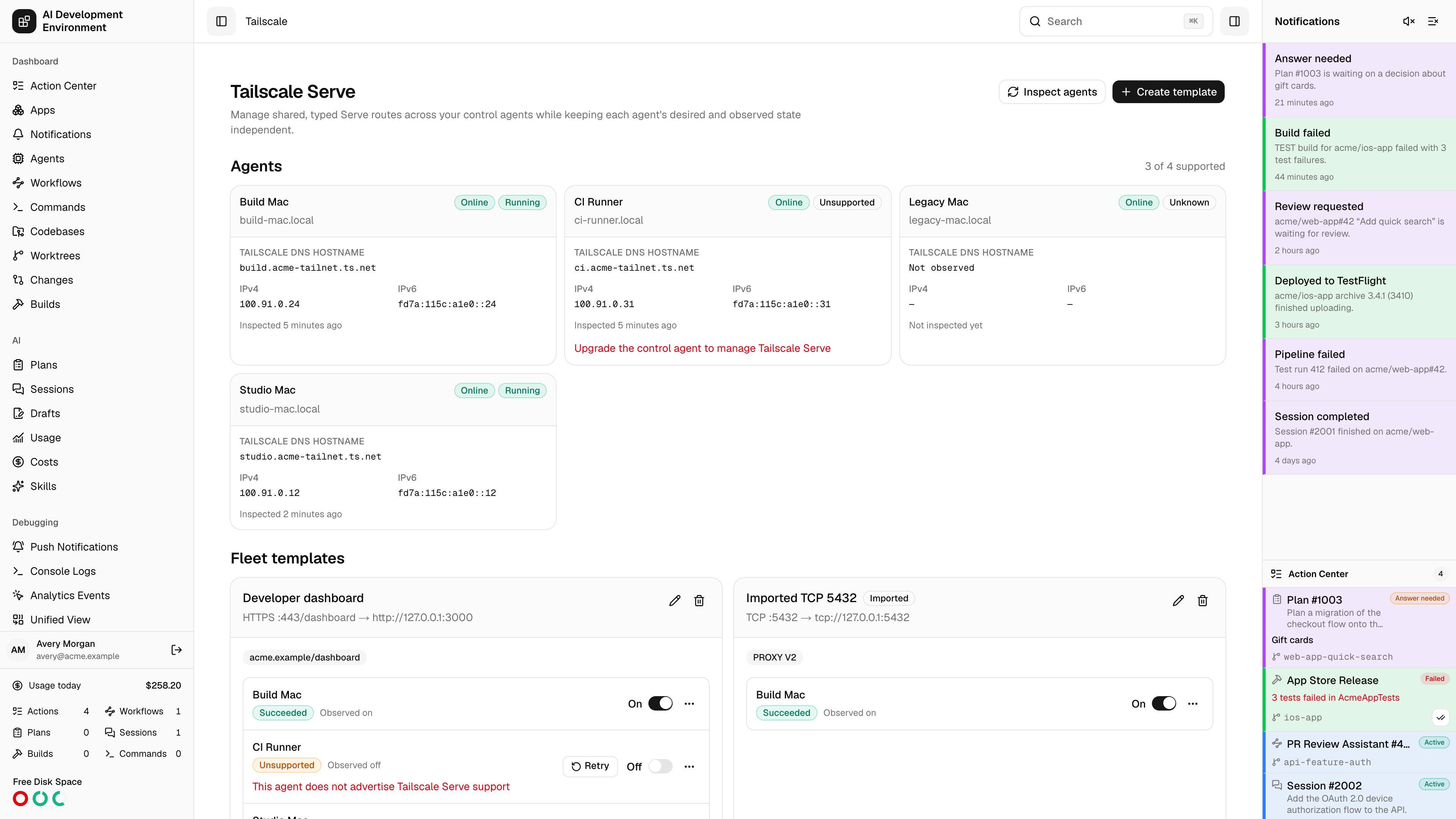
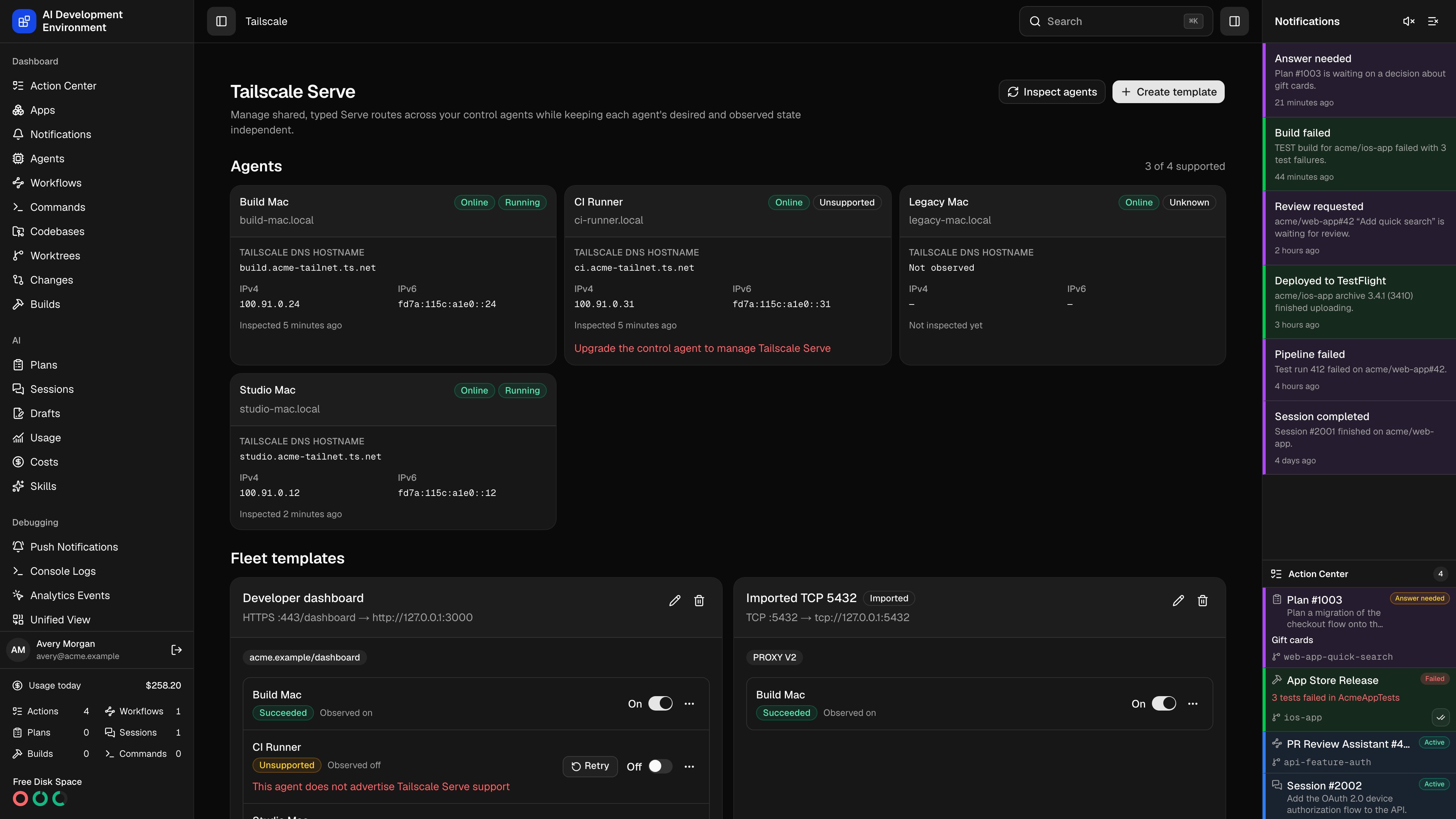 Open **System → Tailscale** to manage Tailscale Serve routes on every supported agent. A template holds the route settings shared by the fleet; each agent keeps its own enabled state, observed route, Tailscale identity, and most recent error.
The control plane never connects to `tailscaled` directly. It queues typed jobs, and each macOS or Linux agent runs its local `tailscale` CLI. Older agents remain visible as **Unsupported** until they advertise the Tailscale job capabilities.
## Inspect the fleet
Select **Inspect agents** to run `tailscale status --json` and `tailscale serve status --json` on the chosen agents. Each agent card then shows:
* Its control-plane connection and Tailscale backend state.
* Its Tailscale DNS hostname and IPv4/IPv6 addresses.
* When its configuration was last inspected.
* Any CLI, daemon, permission, or parsing error.
Inspection also imports node-level Serve routes that were created outside AIDE. Exact normalized matches become one fleet template with every matching agent enabled. An existing assignment is matched by listener before import, so configuration drift appears on that assignment instead of creating a duplicate template.
## Create or edit a template
Select **Create template**, then choose its protocol and incoming listener:
| Protocol | Destination | Notes |
| ---------------------- | --------------------------------------------------- | ----------------------------------------------------------------------------------------- |
| **HTTP** | `http`, `https`, or `https+insecure` on `127.0.0.1` | Private tailnet access only |
| **HTTPS** | `http`, `https`, or `https+insecure` on `127.0.0.1` | Supports mount paths, app capabilities, and Funnel |
| **TCP** | `tcp://127.0.0.1` | Supports PROXY protocol **None**, **V1**, or **V2** |
| **TLS-terminated TCP** | `tcp://127.0.0.1` | Terminates TLS before forwarding; PROXY protocol is available only on plain TCP templates |
Incoming and destination ports must be from `1` through `65535`. Mount and destination paths are normalized to start with `/`. Multiple web routes can share a compatible listener when their mount paths differ, but one agent cannot have conflicting protocols, Funnel modes, or TCP forwarding definitions on the same port.
Choose every agent that should receive the template. A newly selected agent defaults to enabled. Turning an agent off removes the observed route but keeps its assignment, so you can turn it back on later without rebuilding the template. Editing a template updates enabled agents and leaves disabled agents alone.
The page distinguishes **Desired** from **Observed** state. A queued or failed job does not discard what you asked for: the assignment stays enabled or disabled as requested, shows the mismatch, and offers **Retry**. Offline jobs remain queued and apply when the agent reconnects.
## Funnel and advanced settings
Funnel publishes a listener to the public internet. It is available only for HTTPS and TCP modes on ports `443`, `8443`, and `10000`; the editor asks for explicit confirmation before enabling it. Confirm your upstream application has its own authentication and review the [Tailscale Funnel access controls](https://tailscale.com/kb/1223/funnel) before exposing it.
App capabilities use `{domain}/{name}` and are available only for private HTTP(S) templates. Support depends on the Tailscale version installed on each agent. A version-specific Funnel or capability failure remains attached to that agent so you can upgrade or change the route.
Deleting a template asks for confirmation, marks it as deleting, and removes it from every enabled or observed agent. The saved template disappears only after every removal succeeds. Failed removals remain available to retry.
## Automation interfaces
The built-in `builtin:tailscale` MCP group exposes:
* `get_tailscale_serve_overview`
* `inspect_tailscale_serve`
* `upsert_tailscale_serve_template`
* `set_tailscale_serve_agent_enabled`
* `delete_tailscale_serve_template`
The workflow palette provides **Inspect Tailscale Serve**, **Upsert Tailscale Serve template**, **Set Tailscale Serve agent enabled**, and **Delete Tailscale Serve template**. These steps wait for the durable fleet operation, add a link back to `/tailscale`, and write operation data under `tailscale.*`. A partial fleet result follows the workflow's failure handle, where your existing retry or error-handling branch can catch it.
GraphQL clients can use `tailscaleServeOverview` and `tailscaleServeOperation`, the corresponding inspect, upsert, toggle, and delete mutations, and the two live subscriptions. Updates use `expectedRevision`; assignment inputs always send explicit `{agentId, enabled}` values.
## Troubleshooting
Tailscale Serve jobs are advertised only by current macOS and Linux agents. Upgrade and restart the control agent, then inspect again. This feature does not install Tailscale or configure a tailnet for you.
Install the Tailscale CLI and make it available on the agent's service `PATH`. The agent also checks standard Homebrew locations and the executable bundled with the macOS Tailscale app. For a custom installation, set `CONTROL_AGENT_TAILSCALE_EXECUTABLE` to the absolute executable path and restart the agent.
Run `tailscale status` as the same account that starts the control agent. Start `tailscaled` or the macOS Tailscale app, sign in, and grant that account whatever local permissions your installation requires. The agent invokes argument arrays without a shell and never accepts a free-form command.
Inspect first to refresh observed state. Move or remove the conflicting listener, or edit the template so protocols and Funnel modes agree. A template edit includes its previous listener selector, so moving a port or path removes the old route instead of leaving it behind.
This release manages node-level port proxies only. It does not expose file serving, TUN, raw LocalAPI configuration, `TS_SERVE_CONFIG`, or `svc:` Tailscale Services.
Open **System → Tailscale** to manage Tailscale Serve routes on every supported agent. A template holds the route settings shared by the fleet; each agent keeps its own enabled state, observed route, Tailscale identity, and most recent error.
The control plane never connects to `tailscaled` directly. It queues typed jobs, and each macOS or Linux agent runs its local `tailscale` CLI. Older agents remain visible as **Unsupported** until they advertise the Tailscale job capabilities.
## Inspect the fleet
Select **Inspect agents** to run `tailscale status --json` and `tailscale serve status --json` on the chosen agents. Each agent card then shows:
* Its control-plane connection and Tailscale backend state.
* Its Tailscale DNS hostname and IPv4/IPv6 addresses.
* When its configuration was last inspected.
* Any CLI, daemon, permission, or parsing error.
Inspection also imports node-level Serve routes that were created outside AIDE. Exact normalized matches become one fleet template with every matching agent enabled. An existing assignment is matched by listener before import, so configuration drift appears on that assignment instead of creating a duplicate template.
## Create or edit a template
Select **Create template**, then choose its protocol and incoming listener:
| Protocol | Destination | Notes |
| ---------------------- | --------------------------------------------------- | ----------------------------------------------------------------------------------------- |
| **HTTP** | `http`, `https`, or `https+insecure` on `127.0.0.1` | Private tailnet access only |
| **HTTPS** | `http`, `https`, or `https+insecure` on `127.0.0.1` | Supports mount paths, app capabilities, and Funnel |
| **TCP** | `tcp://127.0.0.1` | Supports PROXY protocol **None**, **V1**, or **V2** |
| **TLS-terminated TCP** | `tcp://127.0.0.1` | Terminates TLS before forwarding; PROXY protocol is available only on plain TCP templates |
Incoming and destination ports must be from `1` through `65535`. Mount and destination paths are normalized to start with `/`. Multiple web routes can share a compatible listener when their mount paths differ, but one agent cannot have conflicting protocols, Funnel modes, or TCP forwarding definitions on the same port.
Choose every agent that should receive the template. A newly selected agent defaults to enabled. Turning an agent off removes the observed route but keeps its assignment, so you can turn it back on later without rebuilding the template. Editing a template updates enabled agents and leaves disabled agents alone.
The page distinguishes **Desired** from **Observed** state. A queued or failed job does not discard what you asked for: the assignment stays enabled or disabled as requested, shows the mismatch, and offers **Retry**. Offline jobs remain queued and apply when the agent reconnects.
## Funnel and advanced settings
Funnel publishes a listener to the public internet. It is available only for HTTPS and TCP modes on ports `443`, `8443`, and `10000`; the editor asks for explicit confirmation before enabling it. Confirm your upstream application has its own authentication and review the [Tailscale Funnel access controls](https://tailscale.com/kb/1223/funnel) before exposing it.
App capabilities use `{domain}/{name}` and are available only for private HTTP(S) templates. Support depends on the Tailscale version installed on each agent. A version-specific Funnel or capability failure remains attached to that agent so you can upgrade or change the route.
Deleting a template asks for confirmation, marks it as deleting, and removes it from every enabled or observed agent. The saved template disappears only after every removal succeeds. Failed removals remain available to retry.
## Automation interfaces
The built-in `builtin:tailscale` MCP group exposes:
* `get_tailscale_serve_overview`
* `inspect_tailscale_serve`
* `upsert_tailscale_serve_template`
* `set_tailscale_serve_agent_enabled`
* `delete_tailscale_serve_template`
The workflow palette provides **Inspect Tailscale Serve**, **Upsert Tailscale Serve template**, **Set Tailscale Serve agent enabled**, and **Delete Tailscale Serve template**. These steps wait for the durable fleet operation, add a link back to `/tailscale`, and write operation data under `tailscale.*`. A partial fleet result follows the workflow's failure handle, where your existing retry or error-handling branch can catch it.
GraphQL clients can use `tailscaleServeOverview` and `tailscaleServeOperation`, the corresponding inspect, upsert, toggle, and delete mutations, and the two live subscriptions. Updates use `expectedRevision`; assignment inputs always send explicit `{agentId, enabled}` values.
## Troubleshooting
Tailscale Serve jobs are advertised only by current macOS and Linux agents. Upgrade and restart the control agent, then inspect again. This feature does not install Tailscale or configure a tailnet for you.
Install the Tailscale CLI and make it available on the agent's service `PATH`. The agent also checks standard Homebrew locations and the executable bundled with the macOS Tailscale app. For a custom installation, set `CONTROL_AGENT_TAILSCALE_EXECUTABLE` to the absolute executable path and restart the agent.
Run `tailscale status` as the same account that starts the control agent. Start `tailscaled` or the macOS Tailscale app, sign in, and grant that account whatever local permissions your installation requires. The agent invokes argument arrays without a shell and never accepts a free-form command.
Inspect first to refresh observed state. Move or remove the conflicting listener, or edit the template so protocols and Funnel modes agree. A template edit includes its previous listener selector, so moving a port or path removes the old route instead of leaving it behind.
This release manages node-level port proxies only. It does not expose file serving, TUN, raw LocalAPI configuration, `TS_SERVE_CONFIG`, or `svc:` Tailscale Services.