> ## Documentation Index
> Fetch the complete documentation index at: https://ai-development-environment.mintlify.site/llms.txt
> Use this file to discover all available pages before exploring further.
# Workflow editor
> Drag steps onto the canvas, connect typed handles, then validate and publish.
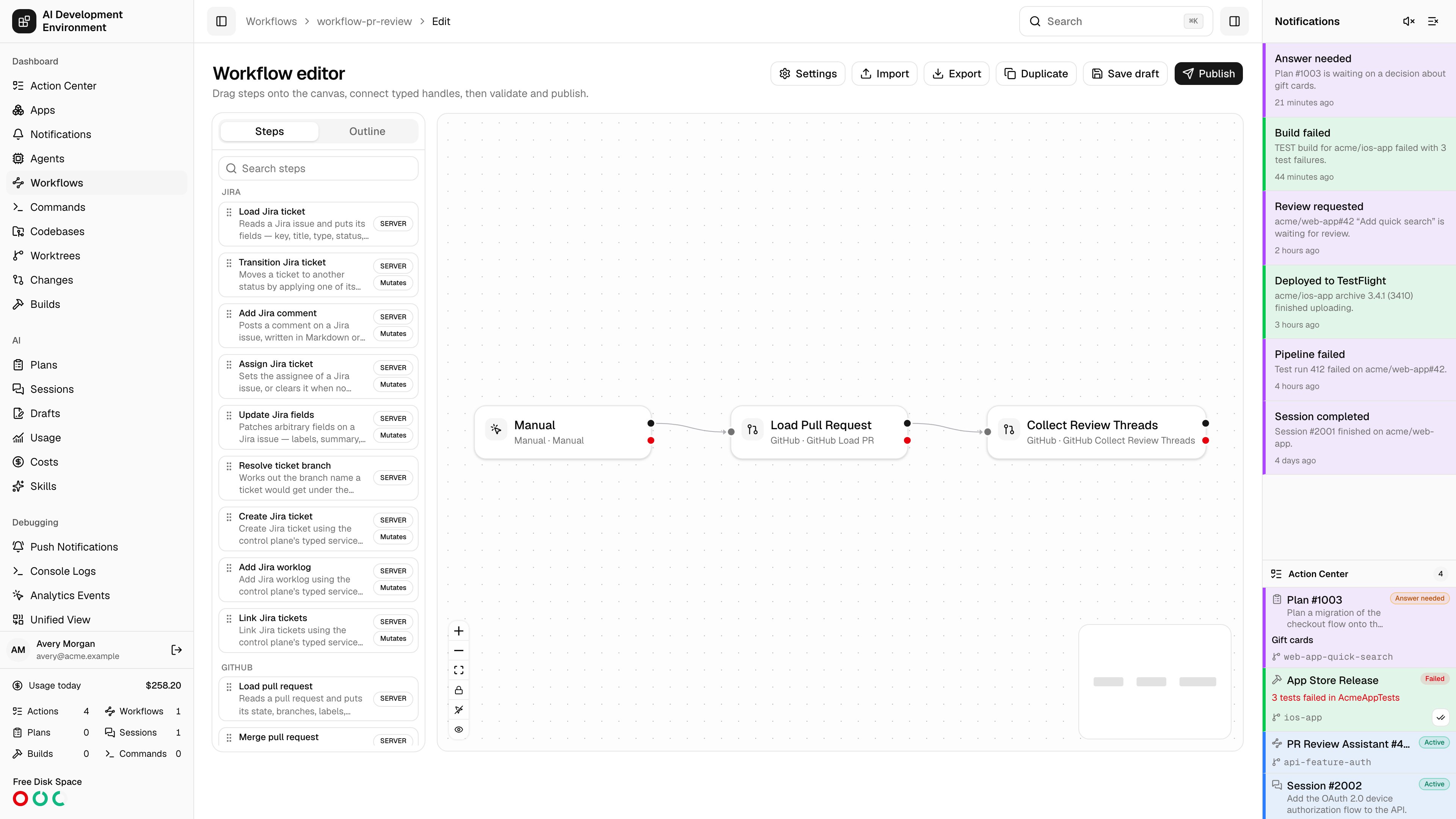
 The workflow editor at `/workflows/{id}/edit` is a visual canvas for building durable automations. You place one trigger and a set of typed steps, connect their handles, configure each one, validate the graph, and publish an immutable version.
## Anatomy of a workflow
Exactly one, and it starts the run. Triggers cover manual starts, schedules, GitHub, GitLab, and Jira events, build results, worktree state changes, AI run lifecycle events, agent and disk thresholds, and more.
The work. Typed kinds span Jira, GitHub, GitLab, worktrees, codebases, builds, AI runs, skills, commands, notifications, signing, devices, control flow, and MCP calls.
Typed handles between nodes. Most steps expose `success` and `failure`; control-flow steps name their own branches.
A JSON document threaded through the run. Steps read values from it by path and write their results back into it.
### Handles
The outgoing handles a node offers depend on its kind:
| Kind | Handles |
| ---------------------------------------- | ---------------------------------------------------------------------- |
| Most steps and triggers | `success`, `failure` |
| **If** | `true`, `false` |
| **For each** | `body`, `empty` |
| **Try** | `success`, `catch` |
| **Saved command** and **Custom command** | `success`, `failure`, and `match` when an output pattern is configured |
| Choice triggers | One handle per choice you define |
An edge leaving a handle the node does not offer never becomes active, so the validator flags it rather than letting the run silently stall.
## The canvas
The left panel toggles between the **palette** and the **outline**. The palette groups steps and triggers by category — Agents, AI runs, Builds, Codebases, Control flow, Extensibility, GitHub, GitHub Actions, GitLab, Human loop, Jira, Manual, Plans and sessions, Schedule, Skills, Workflows, and Worktrees — and searches across label, kind, category, and description. Drag an entry onto the canvas to add it.
Canvas controls:
| Control | Effect |
| --------------------------------------------- | -------------------------------------------------------------------------------- |
| **Lock to fit** / **Unlock view** | Keeps the whole graph in frame as you edit, or frees panning and zoom |
| **Show session data** / **Hide session data** | Overlays what each step reads from and writes to session data |
| **Lock steps in place** / **Unlock steps** | Prevents accidental node dragging while you work on configuration |
| **Preview basic layout** | Shows how the graph will render in read-only views under the Basic viewer layout |
Right-clicking a node offers **Duplicate step** and **Delete node**; connections offer **Delete connection**.
## Configuring a step
Selecting a node opens its inspector.
Each step kind has a typed configuration schema rendered as a form. Fields without a form control are editable under **Advanced (raw JSON)**, and the whole configuration can be pasted in at once with **Configuration (JSON)** → **Apply configuration**.
Every value field can be switched between two sources with **Switch value source**:
* **Use a fixed value** — a literal you type now.
* **Bind to session data** — a session path such as `ticket.key`, read when the run executes.
Text fields also accept `{token}` interpolation to splice session data into a string at execution time.
The inspector states what the step needs and what it produces:
* **Additional required paths** — session paths this step needs before it can run.
* **Additional provided paths** — paths it guarantees to write.
* **Adds to session data** / **Seeds session data** — the concrete keys it contributes.
The validator uses these to prove that every step's inputs are satisfied by something upstream.
* **Maximum attempts** — how many times the step may run.
* **Retry strategy** — **Fixed delay** or **Exponential backoff**.
* **Retry delay** — the base delay in seconds.
* **Failure policy** — **Fail workflow** stops the run; **Continue** routes out of the `failure` handle and keeps going.
An **If** step builds its condition from comparisons, matched with **All of these are true** or **Any of these is true**. Each comparison takes a session value, an operator, and a compared value.
Operators: equals, does not equal, contains, does not contain, matches regex, does not match regex, is greater than, is at least, is less than, is at most, is set, is not set.
Numbers and `true`/`false` are compared as typed values; quote a value to compare it as text. The `true` handle runs when the condition matches, `false` otherwise. Conditions with nested groups the builder cannot draw fall back to JSON editing.
A **Human choice** step defines the buttons shown while the run waits for an answer, each with a **Button label** and an optional **Description**.
A choice *trigger* works the same way but at the entry point: each choice gets an **Output key**, becomes a menu item under the run button, and routes the run out of its own handle — so one workflow can offer several entry paths without a step in front of them. Output keys must be unique.
Steps that invoke a model expose **Provider**, **Model**, and **Effort**.
### Reacting to command output
**Saved command** and **Custom command** steps can route work as soon as their output matches a case-sensitive RE2 regular expression. Set **Output match pattern (RE2)**, keep **Completion** on **Wait for exit**, then connect the `match` handle to an independent branch.
| Match behavior | Effect |
| -------------- | ------------------------------------------------------------------------------ |
| **Once** | Emits the first match, then ignores later matches |
| **Each match** | Starts one isolated branch for every match while the command continues running |
The match branch receives the current result at `steps..latestMatch`; `steps..matches` keeps the ordered results emitted so far. Each result includes `text`, positional `captures`, `namedCaptures`, the command run and attempt, and start/end output coordinates. The command's `success` or `failure` branch still activates when the process exits, so a match branch cannot reconnect to either terminal branch.
Matching works across output chunks and UTF-8 boundaries. Keep patterns focused: the matcher retains at most 16 MiB of unmatched output before it fails the step.
### Importing coverage after a test command
For a non-Xcode test suite, connect these **Builds** and command steps in order:
1. **Terminal run** executes the tests and writes `coverage/lcov.info` or an Istanbul `coverage-final.json` inside the worktree.
2. **Import coverage report** selects the worktree, the worktree-relative **Coverage file**, and **AUTO**, **LCOV**, or **ISTANBUL** format. The step waits for the agent and writes `build.id` plus `build.coverageSummary`.
3. **Read code coverage** is optional. Add it when later steps need `build.coverageFiles` and `build.changedCoverageFiles`, not just the totals.
The import creates a host-only build record, so the result appears on the [Build coverage report](/builds/build-coverage) page and in the coverage picker on [Changes](/changes). The step fails when the file is missing, unreadable, outside the worktree, too large, or contains no files.
Steps that change external state are marked **Mutates** and carry an explicit warning: configure an idempotency strategy, and do not blindly retry a result you are unsure about. A retried Jira transition or PR merge is a real second attempt at a real side effect.
## Workflow settings
**Workflow settings** is grouped into three sections, and each field explains itself underneath.
| Section | Setting | What it controls |
| ----------- | ---------------------------------------------------------- | --------------------------------------------------------------------------------------------------------------------------------------------------- |
| **Details** | **Name** and **Description** | How the workflow is identified across the app |
| **Running** | **Overlap policy** | **Queue every event**, **Run concurrently**, or **Keep latest pending event** |
| **Running** | **Maximum concurrent runs** | The ceiling on simultaneous executions. Shown only for **Run concurrently** |
| **Running** | **Overlap scope** | Whether the policy is counted **Per worktree** or across **Every worktree** |
| **Running** | **Worktree concurrency** | Choose exclusive, non-exclusive, or excluded worktree admission |
| **Running** | **Block Git operations during command and terminal steps** | Prevent concurrent Git and worktree operations while command-like steps run. Always enabled for exclusive workflows |
| **Running** | **Notify when this workflow completes successfully** | Turn off to suppress success notifications for this workflow only |
| **Canvas** | **Viewer layout** | **Regular** uses your authored positions in read-only views; **Basic** auto-arranges them for the available width, leaving your positions untouched |
| **Canvas** | **Step connectors** | Handles drawn **On the sides** or **On top and bottom** |
### Overlap scope
The overlap policy decides what happens when a trigger fires while a run is in flight. **Overlap scope** decides which runs it is measured against.
| Scope | Effect |
| ------------------ | ------------------------------------------------------------------------------------------------------------------------------------------------------- |
| **Per worktree** | Each worktree gets its own queue, so a run on one worktree never waits for a run on another. Runs that belong to no worktree share a queue of their own |
| **Every worktree** | Every run of the workflow is counted together, so its runs wait for each other whichever worktree they belong to |
The default is **Per worktree**, which is what you want for a workflow that is triggered per branch — ten worktrees can each run it at once without lining up behind each other. Choose **Every worktree** when the workflow touches something shared, such as a release or a deployment, and only one pass should be under way at a time.
Scope applies to **Keep latest pending event** as well: a trigger only replaces a pending run that is inside the same scope.
A workflow exported before this setting existed imports with the scope its old behavior implied — **Per worktree** if it reserved the worktree, **Every worktree** if it did not.
### Worktree concurrency and Git blocking
Worktree concurrency applies when a top-level run resolves a worktree. It is separate from overlap, which only compares this workflow's own runs.
| Mode | Behavior |
| ----------------- | ----------------------------------------------------------------------------------------------------------------------------- |
| **Exclusive** | Waits for older participating workflows, Plans, and Sessions, then runs alone. New participating work waits until it finishes |
| **Non-exclusive** | Shares the worktree with other non-exclusive work, but waits behind exclusive work |
| **Excluded** | Skips the worktree admission lane. Git and worktree steps still serialize when they execute |
**Non-exclusive** is the default. An older exported workflow that reserved its worktree imports as **Exclusive**; other older workflows import as **Non-exclusive**.
Enable **Block Git operations during command and terminal steps** when those steps can modify repository or worktree state. Dedicated Git and worktree steps always serialize. **Exclusive** workflows enable Git blocking automatically. Plans and Sessions started by an exclusive workflow can still run inside its admission reservation.
### Worktree admission for AI run steps
**Create plan and wait**, **Run AI session and wait**, **Run completed plan**, and **Follow up run** expose a **Worktree concurrency limit**.
* Plans and Sessions use separate FIFO lanes on each worktree.
* Plans default to unlimited concurrency. Sessions default to one active run.
* Enter `1` through `32` for a finite same-kind limit, or `0` for unlimited concurrency.
* A queued run at the front of a lane is not bypassed by a newer run with a looser limit.
These limits control AI runs on one worktree. They are independent of **Maximum concurrent runs**, which controls top-level executions of the workflow itself.
Turning off completion notifications suppresses successful-run notifications only. Failure and attention notifications still fire. MCP clients can use `completionNotificationsEnabled`, `overlapScope`, `worktreeConcurrency`, and `blocksGitOperations` on `create_workflow` or `update_workflow_settings`.
## Validate, save, publish
Runs the full checker and lists **Validation diagnostics** against the offending nodes and edges.
Persists your work in progress. The draft has no effect on running behavior.
Creates a new immutable version and makes it the one that runs. Save before publishing — the editor will tell you if you have not.
### Common diagnostics
| Diagnostic | What it means |
| ------------------------------------------------------------- | ---------------------------------------------------------------------------------------- |
| Trigger required | The graph has no trigger |
| Disconnected trigger / Trigger has an input | The trigger must start the graph and take no incoming edge |
| Step required | The trigger leads nowhere |
| Cycle in the graph | The graph must be acyclic |
| Unreachable step | A step no path reaches |
| Join step required | Parallel branches must reconverge through an explicit join |
| Parallel write conflict | Two branches write the same session path |
| Unsatisfied requirement | A step's required session path is not provided upstream |
| Invalid session binding / Unresolved reference | A binding points at a path that does not exist |
| Secret in plain text | A credential was typed as a literal instead of referenced |
| Duplicate step id / Duplicate connection id | Identifier collision |
| Connection endpoint missing | An edge points at a node that is gone |
| Subworkflow version required | A subworkflow step must pin a version |
| Resource kind required | A resource trigger must name the resource kind it accepts |
| Command allowlist required / Command pattern must be anchored | An issue-command trigger needs a safe, anchored allowlist |
| Command match pattern required / invalid | A command uses the `match` connector without a pattern, or its RE2 expression is invalid |
| Command matching requires wait | Output matching is configured on a fire-and-forget command |
| Command match branch reconverges | A match branch reconnects to the command's `success` or `failure` branch |
| Trigger choices required / Unknown trigger choice | A choice trigger needs choices, and every edge must leave a defined one |
## Related pages
The same editor, opened on a blank canvas.
Published version, quick actions, and version history.
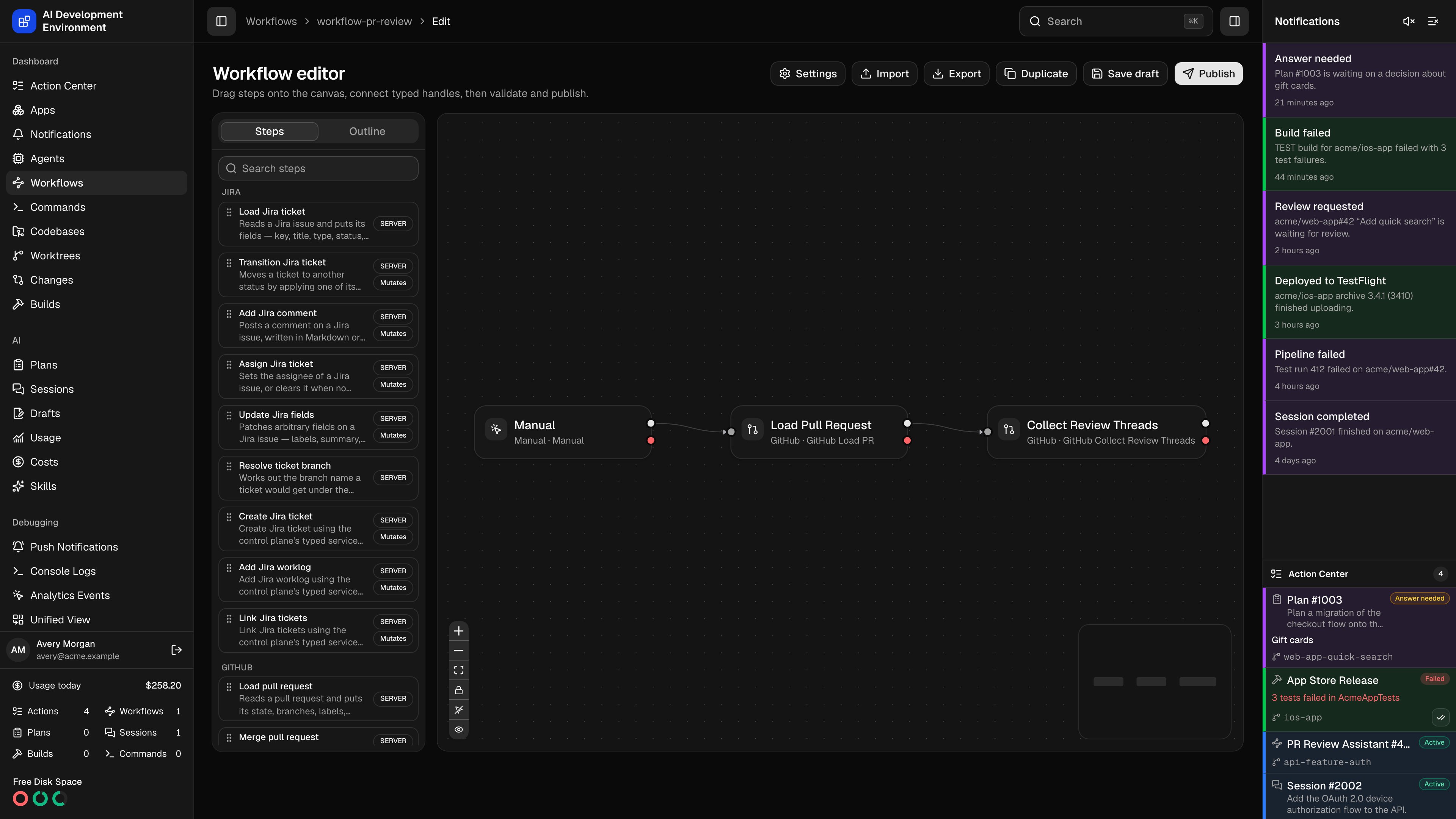
The workflow editor at `/workflows/{id}/edit` is a visual canvas for building durable automations. You place one trigger and a set of typed steps, connect their handles, configure each one, validate the graph, and publish an immutable version.
## Anatomy of a workflow
Exactly one, and it starts the run. Triggers cover manual starts, schedules, GitHub, GitLab, and Jira events, build results, worktree state changes, AI run lifecycle events, agent and disk thresholds, and more.
The work. Typed kinds span Jira, GitHub, GitLab, worktrees, codebases, builds, AI runs, skills, commands, notifications, signing, devices, control flow, and MCP calls.
Typed handles between nodes. Most steps expose `success` and `failure`; control-flow steps name their own branches.
A JSON document threaded through the run. Steps read values from it by path and write their results back into it.
### Handles
The outgoing handles a node offers depend on its kind:
| Kind | Handles |
| ---------------------------------------- | ---------------------------------------------------------------------- |
| Most steps and triggers | `success`, `failure` |
| **If** | `true`, `false` |
| **For each** | `body`, `empty` |
| **Try** | `success`, `catch` |
| **Saved command** and **Custom command** | `success`, `failure`, and `match` when an output pattern is configured |
| Choice triggers | One handle per choice you define |
An edge leaving a handle the node does not offer never becomes active, so the validator flags it rather than letting the run silently stall.
## The canvas
The left panel toggles between the **palette** and the **outline**. The palette groups steps and triggers by category — Agents, AI runs, Builds, Codebases, Control flow, Extensibility, GitHub, GitHub Actions, GitLab, Human loop, Jira, Manual, Plans and sessions, Schedule, Skills, Workflows, and Worktrees — and searches across label, kind, category, and description. Drag an entry onto the canvas to add it.
Canvas controls:
| Control | Effect |
| --------------------------------------------- | -------------------------------------------------------------------------------- |
| **Lock to fit** / **Unlock view** | Keeps the whole graph in frame as you edit, or frees panning and zoom |
| **Show session data** / **Hide session data** | Overlays what each step reads from and writes to session data |
| **Lock steps in place** / **Unlock steps** | Prevents accidental node dragging while you work on configuration |
| **Preview basic layout** | Shows how the graph will render in read-only views under the Basic viewer layout |
Right-clicking a node offers **Duplicate step** and **Delete node**; connections offer **Delete connection**.
## Configuring a step
Selecting a node opens its inspector.
Each step kind has a typed configuration schema rendered as a form. Fields without a form control are editable under **Advanced (raw JSON)**, and the whole configuration can be pasted in at once with **Configuration (JSON)** → **Apply configuration**.
Every value field can be switched between two sources with **Switch value source**:
* **Use a fixed value** — a literal you type now.
* **Bind to session data** — a session path such as `ticket.key`, read when the run executes.
Text fields also accept `{token}` interpolation to splice session data into a string at execution time.
The inspector states what the step needs and what it produces:
* **Additional required paths** — session paths this step needs before it can run.
* **Additional provided paths** — paths it guarantees to write.
* **Adds to session data** / **Seeds session data** — the concrete keys it contributes.
The validator uses these to prove that every step's inputs are satisfied by something upstream.
* **Maximum attempts** — how many times the step may run.
* **Retry strategy** — **Fixed delay** or **Exponential backoff**.
* **Retry delay** — the base delay in seconds.
* **Failure policy** — **Fail workflow** stops the run; **Continue** routes out of the `failure` handle and keeps going.
An **If** step builds its condition from comparisons, matched with **All of these are true** or **Any of these is true**. Each comparison takes a session value, an operator, and a compared value.
Operators: equals, does not equal, contains, does not contain, matches regex, does not match regex, is greater than, is at least, is less than, is at most, is set, is not set.
Numbers and `true`/`false` are compared as typed values; quote a value to compare it as text. The `true` handle runs when the condition matches, `false` otherwise. Conditions with nested groups the builder cannot draw fall back to JSON editing.
A **Human choice** step defines the buttons shown while the run waits for an answer, each with a **Button label** and an optional **Description**.
A choice *trigger* works the same way but at the entry point: each choice gets an **Output key**, becomes a menu item under the run button, and routes the run out of its own handle — so one workflow can offer several entry paths without a step in front of them. Output keys must be unique.
Steps that invoke a model expose **Provider**, **Model**, and **Effort**.
### Reacting to command output
**Saved command** and **Custom command** steps can route work as soon as their output matches a case-sensitive RE2 regular expression. Set **Output match pattern (RE2)**, keep **Completion** on **Wait for exit**, then connect the `match` handle to an independent branch.
| Match behavior | Effect |
| -------------- | ------------------------------------------------------------------------------ |
| **Once** | Emits the first match, then ignores later matches |
| **Each match** | Starts one isolated branch for every match while the command continues running |
The match branch receives the current result at `steps..latestMatch`; `steps..matches` keeps the ordered results emitted so far. Each result includes `text`, positional `captures`, `namedCaptures`, the command run and attempt, and start/end output coordinates. The command's `success` or `failure` branch still activates when the process exits, so a match branch cannot reconnect to either terminal branch.
Matching works across output chunks and UTF-8 boundaries. Keep patterns focused: the matcher retains at most 16 MiB of unmatched output before it fails the step.
### Importing coverage after a test command
For a non-Xcode test suite, connect these **Builds** and command steps in order:
1. **Terminal run** executes the tests and writes `coverage/lcov.info` or an Istanbul `coverage-final.json` inside the worktree.
2. **Import coverage report** selects the worktree, the worktree-relative **Coverage file**, and **AUTO**, **LCOV**, or **ISTANBUL** format. The step waits for the agent and writes `build.id` plus `build.coverageSummary`.
3. **Read code coverage** is optional. Add it when later steps need `build.coverageFiles` and `build.changedCoverageFiles`, not just the totals.
The import creates a host-only build record, so the result appears on the [Build coverage report](/builds/build-coverage) page and in the coverage picker on [Changes](/changes). The step fails when the file is missing, unreadable, outside the worktree, too large, or contains no files.
Steps that change external state are marked **Mutates** and carry an explicit warning: configure an idempotency strategy, and do not blindly retry a result you are unsure about. A retried Jira transition or PR merge is a real second attempt at a real side effect.
## Workflow settings
**Workflow settings** is grouped into three sections, and each field explains itself underneath.
| Section | Setting | What it controls |
| ----------- | ---------------------------------------------------------- | --------------------------------------------------------------------------------------------------------------------------------------------------- |
| **Details** | **Name** and **Description** | How the workflow is identified across the app |
| **Running** | **Overlap policy** | **Queue every event**, **Run concurrently**, or **Keep latest pending event** |
| **Running** | **Maximum concurrent runs** | The ceiling on simultaneous executions. Shown only for **Run concurrently** |
| **Running** | **Overlap scope** | Whether the policy is counted **Per worktree** or across **Every worktree** |
| **Running** | **Worktree concurrency** | Choose exclusive, non-exclusive, or excluded worktree admission |
| **Running** | **Block Git operations during command and terminal steps** | Prevent concurrent Git and worktree operations while command-like steps run. Always enabled for exclusive workflows |
| **Running** | **Notify when this workflow completes successfully** | Turn off to suppress success notifications for this workflow only |
| **Canvas** | **Viewer layout** | **Regular** uses your authored positions in read-only views; **Basic** auto-arranges them for the available width, leaving your positions untouched |
| **Canvas** | **Step connectors** | Handles drawn **On the sides** or **On top and bottom** |
### Overlap scope
The overlap policy decides what happens when a trigger fires while a run is in flight. **Overlap scope** decides which runs it is measured against.
| Scope | Effect |
| ------------------ | ------------------------------------------------------------------------------------------------------------------------------------------------------- |
| **Per worktree** | Each worktree gets its own queue, so a run on one worktree never waits for a run on another. Runs that belong to no worktree share a queue of their own |
| **Every worktree** | Every run of the workflow is counted together, so its runs wait for each other whichever worktree they belong to |
The default is **Per worktree**, which is what you want for a workflow that is triggered per branch — ten worktrees can each run it at once without lining up behind each other. Choose **Every worktree** when the workflow touches something shared, such as a release or a deployment, and only one pass should be under way at a time.
Scope applies to **Keep latest pending event** as well: a trigger only replaces a pending run that is inside the same scope.
A workflow exported before this setting existed imports with the scope its old behavior implied — **Per worktree** if it reserved the worktree, **Every worktree** if it did not.
### Worktree concurrency and Git blocking
Worktree concurrency applies when a top-level run resolves a worktree. It is separate from overlap, which only compares this workflow's own runs.
| Mode | Behavior |
| ----------------- | ----------------------------------------------------------------------------------------------------------------------------- |
| **Exclusive** | Waits for older participating workflows, Plans, and Sessions, then runs alone. New participating work waits until it finishes |
| **Non-exclusive** | Shares the worktree with other non-exclusive work, but waits behind exclusive work |
| **Excluded** | Skips the worktree admission lane. Git and worktree steps still serialize when they execute |
**Non-exclusive** is the default. An older exported workflow that reserved its worktree imports as **Exclusive**; other older workflows import as **Non-exclusive**.
Enable **Block Git operations during command and terminal steps** when those steps can modify repository or worktree state. Dedicated Git and worktree steps always serialize. **Exclusive** workflows enable Git blocking automatically. Plans and Sessions started by an exclusive workflow can still run inside its admission reservation.
### Worktree admission for AI run steps
**Create plan and wait**, **Run AI session and wait**, **Run completed plan**, and **Follow up run** expose a **Worktree concurrency limit**.
* Plans and Sessions use separate FIFO lanes on each worktree.
* Plans default to unlimited concurrency. Sessions default to one active run.
* Enter `1` through `32` for a finite same-kind limit, or `0` for unlimited concurrency.
* A queued run at the front of a lane is not bypassed by a newer run with a looser limit.
These limits control AI runs on one worktree. They are independent of **Maximum concurrent runs**, which controls top-level executions of the workflow itself.
Turning off completion notifications suppresses successful-run notifications only. Failure and attention notifications still fire. MCP clients can use `completionNotificationsEnabled`, `overlapScope`, `worktreeConcurrency`, and `blocksGitOperations` on `create_workflow` or `update_workflow_settings`.
## Validate, save, publish
Runs the full checker and lists **Validation diagnostics** against the offending nodes and edges.
Persists your work in progress. The draft has no effect on running behavior.
Creates a new immutable version and makes it the one that runs. Save before publishing — the editor will tell you if you have not.
### Common diagnostics
| Diagnostic | What it means |
| ------------------------------------------------------------- | ---------------------------------------------------------------------------------------- |
| Trigger required | The graph has no trigger |
| Disconnected trigger / Trigger has an input | The trigger must start the graph and take no incoming edge |
| Step required | The trigger leads nowhere |
| Cycle in the graph | The graph must be acyclic |
| Unreachable step | A step no path reaches |
| Join step required | Parallel branches must reconverge through an explicit join |
| Parallel write conflict | Two branches write the same session path |
| Unsatisfied requirement | A step's required session path is not provided upstream |
| Invalid session binding / Unresolved reference | A binding points at a path that does not exist |
| Secret in plain text | A credential was typed as a literal instead of referenced |
| Duplicate step id / Duplicate connection id | Identifier collision |
| Connection endpoint missing | An edge points at a node that is gone |
| Subworkflow version required | A subworkflow step must pin a version |
| Resource kind required | A resource trigger must name the resource kind it accepts |
| Command allowlist required / Command pattern must be anchored | An issue-command trigger needs a safe, anchored allowlist |
| Command match pattern required / invalid | A command uses the `match` connector without a pattern, or its RE2 expression is invalid |
| Command matching requires wait | Output matching is configured on a fire-and-forget command |
| Command match branch reconverges | A match branch reconnects to the command's `success` or `failure` branch |
| Trigger choices required / Unknown trigger choice | A choice trigger needs choices, and every edge must leave a defined one |
## Related pages
The same editor, opened on a blank canvas.
Published version, quick actions, and version history.