

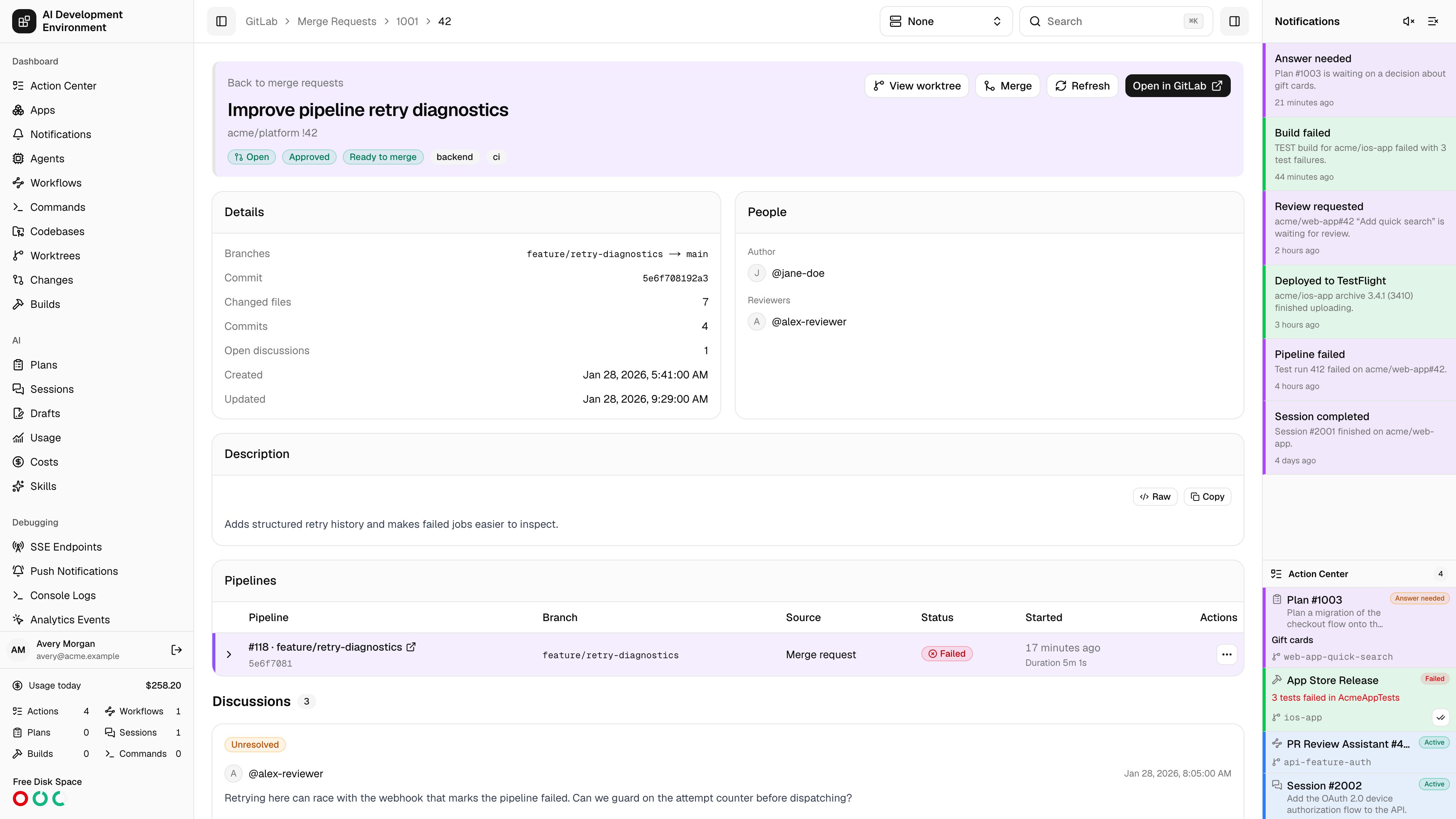
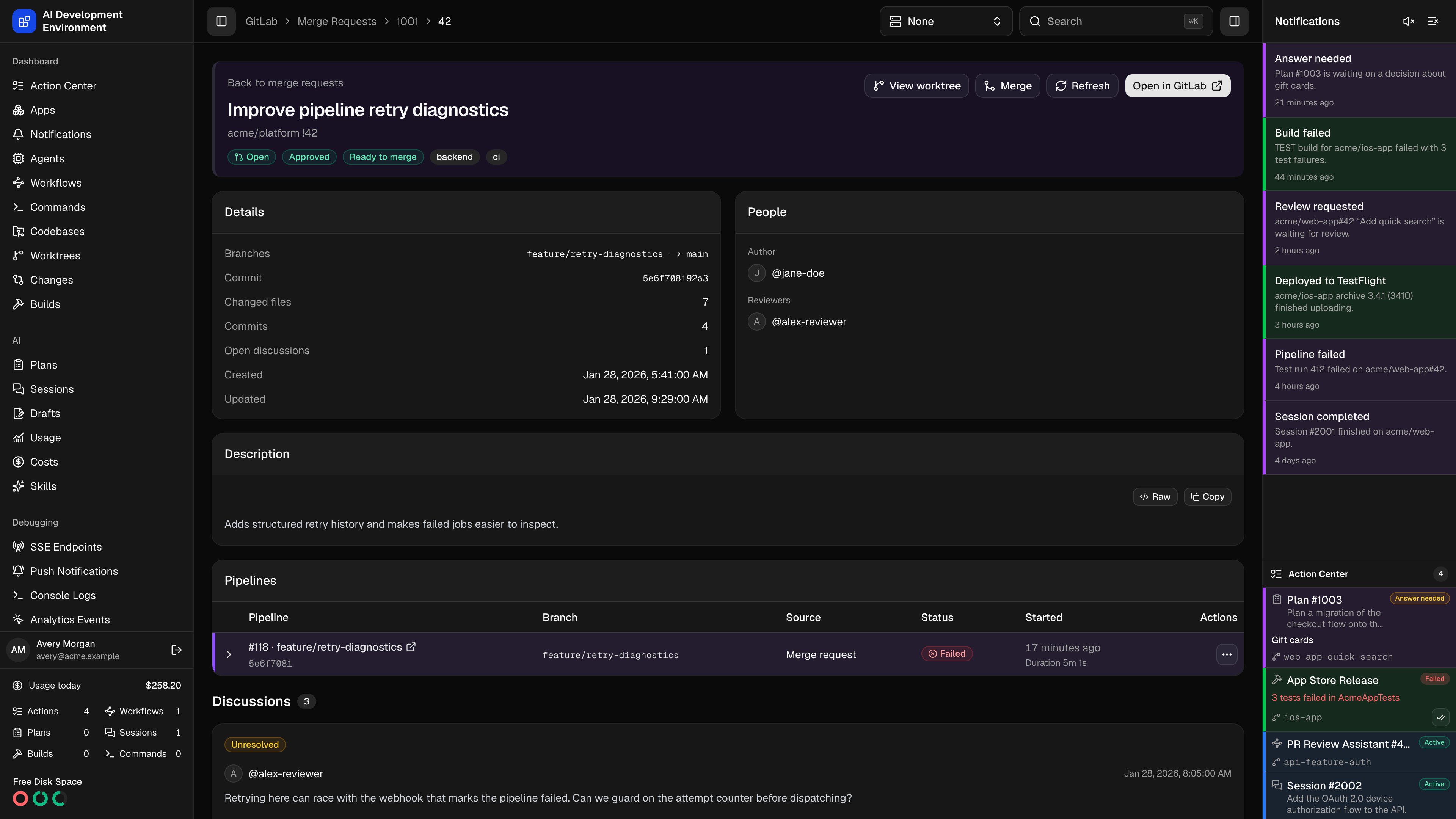
/gitlab/merge-requests/{projectId}/{iid}, where iid is the project’s merge request number.
Inspect the request
The header shows the request state, approval state, merge readiness, labels, and linked Jira ticket. Merged and Closed requests display their final state instead of an internal readiness value such asnot_open.
The details cards show source and target branches, commit SHA, change and commit counts, unresolved discussions, timestamps, author, and reviewers. The description and discussion notes render Markdown. Use Open in GitLab to inspect provider-specific details.
Expand a pipeline to inspect its jobs grouped by stage, statuses, timing, allowed failures, and retry history. The same pipeline presentation appears on the Pipelines and worktree pages.
Review discussions
Use Comments to filter discussions across requests or open the discussion count for this request. Reply to individual discussions and resolve or reopen threads that GitLab marks as resolvable. Submit Approve, Comment, or Request changes from the review section of an open request. Permission and provider errors stay visible so you can correct the problem and retry.Choose merge options
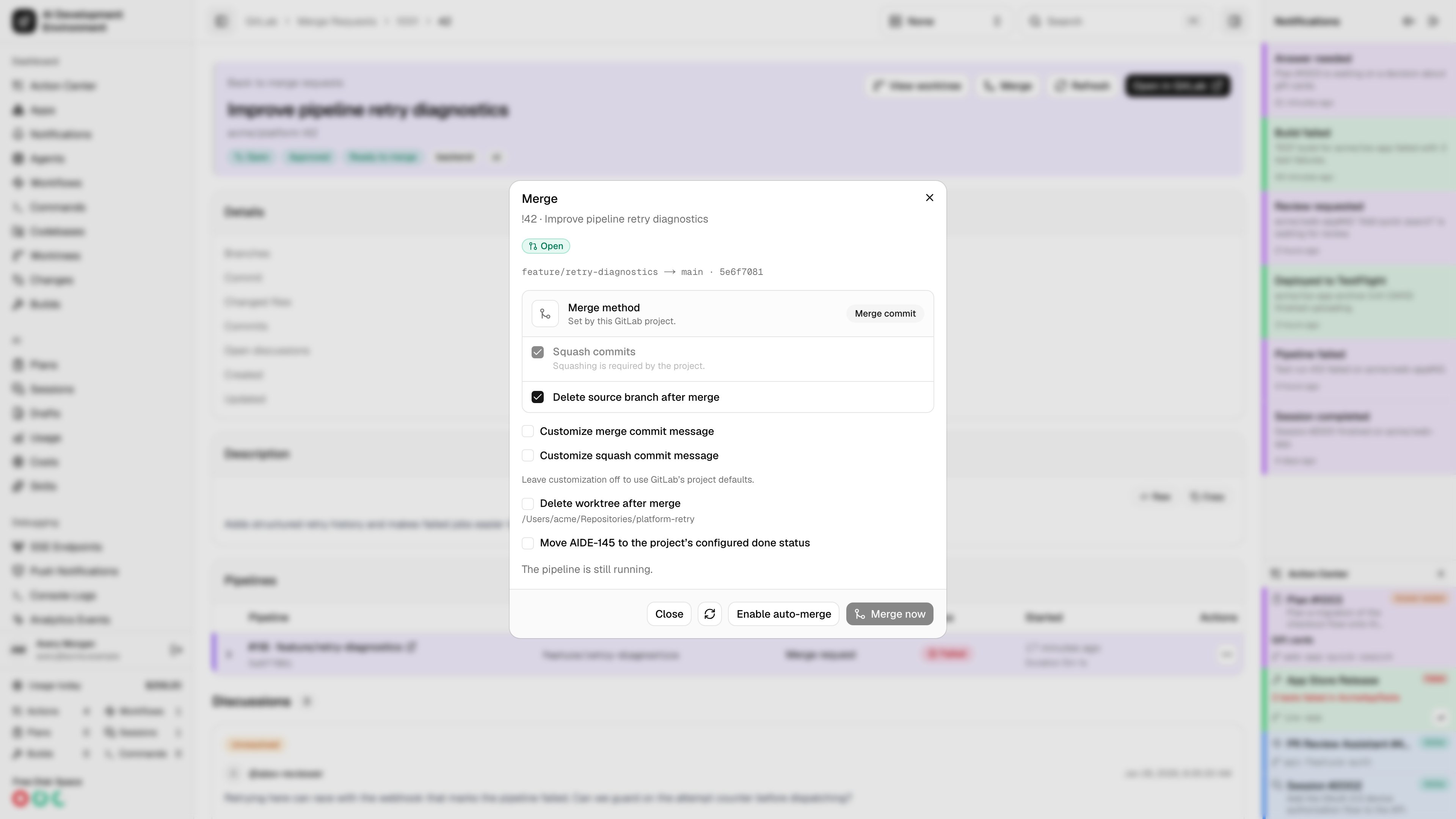
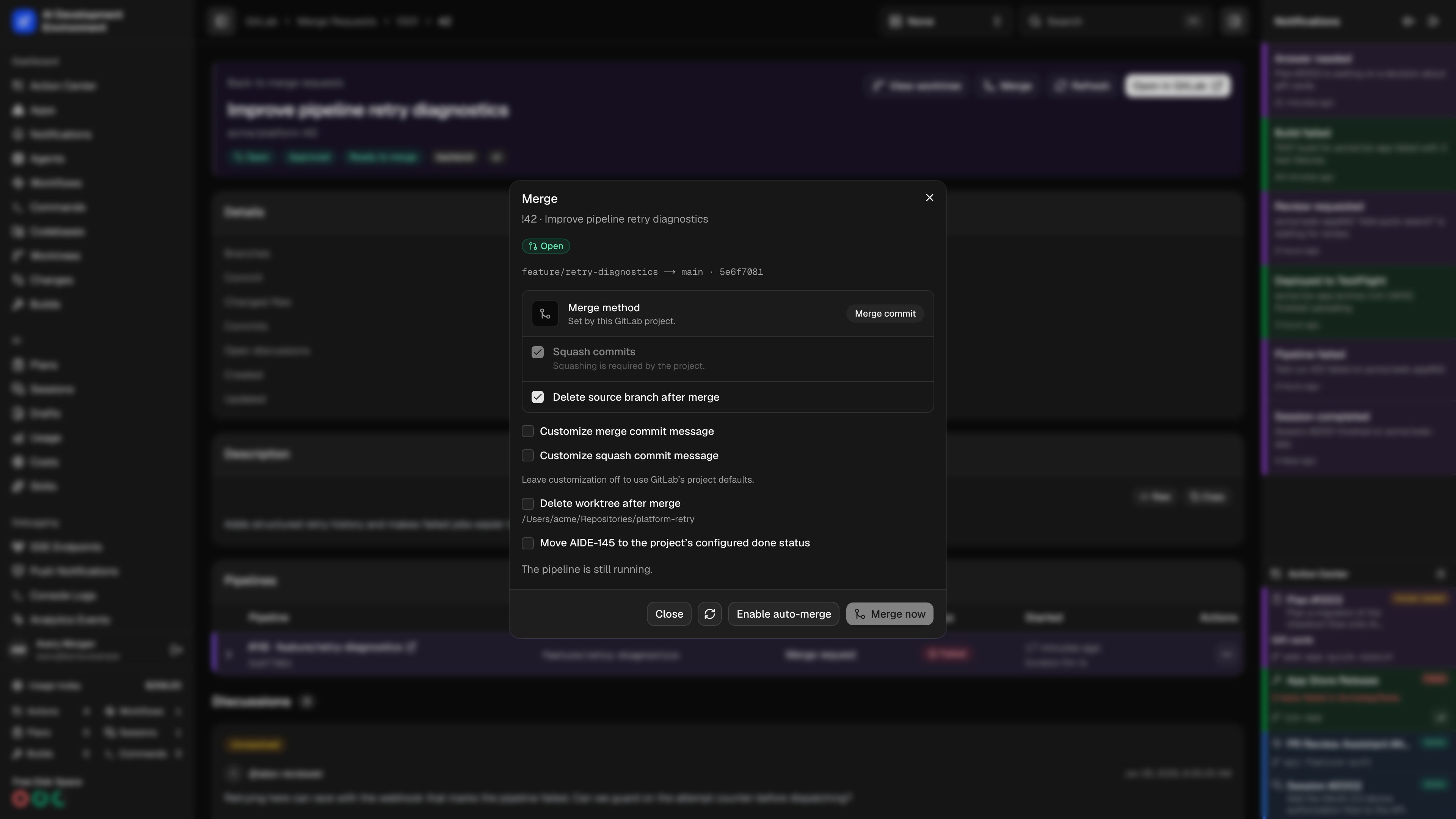
Merge now submits an immediate merge. Enable auto-merge asks GitLab to merge when its requirements are met. The dialog explains why an action is unavailable. If auto-merge is already enabled, Cancel auto-merge cancels the pending request when your token permits it.
When GitLab allows squash to be changed, and when Jira or worktree follow-ups are eligible, AIDE resolves their initial selections in this order:
- GitLab’s required or forbidden squash policy overrides every AIDE selection.
- A saved merge operation keeps its explicit selections.
- Otherwise, the defaults from Manage GitLab projects initialize squash, Jira completion, and eligible worktree deletion.
Track completion and follow-ups
The control plane saves the merge operation and observes GitLab until it confirms completion. Auto-merge enabled means the request is still waiting. Running follow-ups means GitLab has merged the request and selected Jira or worktree actions remain in progress. If a follow-up fails, the merged request remains merged. Open Merge follow-ups, read the error, resolve the issue, and choose Retry follow-ups. Completed steps are recorded so retries continue the remaining work. Worktree cleanup does not run for an unconfirmed merge or a worktree that no longer matches the merged source. If GitLab disables auto-merge, review the current options and explicitly enable it again. The control plane does not re-enable it automatically. Pending operations survive a control-plane restart. Changing the configured GitLab instance, replacing the source commit, or losing a required capability can move an operation to Action required.Use the iOS app or API
The iOS client uses the same project policies, readiness checks, merge results, and operation lifecycle as the web app. The backend exposesgitlabMergeRequestMergeOptions for inspection, including its operation field, submitGitLabMergeRequestMerge for submission, cancelGitLabAutoMerge for cancellation, and retryGitLabMergeFollowUps for recovery.
Deploy the control-plane schema and database migration before distributing the updated iOS client. The existing merge mutation remains available for older clients.
Saved operations contain the selected options, source commit and branch, optional commit messages, linked Jira ticket and worktree identifiers, completion markers, and failure details. Treat these records as repository and workflow data when setting control-plane access and backup policies.