

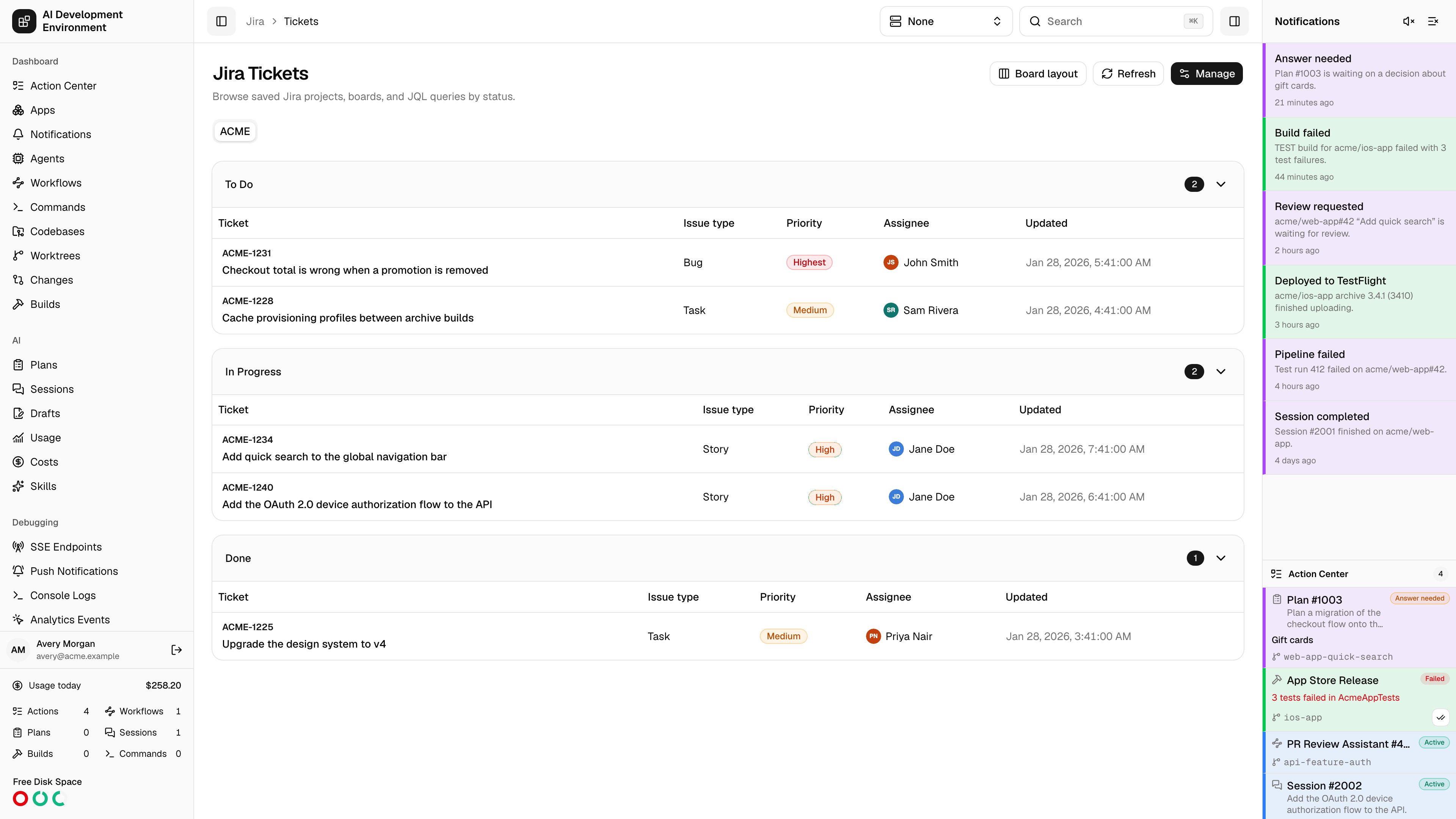
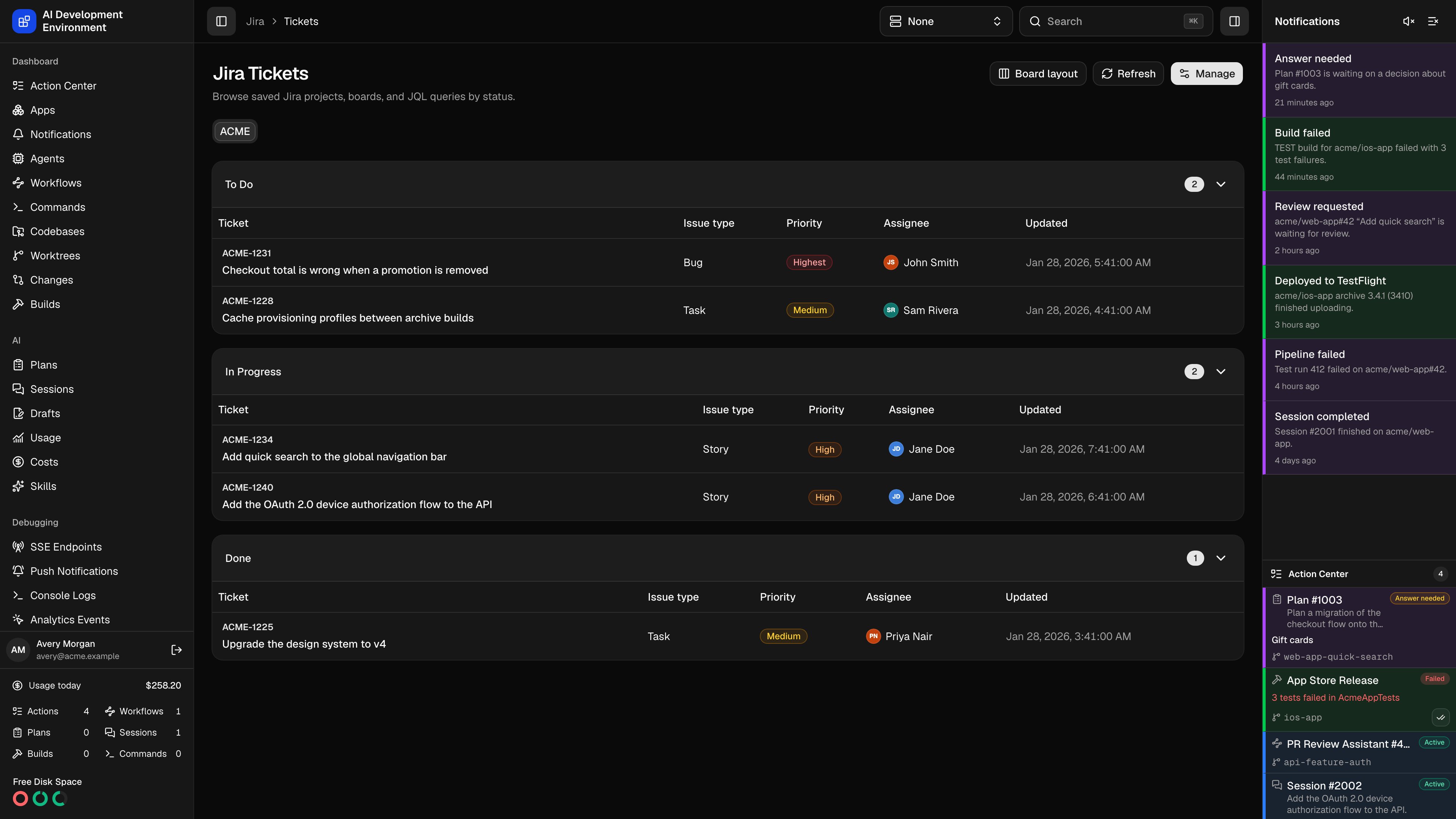
/jira/tickets is the ticket queue. Each managed project gets a tab, each project has one or more named sources — a JQL query or a Jira board — and every source renders as either a status-grouped table or a board of columns. Clicking a ticket opens it beside the list, where you can reassign it, transition it, comment on it, or turn it into a worktree branch without leaving the page.
This is the page to work from when you want to pick up the next ticket: it is the only place in the product that goes from a Jira issue to a checked-out branch on an agent in one dialog.
Projects and sources
A project comes from Jira — you can only add projects the API token can see. A source is a saved query inside that project.
Both are validated before they are saved. JQL is run against Jira with a one-result search, so a syntax error is rejected at save time rather than showing up as an empty board. A board URL is parsed for its board ID and the board is fetched to confirm it exists.
A Scrum board’s column configuration also sets the status order, so the columns here match the columns in Jira. A Scrum board with no active sprint loads nothing and says so.
The project tab, the source tab, and the open ticket are all in the URL as
?project=, ?source=, and ?issue=. A link to a specific ticket in a specific source is shareable and survives a reload.Reading the list
Board layout and Table layout switch between the two views. Both group by status and both use the same data.
Priority is colour-coded from Highest through Lowest. Collapsing a status in the table view hides its rows but keeps the count visible.
Refresh re-reads the current source from Jira, bypassing the cache. Everything else on the page is served from the cache first.
Banners
Opening a ticket
Clicking a ticket opens a drawer with the full issue: status, issue type, and priority badges, the assignee and status controls, the description, classification, related issues, attachments, and comments.
A transition that Jira requires a screen for is listed but disabled and labelled Requires Jira — those have to be done in Jira itself. Comments can be written in Markdown or Jira Wiki markup, with a preview before you post.
Creating a worktree from a ticket
Create worktree turns a ticket into a branch on one of your agents. The dialog has two modes.Choose new or existing
New worktree creates a worktree on an agent and codebase you pick. Existing worktree creates the ticket branch in a worktree that already exists and switches it over.
Pick a destination
Only online agents that support branch operations and have an available codebase are offered. A codebase or worktree with a job already running is left out, and an existing worktree has to be available.
Confirm the branch
The branch name is generated from the project’s branch naming function, with the ticket key fixed. You can still edit it and choose the base branch.
Create
The dialog waits for the worktree job to finish and reports the result. Switching an existing worktree keeps the dialog open so you can see the confirmation.
Managing projects and sources
Manage opens everything that is configured per project.Adding and removing projects
Adding and removing projects
The selector lists the Jira projects your token can see that are not already managed. Removing a project removes its saved sources and its related cache entries; nothing changes in Jira.
Adding and editing sources
Adding and editing sources
A source needs a name of 1 to 100 characters, a type, and a value. Editing a source and saving revalidates it. Deleting one also deletes the cache entries it produced.
Display settings
Display settings
Tickets to show filters every source in the project:
Hide completed tickets removes the project statuses you mark as completed, and drops those columns from the board entirely.Auto Merge done status is the status linked tickets are moved to after Auto Merge merges the pull request on the worktree. Leave it unset to skip that step.
Branch naming
Branch naming
Each project has a JavaScript function that names branches created from its tickets. It receives Saving validates the function against sample story and bug tickets, so a function that throws, times out, returns a non-string, or returns an invalid branch name is rejected before it can break a worktree.
ticketKey, type, and title, and must return a valid Git branch name.When the name it returns is already taken, it is called again with alreadyTaken set to the previous candidate, and has to return something different — that is how the -2, -3 suffixes are produced.Default branch naming function
Requirements
- A Jira Cloud site URL, account email, and API token in Settings. Without them the page has nothing to list.
- Creating a worktree needs an online agent with an available codebase, and the ticket’s project has to be managed here.
Notes
- A source stops at 1,000 tickets. The banner tells you when that ceiling was hit.
- Reads are served from the Jira cache until the TTL expires. Refresh forces a live read of the whole source.
- With the Jira webhook configured, the board reloads on its own when a ticket on it — or any ticket in the selected project — changes in Jira.
- A ticket that appears in a source it was not in on the previous load records a Jira source new ticket observation for workflows.
- Assignments, transitions, and comments are written straight to Jira and re-read immediately, so the list reflects Jira rather than a local copy.
Related pages
Jira ticket details
Full editing, activity, description history, and every Jira field.
Jira Cache
TTL, API usage, latency, and what is cached right now.