

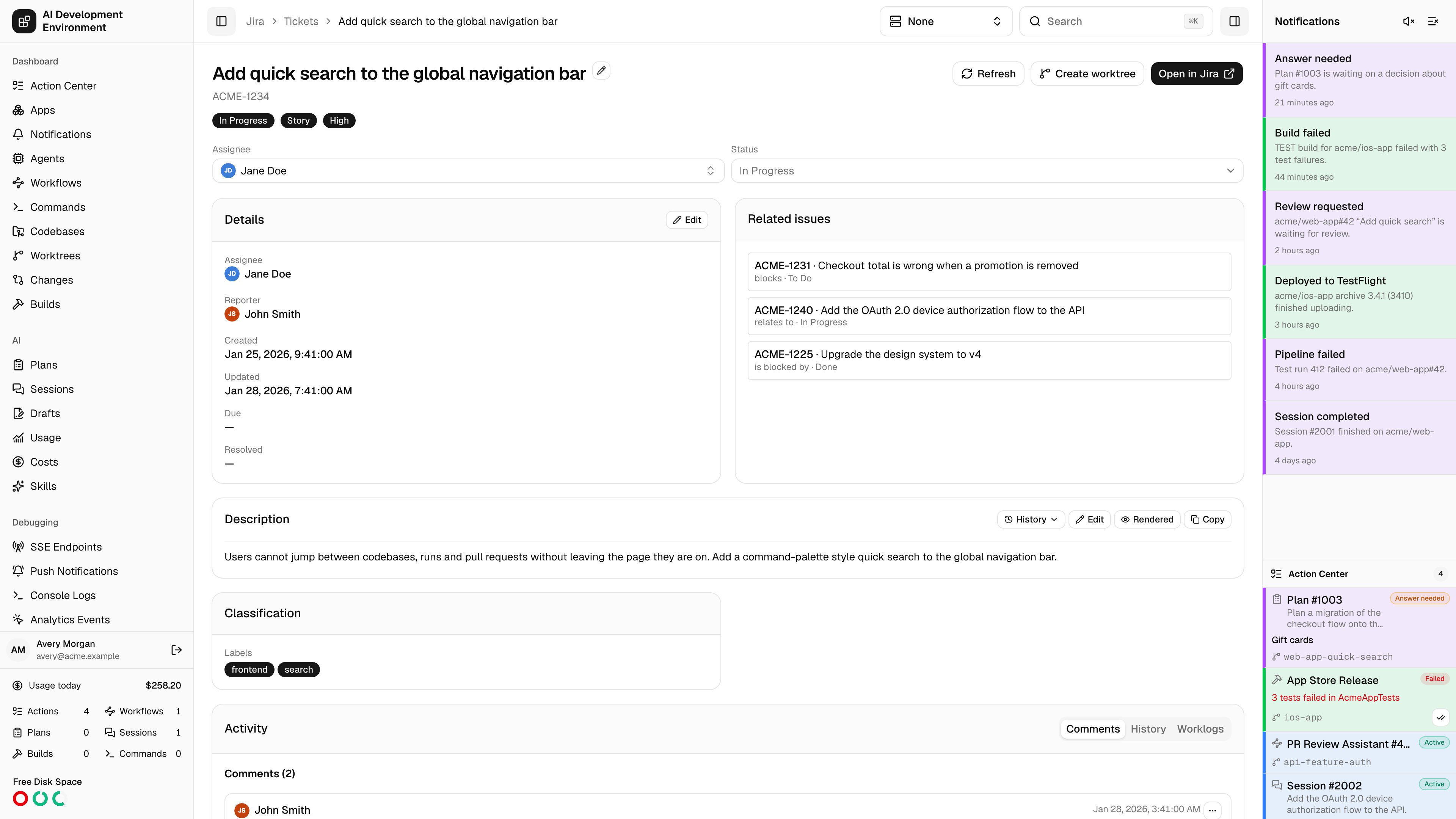
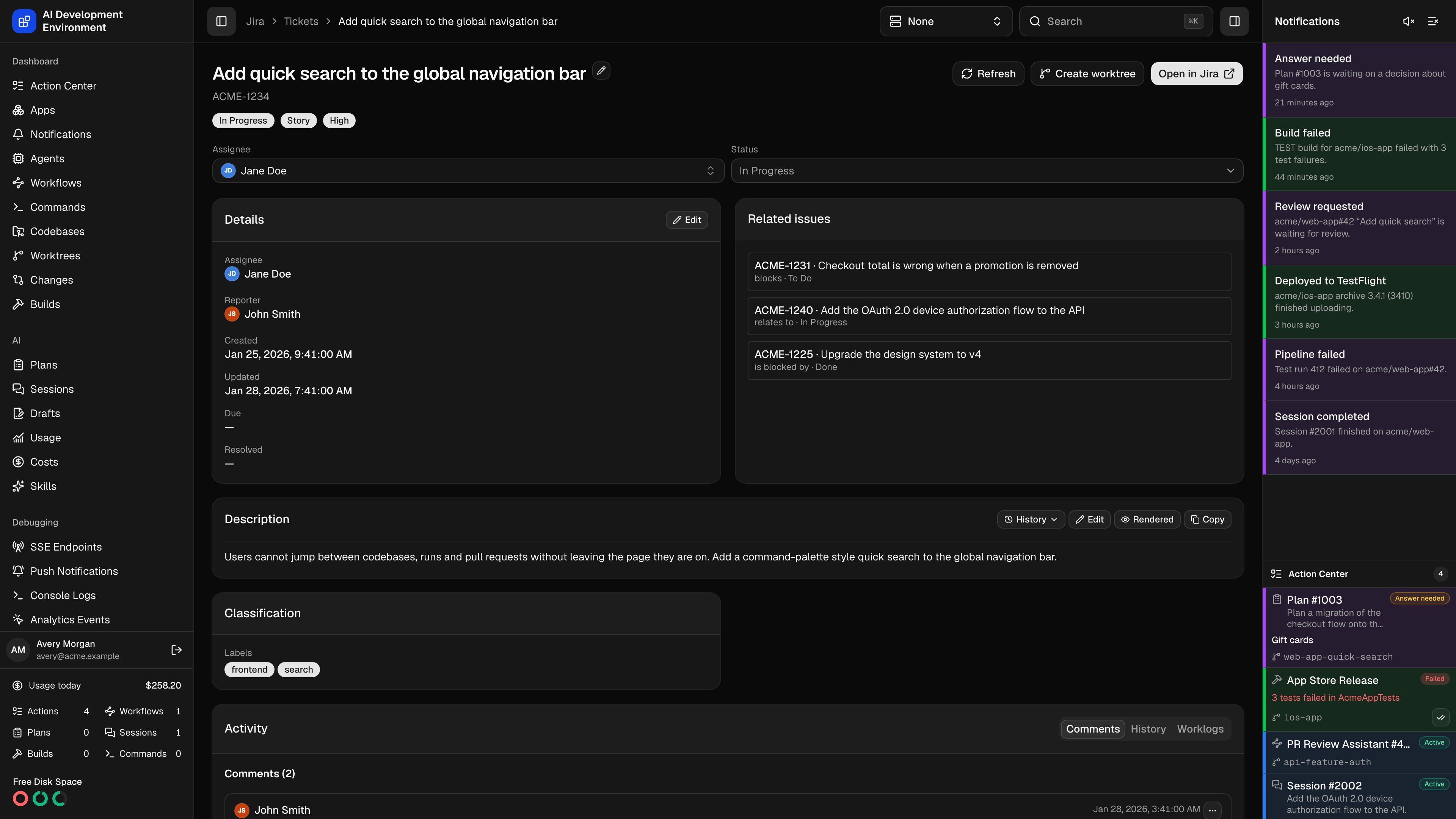
/jira/tickets/{key} is the full view of a single issue: summary, description, metadata, related issues, attachments, comments, change history, worklogs, and every raw field Jira returned. Everything editable here is written straight back to Jira.
It is the same ticket the drawer on Jira Tickets shows, with the parts that need room — description history, activity tabs, and the complete field list.
Header and actions
The summary is the page heading and is editable in place when Jira allows it. Below it are the issue key and badges for status, issue type, and priority.
Assignee and Status sit directly under the header. The assignee picker searches Jira’s assignable users for this issue as you type; the status picker lists the transitions Jira currently allows and applies the one you choose. A transition Jira requires a screen for is shown but disabled and labelled Requires Jira.
Details and related issues
Details lists the assignee, reporter, and the created, updated, due, and resolved timestamps. Edit opens a dialog built from Jira’s edit metadata for this issue, so it only ever offers fields your account can actually change on this issue type.
Related issues collects the parent, the subtasks, and every issue link in one list, each showing the relationship and the linked issue’s status. Selecting one opens its own details page.
Description
The description renders Jira’s rich text — ADF, Jira Wiki markup, or Markdown — and can be viewed three ways.
Edit opens a composer in the description’s own authoring format, with Markdown and Jira Wiki as the two choices and a preview before saving.
Description history
History beside the description compares two versions of the description text.Open the history
Opening it loads the ticket’s change history from Jira. Every description value that ever appeared — the current one, plus the before and after of each change — becomes a version, labelled with its date and author.
Pick two versions
Compare from and Compare to default to the previous version and the current one. Load more pulls older changes when the history is paged.
Compare
A line diff opens, additions in green and removals in red.
Jira only records description changes in the changelog, so a version exists only for edits Jira actually captured. Identical values are collapsed into one entry.
Activity
Activity has three tabs. History and worklogs load the first time you open their tab, 50 entries at a time, with Load more for the rest.
Comments are written in Markdown or Jira Wiki markup, with a preview, and can be copied in their raw form.
All Jira fields
All Jira fields is the complete field set returned for the issue, collapsed by default. Expanding it gives a searchable table — filter by field name or field ID — where each row shows the field’s display name, its ID, a Custom marker for custom fields, and its value. Rich text fields render like the description. Scalar values are shown as text. Anything else is shown as formatted JSON.Requirements
- Jira credentials in Settings. Editing also needs a Jira account with permission to edit the issue.
- Creating a worktree from here needs the ticket’s project to be managed on Jira Tickets and an online agent with an available codebase.
Notes
- Every edit, transition, assignment, and comment goes to Jira and then re-reads the issue live, so what you see afterwards is Jira’s state, not a local guess.
- A ticket edit also drops that issue’s cache entries, so other pages pick up the change on their next read.
- The page is served from the Jira cache on first load. Refresh forces a live read.
- With the Jira webhook configured, the page updates itself when the issue changes in Jira — quietly, without a loading state.
- A banner appears when Jira could not be reached and expired cached data is being shown.
- Only fields Jira reports as editable are offered. A field missing from the edit dialog means Jira did not allow it for this issue, this issue type, or this account.
Related pages
Jira Tickets
Projects, sources, boards, and the ticket queue.
Cached Jira ticket
The raw cached responses behind this ticket.