

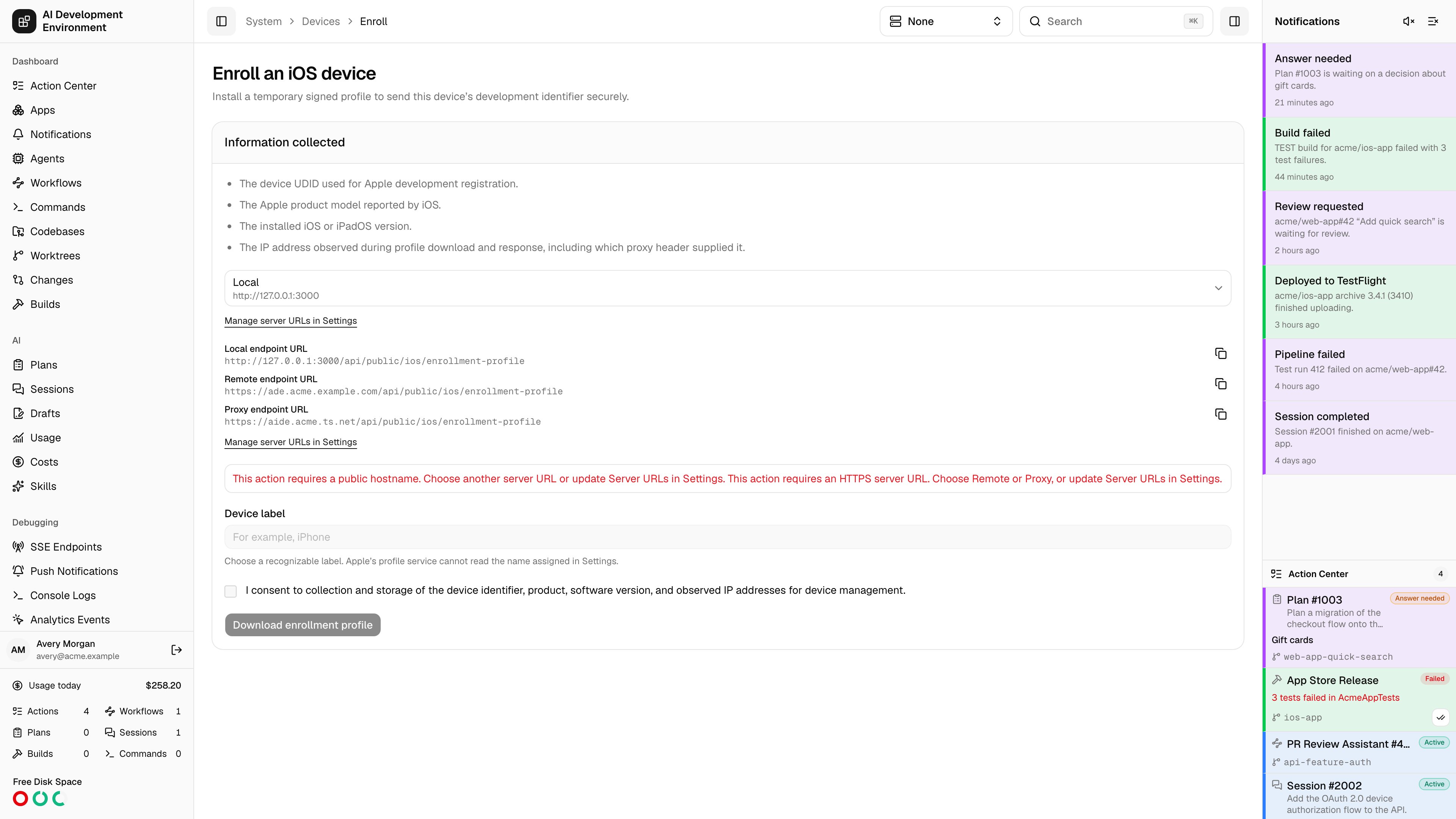
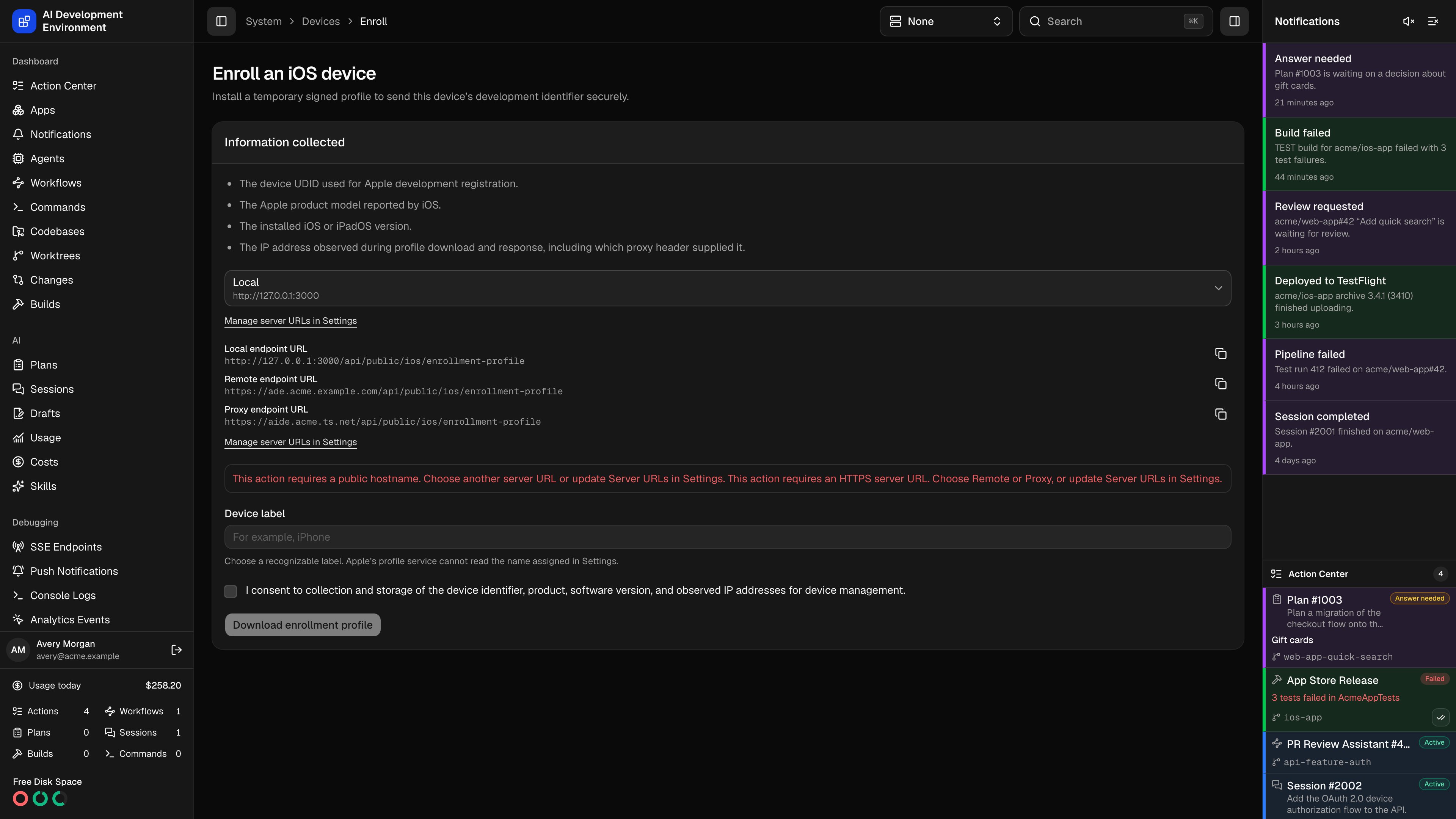
/system/devices/enroll collects an iPhone or iPad’s development identifier without anyone having to read a UDID off a screen. You give the device a label, download a temporary signed profile, and install it — iOS reports the identifier back to the server itself.
The profile uses Apple’s Profile Service payload, the same mechanism that over-the-air enrollment sites use. It is temporary, single-purpose, and requests three attributes and nothing else.
Choose Local, Remote, or configured Proxy before starting. The selector initially uses the global default. The selected serverUrlKind travels through the profile-download redirect, signed profile callback, and completion redirect, so those URLs use that configured address even when your browsing address differs. The server resolves the enum against saved settings; callers cannot supply an arbitrary origin.
In the native iOS app, choose Devices → Device Actions → Enroll a Device. Select an address, then open, copy, or share the enrollment link. Opening enrollment requires an eligible HTTPS address. Safari handles the profile download and iOS Settings handles installation; the app’s Server Connection setting continues to control its own API connection.
Using the page
Give the device a recognizable label
Apple’s profile service cannot read the name set in iOS Settings, so this
label is the only human-readable name the device will ever have here.
iPhone is a poor choice once you have three of them; Dana’s iPhone 15 is
not.
Consent to the collection
The checkbox covers the device identifier, product, software version, and
observed IP addresses. The page lists each item and why it is collected
before you agree.
Download the enrollment profile
Download enrollment profile produces a signed
.mobileconfig. Get it
onto the target device — AirDrop, or opening the same page on the device
itself, both work.Install it on the device
In iOS, open Settings → Profile Downloaded and install. The device posts
its response, and it appears on the Devices page within
seconds.
How the flow works
- You open the authenticated
/system/devices/enrollpage, supply a device label, and consent to the disclosed collection. The server mints an enrollment token and issues a profile signed with the enrollment signer. - iOS installs the profile, which requests exactly
UDID,PRODUCT, andVERSION, and carries the token as its challenge. - iOS posts a CMS-signed response to
/api/public/ios/profile-response. The server verifies Apple’s signature, checks that the returned challenge matches the token, consumes the token, and records the device.
Requirements
Enrollment is disabled unless the server is reachable at a public HTTPS address, because iOS posts the device response directly to it and refuses to install a profile whose callback it cannot trust. If the selected address is HTTP, loopback, or a private IP address, enrollment remains disabled. Choose a publicly trusted HTTPS Remote or Proxy address, or configure one in Settings → Server URLs. The device must be able to reach it.The enrollment profile is signed with a self-signed certificate, so iOS
displays it as Unverified. That is expected. What matters is the
organization name shown on the install screen — confirm it matches the name
configured in Settings before installing.
Security properties
The enrollment endpoints are public by necessity, so the token is the whole security boundary and is treated accordingly.The profile signer
The first enrollment automatically generates a ten-year RSA-2048/SHA-256 self-signed signer. Its certificate and private key live in the database and are excluded from ordinary logs and list views. The organization name and reverse-DNS profile identifier shown in iOS are configured in Settings, where the signer can also be regenerated.Notes
- A device enrolled a second time matches on UDID and updates the existing record, refreshing product and iOS version rather than creating a duplicate.
- The enrollment profile serves no purpose once the response is sent. Testers can delete it from Settings → General → VPN & Device Management immediately.
- Failed responses are recorded against the enrollment with a failure code, visible in the device’s enrollment history.
Related pages
Devices
Where enrolled devices land, and how they reach Apple.
Settings
Organization name, profile identifier, and the enrollment signer.