

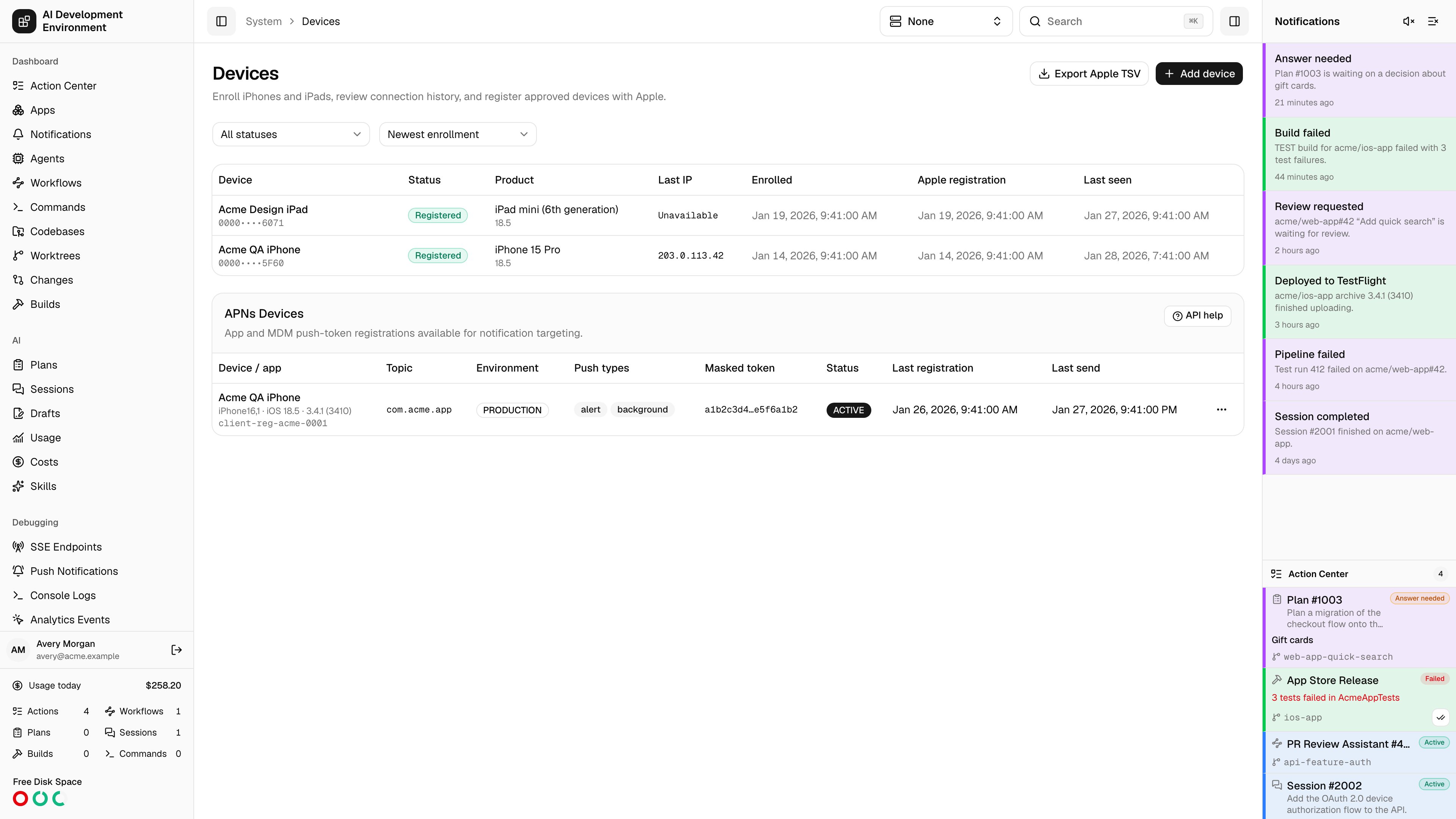
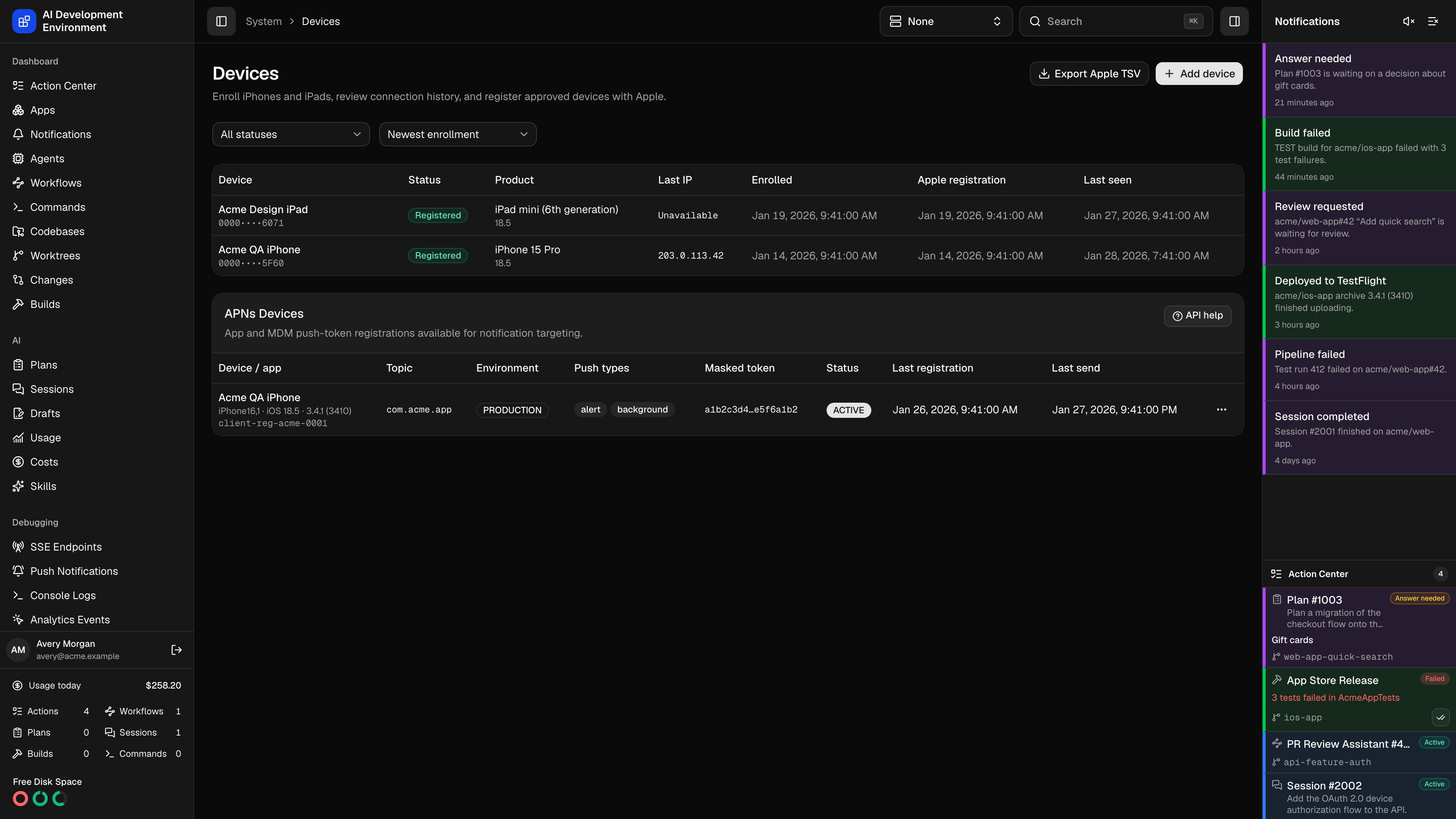
/system/devices is the register of iPhones and iPads that are allowed to run your development builds. Getting a device onto that register normally means asking someone to find their UDID in Xcode or Finder and paste it into a chat — error-prone, and unpleasant to ask of a tester outside your team.
Instead, this page issues a one-time signed enrollment profile. The tester installs it, iOS returns the identifier directly to the server, and the device appears here with its product and iOS version already filled in. Registering it with Apple afterwards is a single button.
Using the page
- Add device starts the enrollment flow and produces a profile to install on the target iPhone or iPad.
- Export Apple TSV downloads every non-rejected device as a
Device ID / Device Name / Device Platformfile, the format Apple’s bulk device upload expects. - Filter by status and sort by newest enrollment, device name, or last seen.
- Select a row to open its detail page, where registration, rejection, and deletion live.
iOS reports a hardware identifier (
iPhone16,2) and a software build (23F84), not names a person would recognize. The list resolves both locally — iPhone 15 Pro Max over 26.5 — with no network call. A model Apple shipped after this build of the app is shown as its raw identifier, and a build number resolves to major and minor only, so 26.5.2 also reads as 26.5. The detail page resolves the exact firmware version from IPSW.me.Statuses
A registration stuck in Registering — because the server restarted mid-call, for example — is recovered automatically after five minutes and moved to Registration failed so you can retry it.
Apple registration
Registering with Apple is optional. Enrollment alone gives you an accurate inventory and a UDID to hand to whoever manages the Developer account; registration automates that last step.Create an App Store Connect API key
In App Store Connect, under Users and Access → Integrations, create a Team API key with Certificates, Identifiers & Profiles access. Copy the Issuer ID and Key ID, and download the
.p8 file — Apple offers it exactly once.Save it in Settings
Enter the issuer ID, key ID, and ES256 PKCS#8
.p8 key in Settings. Saving verifies the credentials against GET /v1/devices?limit=1 before storing them, so a bad key fails immediately rather than at the first registration.Register the device
On the device’s detail page, Register with Apple first looks the UDID up in the account and reuses the existing resource if it is already there. Only a genuinely new device costs a create call against your annual device limit.
Notes
- Enrollment requires a publicly reachable HTTPS address, because Apple’s profile service posts the device response to this server. See Enroll device for the full flow.
- The enrollment profile requests only UDID, product, and iOS version, plus the IP address observed during the exchange.
- Deleting a device locally removes its record, enrollment attempts, and IP history. It does not remove the device from Apple’s annual registration list — Apple only permits that during the yearly membership renewal window.
- Rejecting a device is the reversible option: it stays in history and can never be registered by accident. Delete and re-enroll if you change your mind.
Related pages
Enroll device
The signed-profile flow that collects a device identifier.
Provisioning Profiles
Where a newly registered device has to be added before builds reach it.