

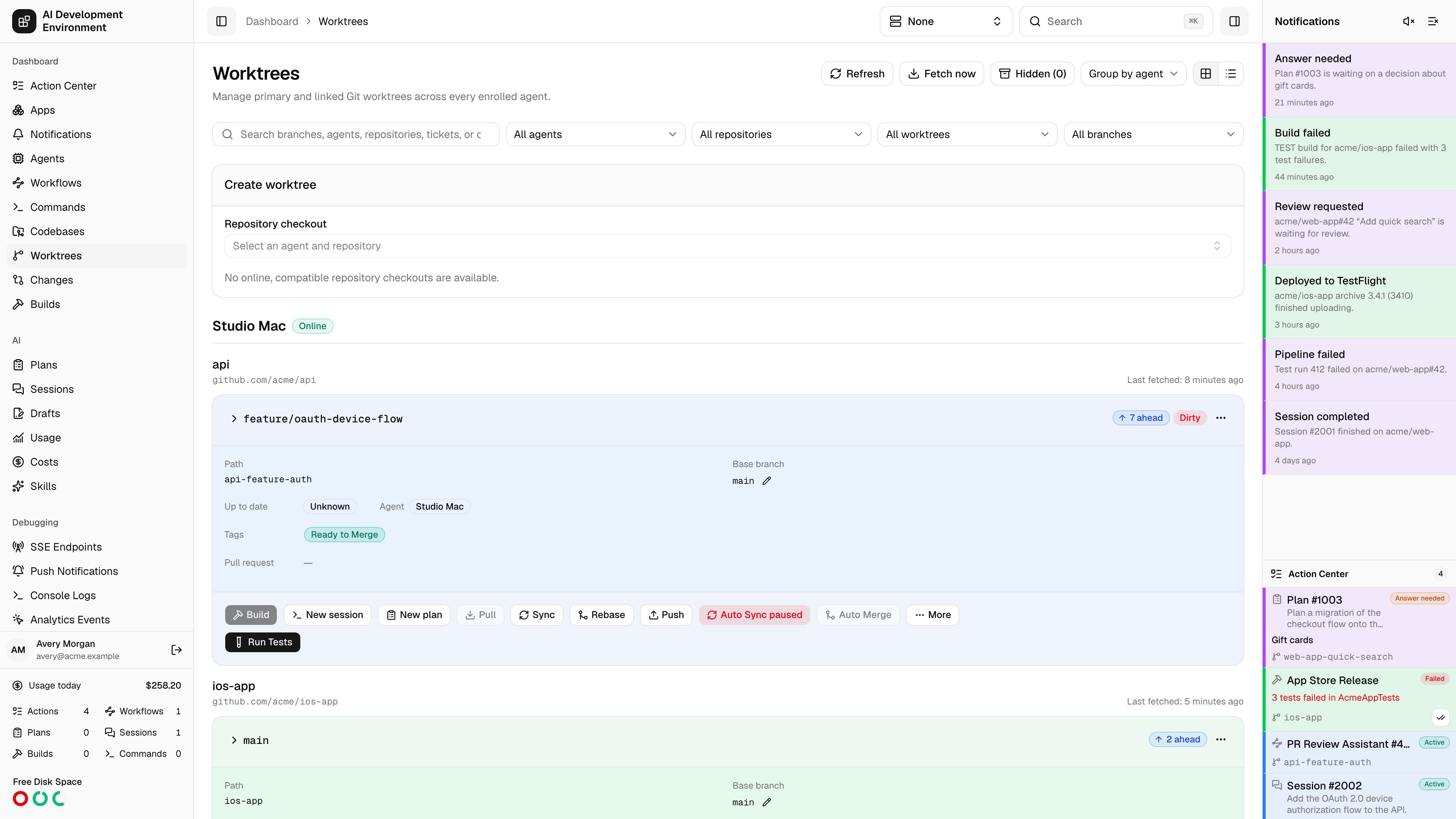
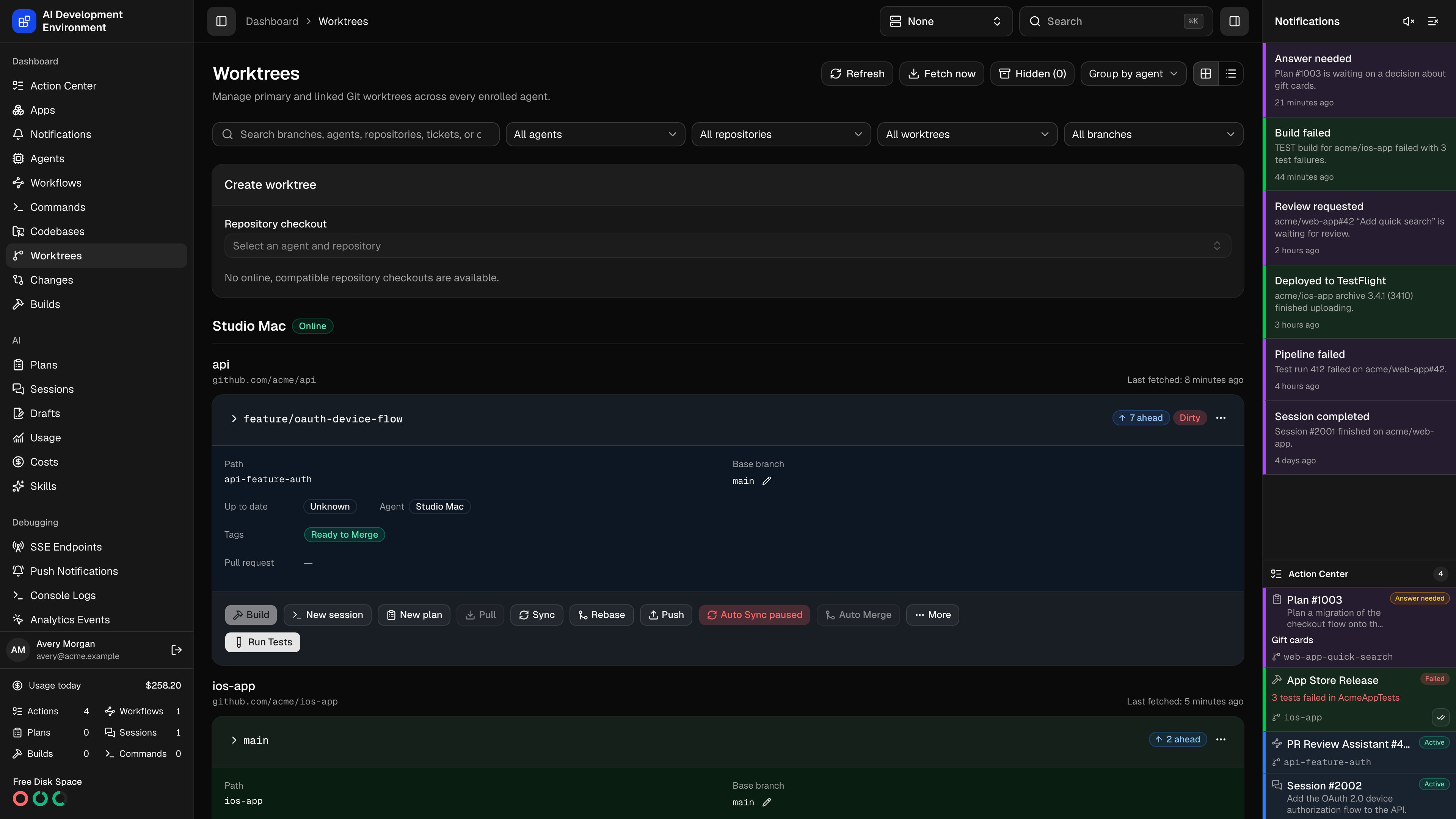
/dashboard/worktrees is the busiest page in the product. It shows every primary and linked Git worktree across every enrolled machine, and gives each one a full set of Git operations, automation toggles, and links to the GitHub pull request or GitLab merge request, build, and AI work attached to it.
Finding a worktree
- Search across branches, agents, repositories, tickets, and codebases.
- Filter by agent and filter by repository.
- Filter by changes narrows the list to Dirty worktrees or Clean worktrees. A worktree counts as dirty when it has staged or unstaged changes — the same rule behind its Dirty badge.
- Filter by branch can show only worktrees Not on default branch. Detached worktrees count when the repository’s default branch is known; repositories whose default branch is unknown are excluded because they cannot be classified.
- Use Group by agent or Group by repository to choose the primary grouping. The other dimension remains visible on each worktree.
- Switch between Card layout and Table layout.
- Refresh re-reads status; Fetch now runs
git fetch originfor eligible codebases.
Use the active agent
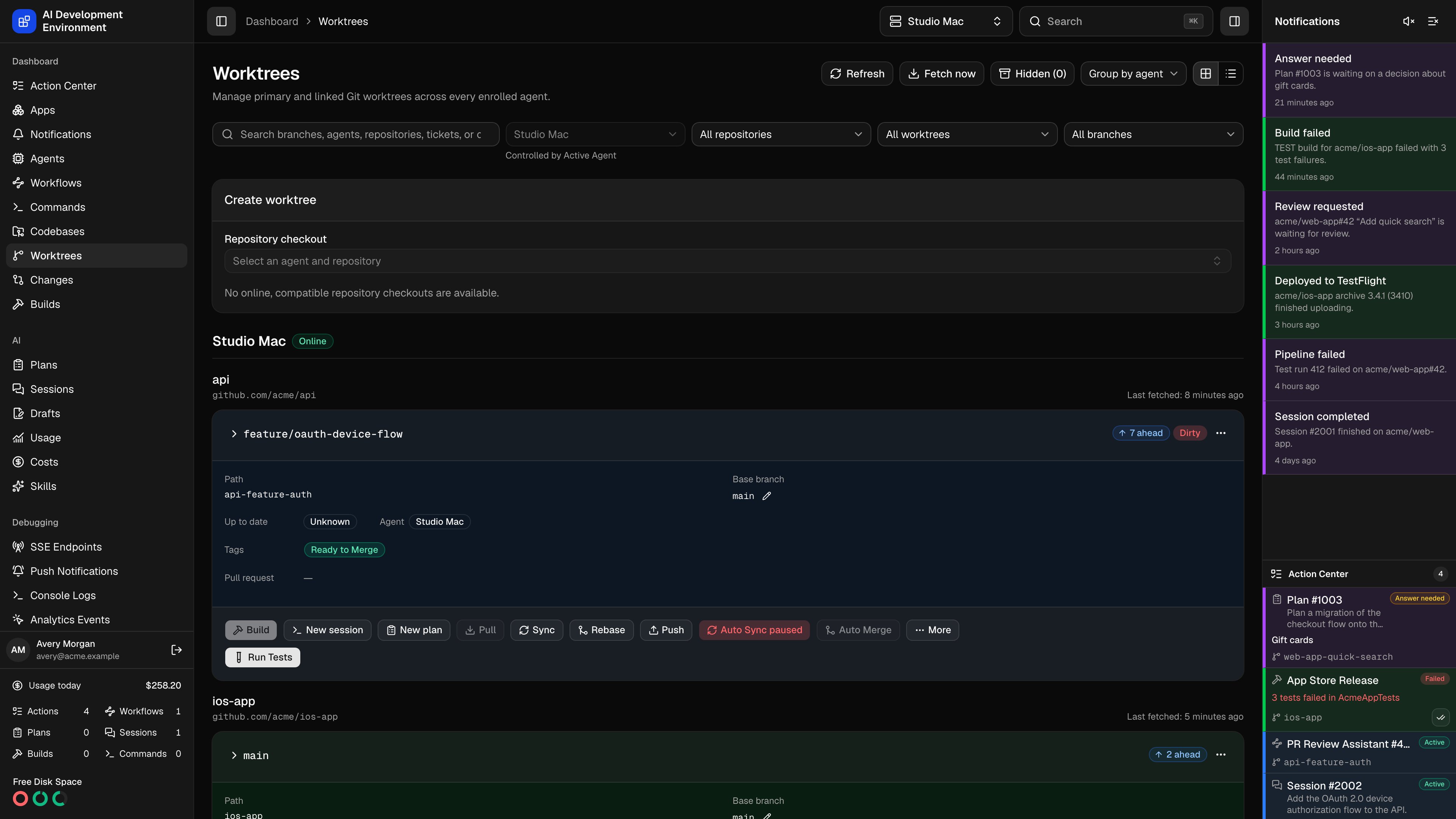
The Active Agent selector applies to this page and Worktrees views inside apps. When selected, it locks Filter by agent to that agent while preserving each view’s previous choice. Select None globally to restore it, including after reopening the page. Search, repository, changes, and branch filters still combine with the active agent. An agent without matching worktrees shows No matching worktrees.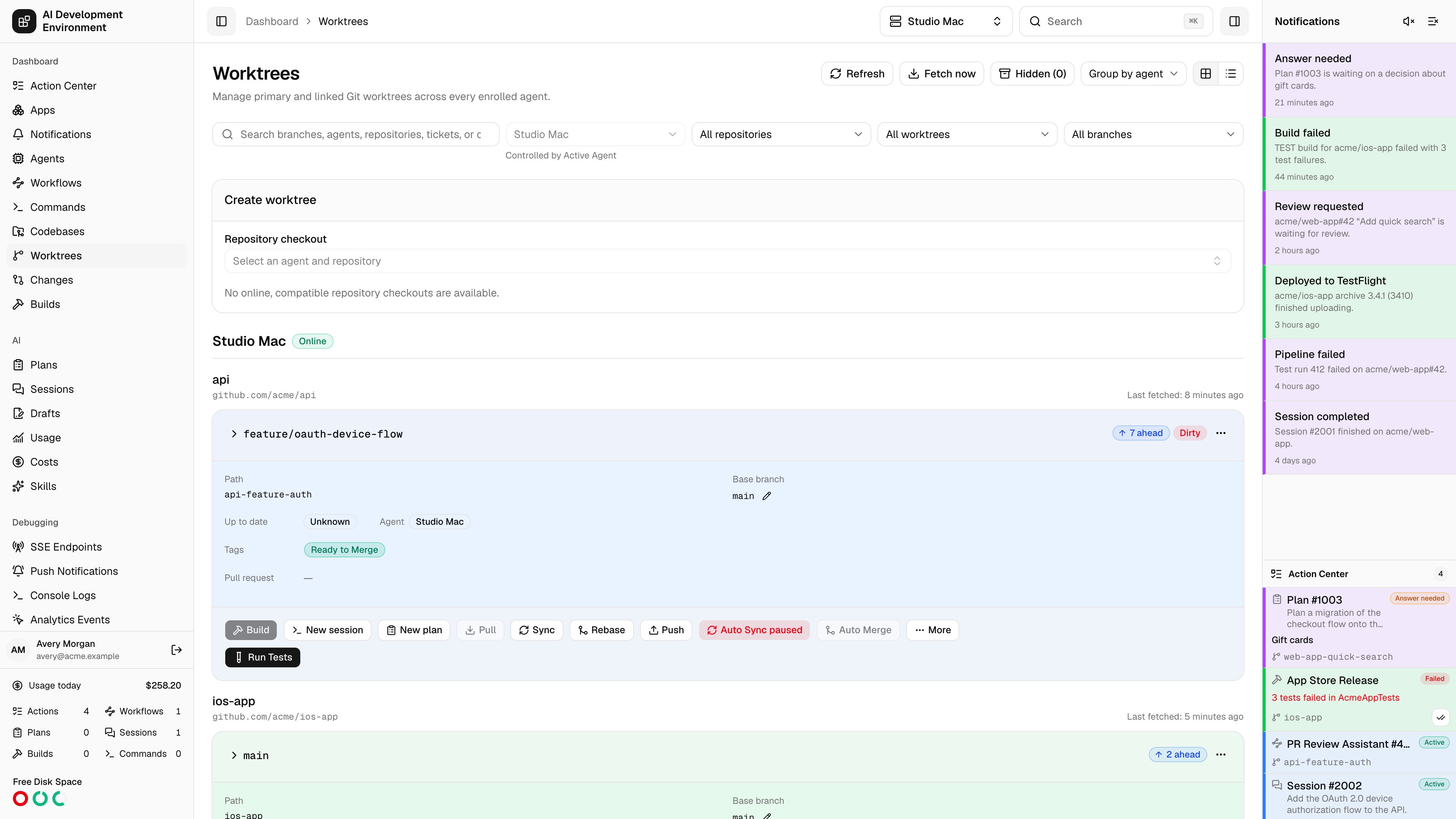
Status at a glance
Creating a worktree
Choose the repository checkout
Pick the agent checkout that will own the worktree. Only online, compatible checkouts are offered.
Choose the branch source
- New branch — name a branch and pick a base.
- Existing branch — choose a local branch, an origin branch, or one that exists in both.
- From ticket — enter a Jira ticket key and let the branch name be derived from it, using the repository’s Jira branch regex.
Pick a base branch
Select a base, or inherit the remote default.
Create
The agent creates the worktree, applies the repository’s preparation rules, and reports it back. If preparation fails, AIDE removes the incomplete worktree and removes only a branch created by that job.
Per-worktree actions
Git operations
Git operations
Pull fetches the branch’s remote and fast-forwards onto it, and is offered only while the branch is behind its upstream. A branch that has diverged cannot fast-forward: Sync or Rebase are the ways through.Force push, Reset, Clear lock, Stash all, and Stage all / Unstage all live behind More at the end of the action row. Force push, Reset, and Clear lock ask for a second click to confirm before they run.Use Clear lock when Git reports that it cannot create
.git/index.lock because the file already exists. Stop any Git process using the worktree first. The action removes only the selected worktree’s index lock and succeeds if the stale file is already gone.In the iOS app, open Worktree Actions → Changes → Clear Lock. Confirm the safety warning to run the same operation.Change branch to <default> names the repository default branch — for most repositories that reads Change branch to main — and skips the branch form entirely. It is hidden when another worktree already holds that branch, since Git refuses to check a branch out twice, and disabled when this worktree is already on it.When Git cannot switch because of local changes, the action offers Stash and retry: it stashes tracked and untracked changes, retries, and leaves the stash for you to restore by hand. The one-step default-branch item has no retry of its own — it reports the error, and Change branch is where you stash and retry.Git and worktree actions wait while a command or workflow terminal step configured to block Git is running on the same codebase. Commands that leave Git blocking off can run alongside these actions.Starting a run
Starting a run
New session and New plan open the new run page with this worktree already selected, and its Jira ticket filled in when it has one.
Rebase conflicts
Rebase conflicts
A rebase that stops on conflicts leaves the worktree in Rebase paused. Resolve them by running a merge-conflict quick-action workflow, or Cancel rebase to restore the branch to its pre-rebase state.A preparation conflict is detected before Sync or Rebase modifies the worktree. The dialog lists the managed paths and offers a force action only for this result. Forcing clears managed paths and assume-unchanged flags, discards edits on assume-only paths, runs Git, and reapplies preparations. A genuine Git conflict suspends preparations until the rebase is cancelled or completed.
Opening in an editor
Opening in an editor
Open in VS Code and Open in VS Code Insiders launch the worktree folder on its agent. They sit in the Customize worktree menu, alongside the worktree’s tags and highlight color.
Builds
Builds
Start Build picks a saved configuration or Custom, then a destination. Custom is available as soon as the repository has an iOS App project. The selected configuration names its source path, scheme, build configuration, and the agent the build will run on — the one that owns the codebase — so you can tell where the work is going before you start it.Starting a build or rebuild closes its dialog and refreshes this worktree in place. It does not send you to Build History.A successful Latest build badge is a direct keyboard-accessible link to the build details page. Rebuild and run actions remain available beside it. Builds that produced a runnable app use the detailed agent-and-device picker described on the Builds page, so the app can run locally or be transferred to another eligible Mac without leaving the worktree.
Quick actions
Quick actions
Workflow and command quick actions share one row when space allows, separated by a divider. They wrap into separate rows on narrower cards.An active command adds a spinner menu beside its button. Open it to Terminate, Restart, or View each active run. The command button remains available, so you can start another run; its concurrency setting decides whether it starts or queues.An active workflow adds its own spinner menu beside the quick-action button. The spinner shows a count when more than one run is active, and the menu identifies each run by number. Choose View to open a run. The workflow button remains available so you can start another run; the workflow’s overlap and worktree-concurrency settings determine when it starts.
Committing changes
Commit stages work and records it as a Git commit on the agent that owns the checkout, without opening a terminal.Write a message
The commit message is required. The dialog opens with the worktree’s current changes already read from the agent.
Decide about signing
Signed commit starts pre-set to whatever
commit.gpgsign resolves to in that worktree’s effective Git configuration, so the default matches what committing by hand would do. Clear it to commit unsigned, or set it to sign a commit that would not otherwise be signed.Choose what goes in
Stage all is on by default and stages every tracked and untracked change. Turn it off to get a checklist of the current changes, pre-selected to whatever is already staged, and pick an exact set.
Commit
The agent stages, commits, and reports the new commit back. The page reloads the worktree when the job finishes.
Auto Sync
Auto Sync keeps a branch current without you asking: whenever its target branch changes, the worktree is rebased and pushed with force-with-lease. It can also handle conflicts for you — enable Run a quick-action workflow to resolve merge conflicts automatically and select a merge-conflict workflow, optionally with a specific trigger choice. Auto Sync can be paused, resumed, and cancelled. Auto Sync never forces through a preparation conflict automatically. It pauses with a preparation reason and shows the affected paths. Force Sync runs the existing conflict workflow when needed, reapplies repository preparations, and resumes Auto Sync after success.Auto Merge
Auto Merge hands the merge to the worktree’s provider: the GitHub pull request or GitLab merge request merges as soon as its required checks, reviews, and branch rules are satisfied. Two optional follow-ups:- Delete this worktree after the pull request merges.
- Move the linked Jira ticket to the project’s configured done status.
Moving a worktree to another agent
Moving pushes the branch from the source agent and checks it out on the destination.Pick a destination
Choose the destination agent and checkout, then either create a new worktree there or target an existing one. A destination with uncommitted changes is flagged — Git will carry them onto the incoming branch where it can.
Decide about the source
Delete old worktree after moving cleans up the source. Primary worktrees cannot be deleted, so the option is unavailable for them.
Watch it run
The move reports its stage: pushing the source branch, checking out the destination, waiting for a stash decision, removing the old worktree, then complete.
A move is refused up front when the source agent is offline or too old, another operation is active for the repository, HEAD is detached, the source is dirty, the branch is behind or diverged from origin, or no compatible destination exists. The page names the specific reason.
Deleting a worktree
Delete worktree permanently removes the folder and its local branch, optionally deletingorigin/<branch> too. The repository default branch is protected from remote deletion.
Hidden worktrees
A worktree that disappears from disk is not deleted immediately — it moves to Hidden and is retained for seven days. If the agent rediscovers it in that window, its saved metadata, tags, and highlight come back. Purge and Purge all remove hidden entries early.Related pages
Worktree details
Overview, working tree, branch changes, diffs, and coverage.
Codebases
The repositories and checkouts worktrees are created from.