

Open the transfer review
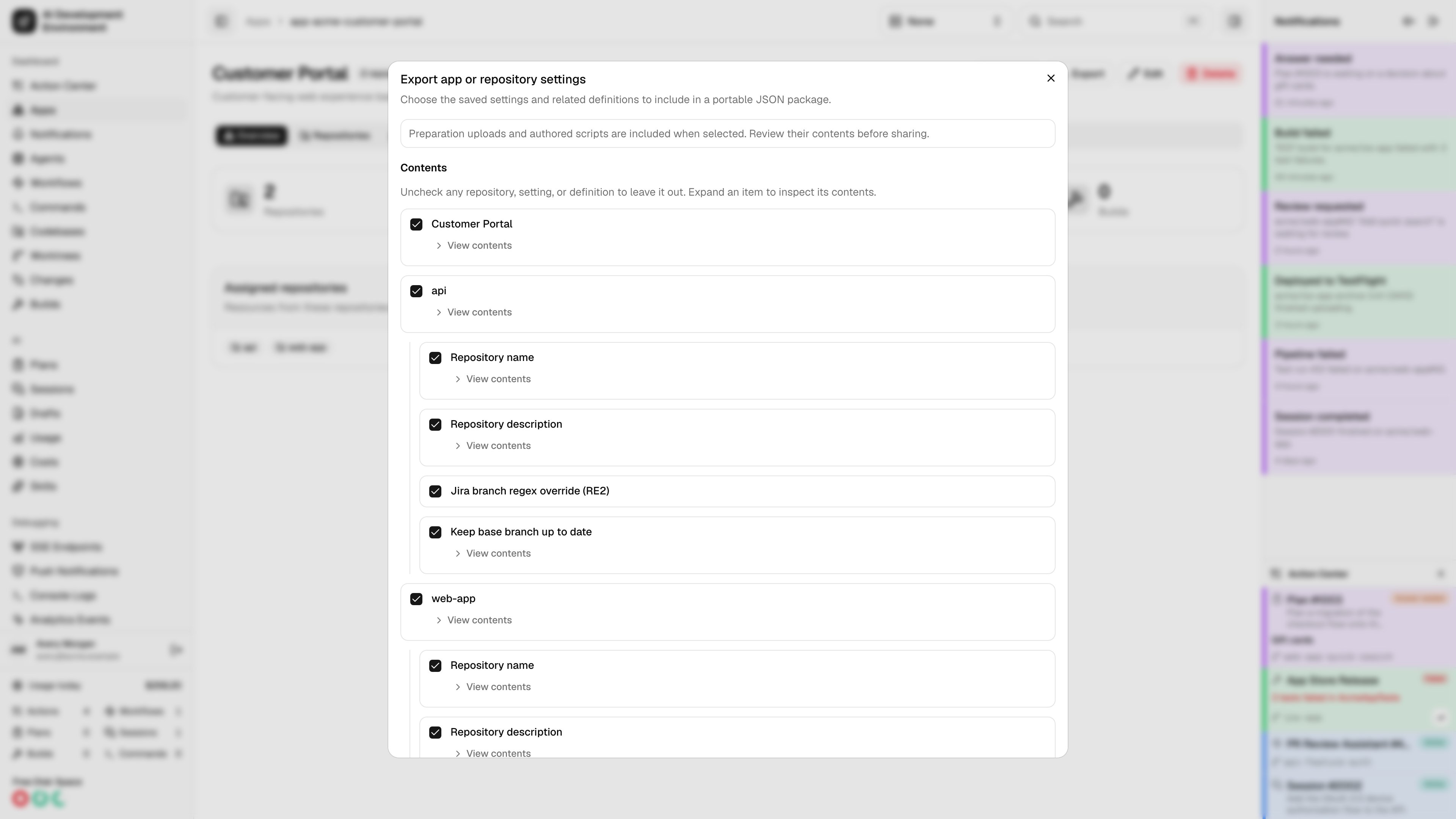
Choose what to export
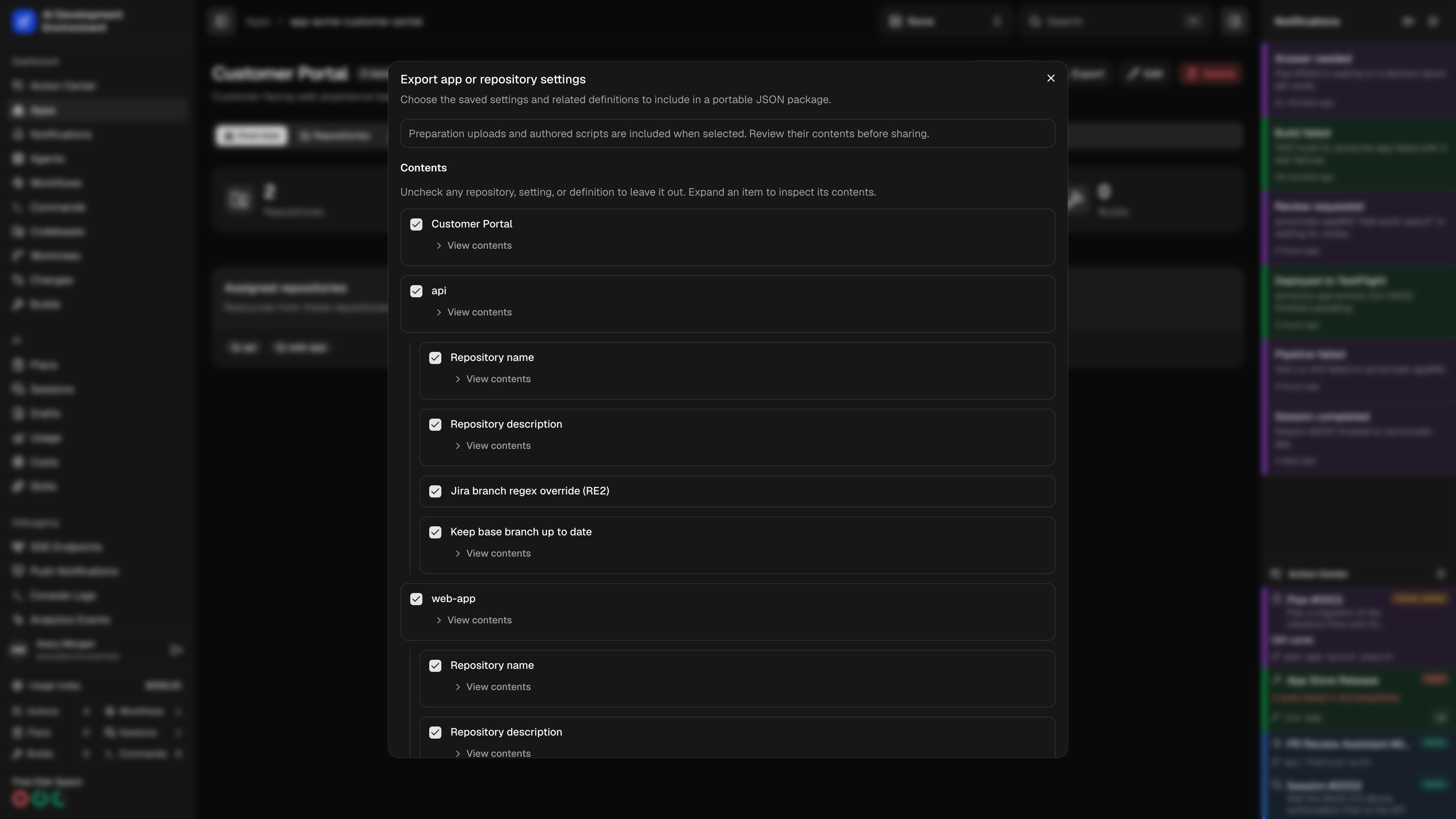
Click Export, then review Contents. Expand View contents to inspect an item. Uncheck an item to exclude it and its children, or exclude an individual repository setting. Click Download JSON when the selection is ready. The package can include:
An app export can include a command or workflow shared with another repository. Additional required resources appear as Dependency items. Include them deliberately, map the reference to a local resource during import, or exclude the item that needs them.
Import and resolve conflicts
1
Choose the package
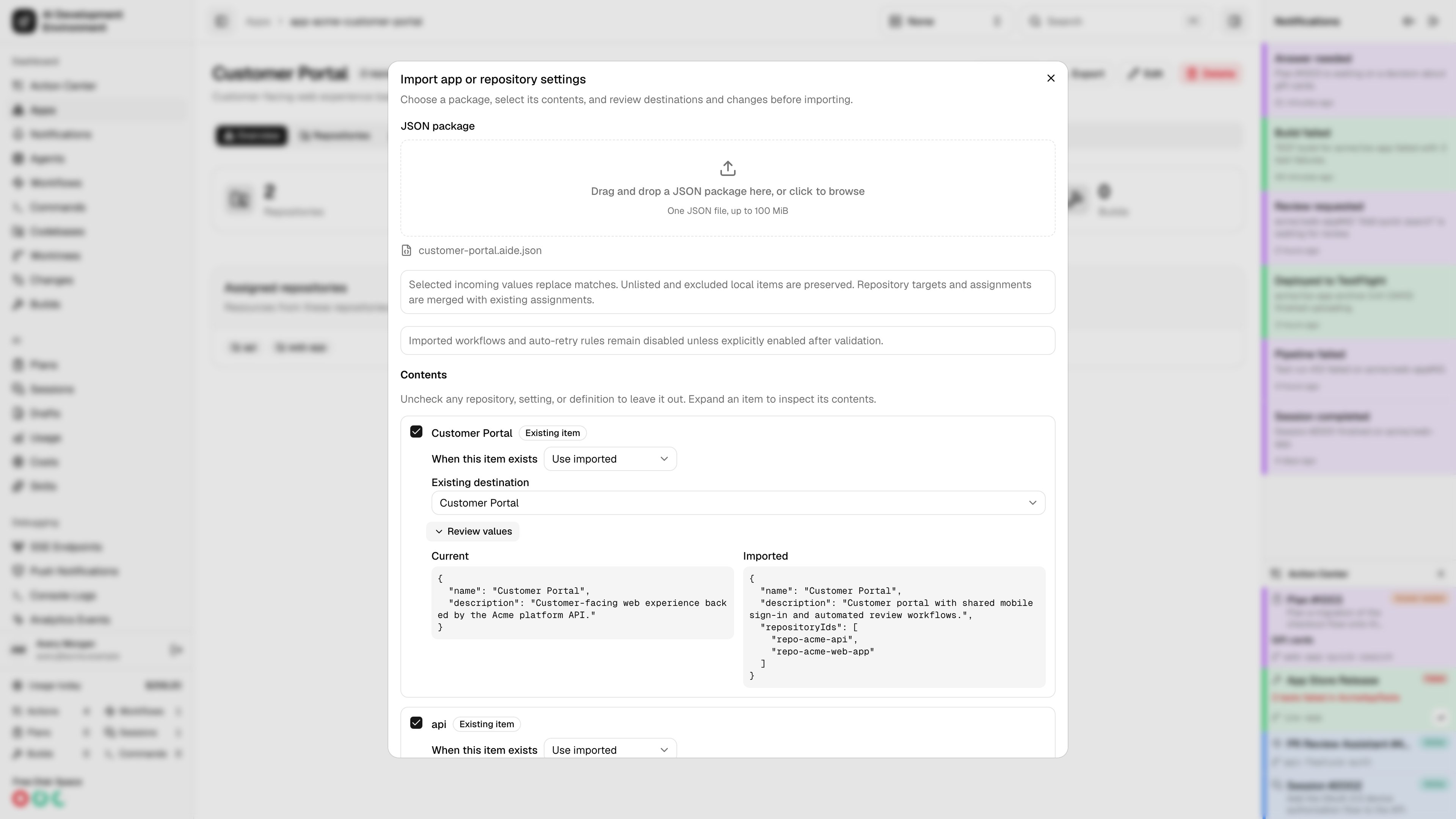
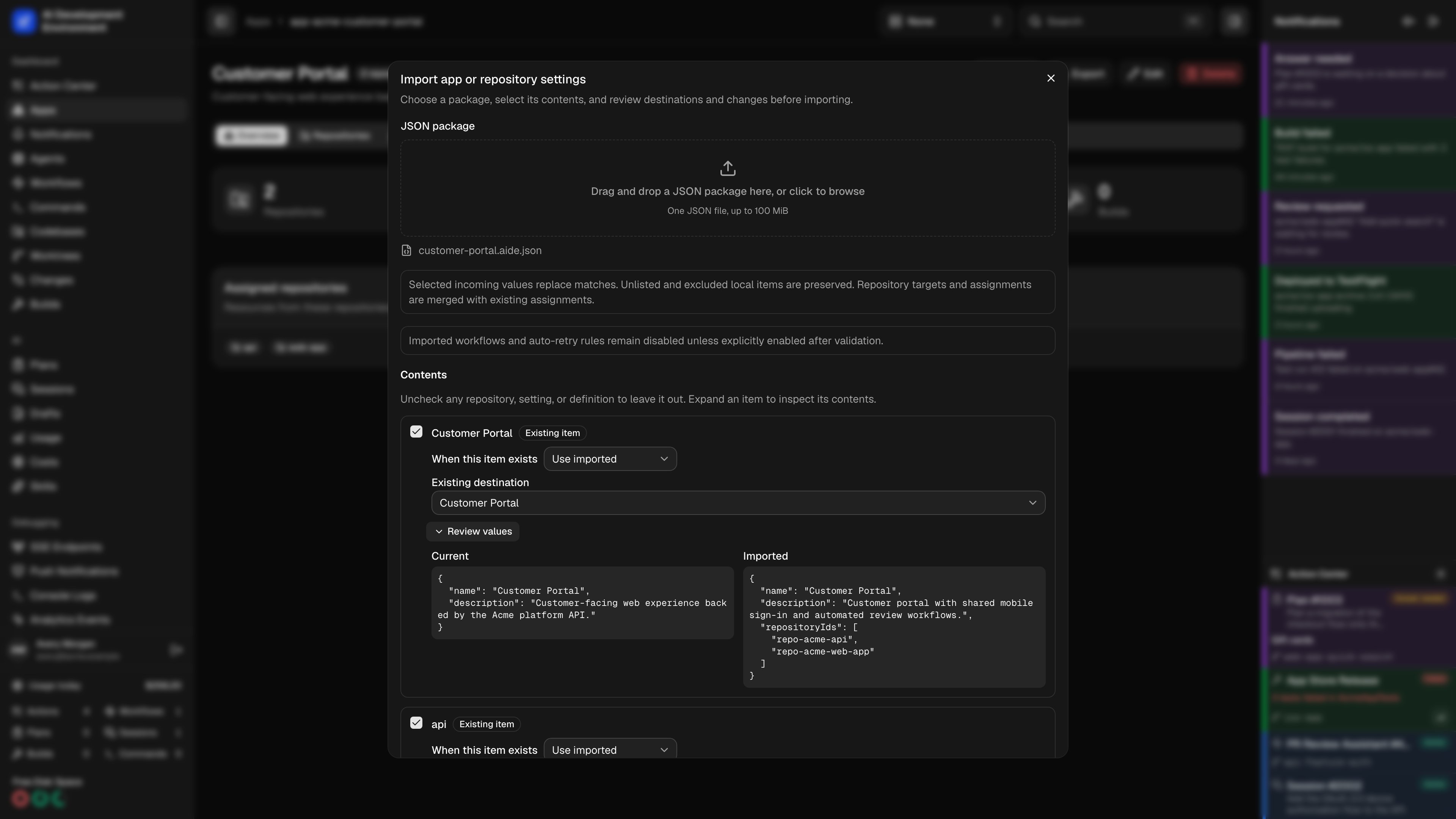
Click Import, then drag a JSON package into the upload area or click it to choose a file. The initial preview lists its contents and any unresolved references.
2
Select settings and definitions
Uncheck anything you want to exclude. Open Review values to compare Current and Imported values. Also affects identifies other repositories that use a shared definition.
3
Resolve existing items
Choose Use imported to replace selected values or Keep existing to preserve the matching local item. Where supported, Create a copy creates a separately named app, command, workflow, build script, or build configuration. Resolve ambiguous matches before continuing.
4
Map dependencies
Under Dependencies, choose local resources for references that cannot be carried across installations. Include a dependency from Contents when appropriate. A missing reference blocks the affected import until you map it or exclude the dependent item.
5
Choose agents and destinations
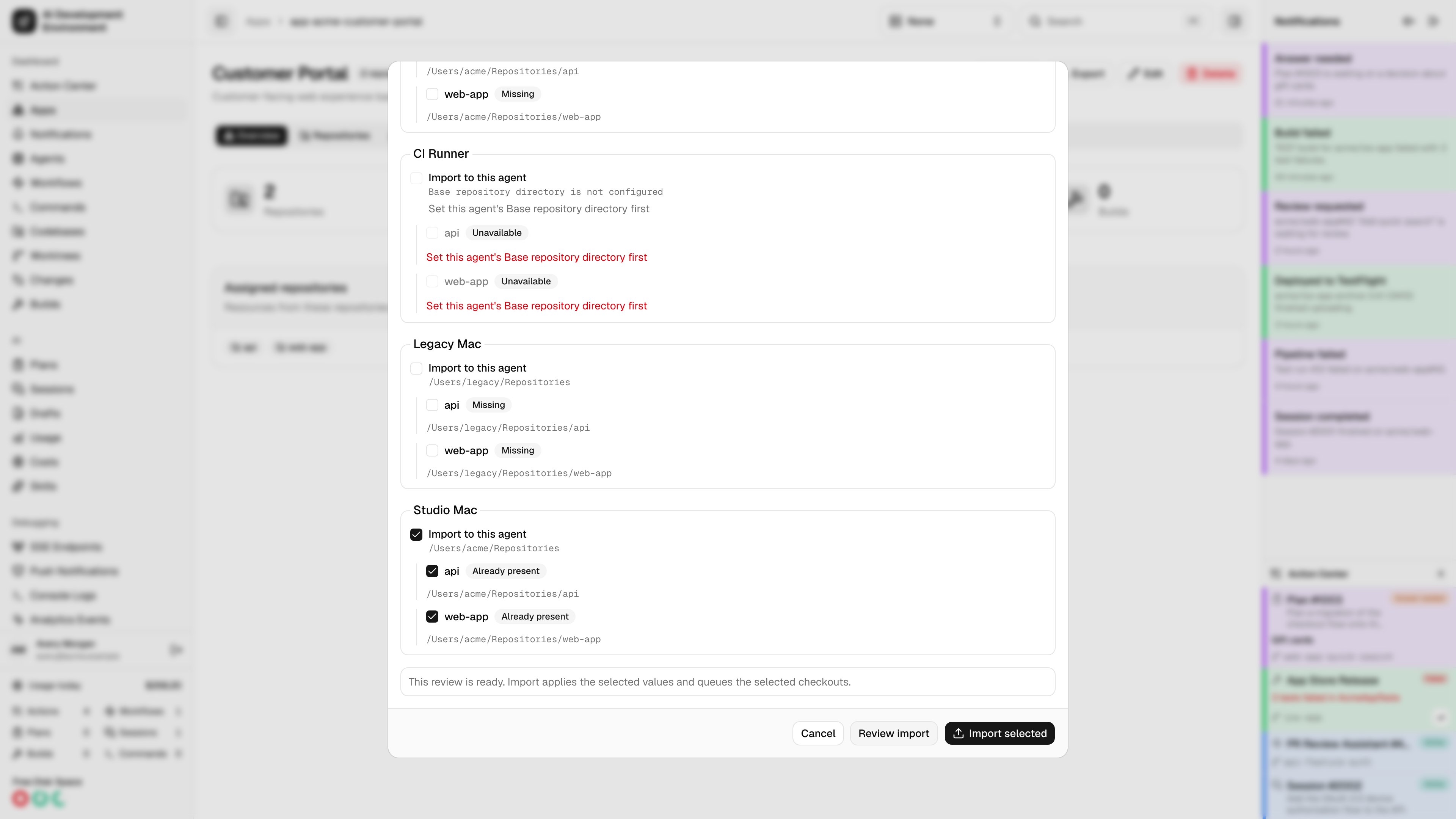
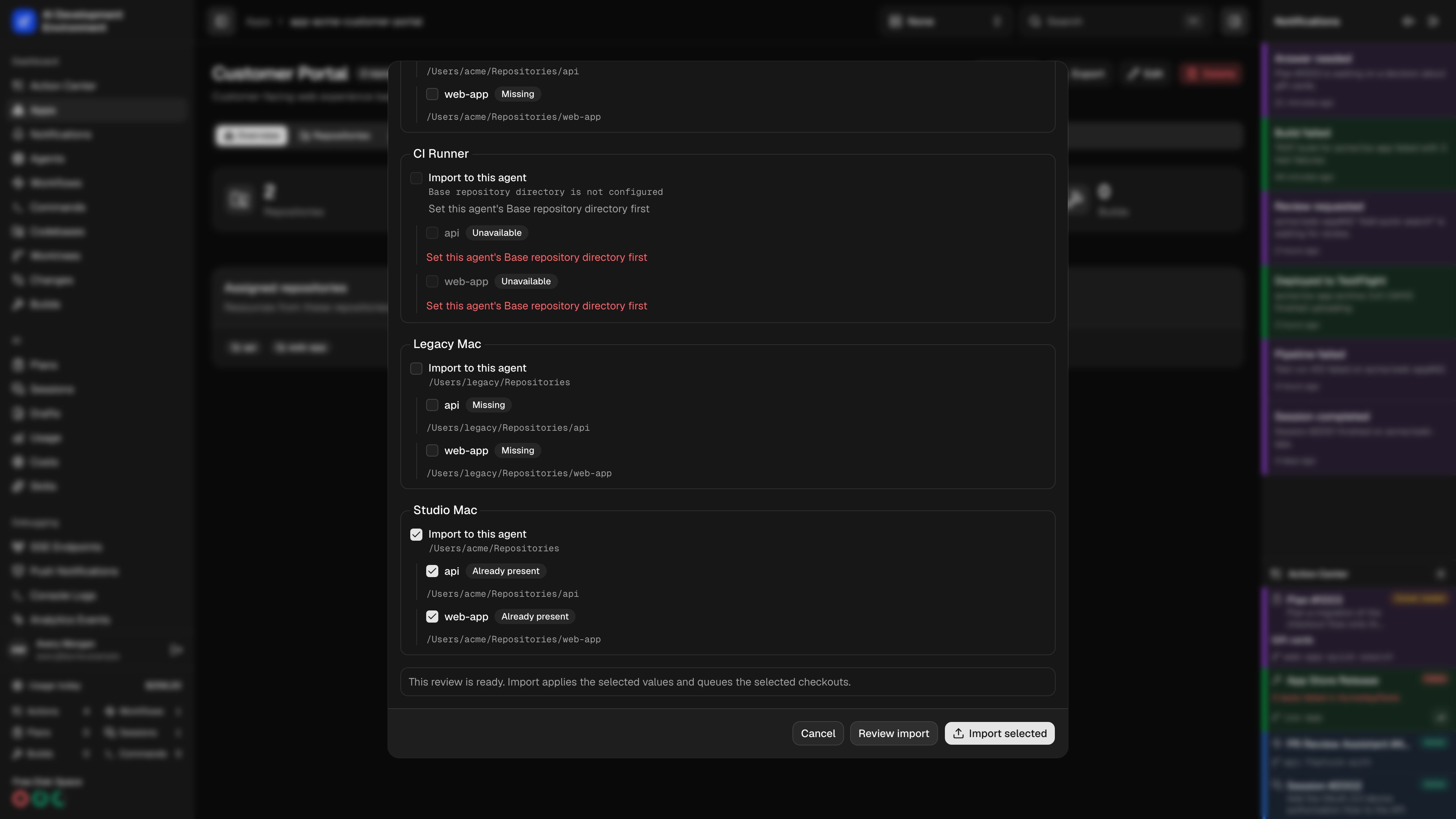
Select Import to this agent for each destination agent, including agents that already have the repositories. Existing checkouts show Already present and their registered paths. For missing checkouts, review Folder relative to base directory and Clone URL. Importing an app requires an agent selection. Importing a template into an existing repository makes additional checkouts optional.
6
Review and import
Click Review import after changing selections, resolutions, mappings, or destinations. Resolve the listed blockers, then click Import selected. If local configuration changed since the preview, review again before applying it.
Apply a repository template
When you import from repository details, the current repository is the destination. Its origin and existing checkouts are preserved even when the template came from a different repository. If the package includes several repositories, select Repository to use as the template. Review settings and definitions as usual, then choose any Optional additional checkouts. Excluding a repository setting preserves the destination’s current value.Clone requirements and progress
Cloning requires an online agent that advertises the current clone capabilities and has Base repository directory configured. Git authentication comes from that agent’s SSH or Git setup. The package cannot supply embedded HTTP credentials. Selected destinations are inspected before import. An unrelated existing folder, conflicting repository, or symbolic link blocks a clone. The clone operation checks again before writing, stages a new checkout under the destination parent, and reuses a matching existing checkout without replacing its files. Settings are saved in one database transaction before the independent clone jobs run. If one clone fails, the imported configuration and successful checkouts remain saved. Transfer progress shows per-destination results; Retry failed checkouts retries those failures without importing settings again. If the destination base directory changes, start a new reviewed import or Sync instead of redirecting the old retry. Open the app’s Sync view to add missing checkouts later. Sync uses the same clone validation and progress reporting.Use the native iOS app
Choose Choose JSON Export to open a file from Files. Included Settings provides item toggles and View Settings shows the existing and incoming values. Resolve conflicts with Import Incoming, Keep Existing, or Create Copy. Use Destination Item to resolve an ambiguous match, then review Dependency Mappings and Import to Agents. Existing checkouts show their registered paths. Each selected missing Checkout Destination lets you edit the relative folder and clone URL. After changing the selection, tap Review, then Import. For exports, tap Export, then Save or Share Export. Unsaved repository details or preparations disable the repository transfer buttons until you save or discard those edits. App details also has a Sync tab with Clone Selected Repositories. The Transfer Progress sheet includes View Clone Job and Retry Failed Checkouts. View Latest Transfer and View Latest Sync reopen the most recent saved operation for that server and resource.API clients
UserepositoryTransferExportPreview and exportRepositoryTransfer for export. For import, send the same choices to previewRepositoryTransfer and applyRepositoryTransfer, including the preview’s fingerprint and a unique requestId. The server rejects stale previews and reuse of a request identifier with different selections.
Read repositoryTransferOperation(id:) or subscribe to repositoryTransferChanged(operationId:) for progress. retryRepositoryTransfer retries clone failures. appRepositorySync and syncAppRepositories provide the app Sync view. These operations require control-plane authentication; enrolled agent tokens cannot invoke them.
The package identifies itself with format: "aide.repository-transfer" and version: 1. Existing workflow-only and command-only JSON imports remain available on their own pages.
Related pages
App details
Clone an app’s missing repositories through Sync.
Repository details
Manage the shared settings included in a repository package.
Repository preparations
Understand uploaded file contents, path rules, and preparation limits.
GraphQL API
Authenticate API requests and browse the generated transfer types.