

Connect Apple TV
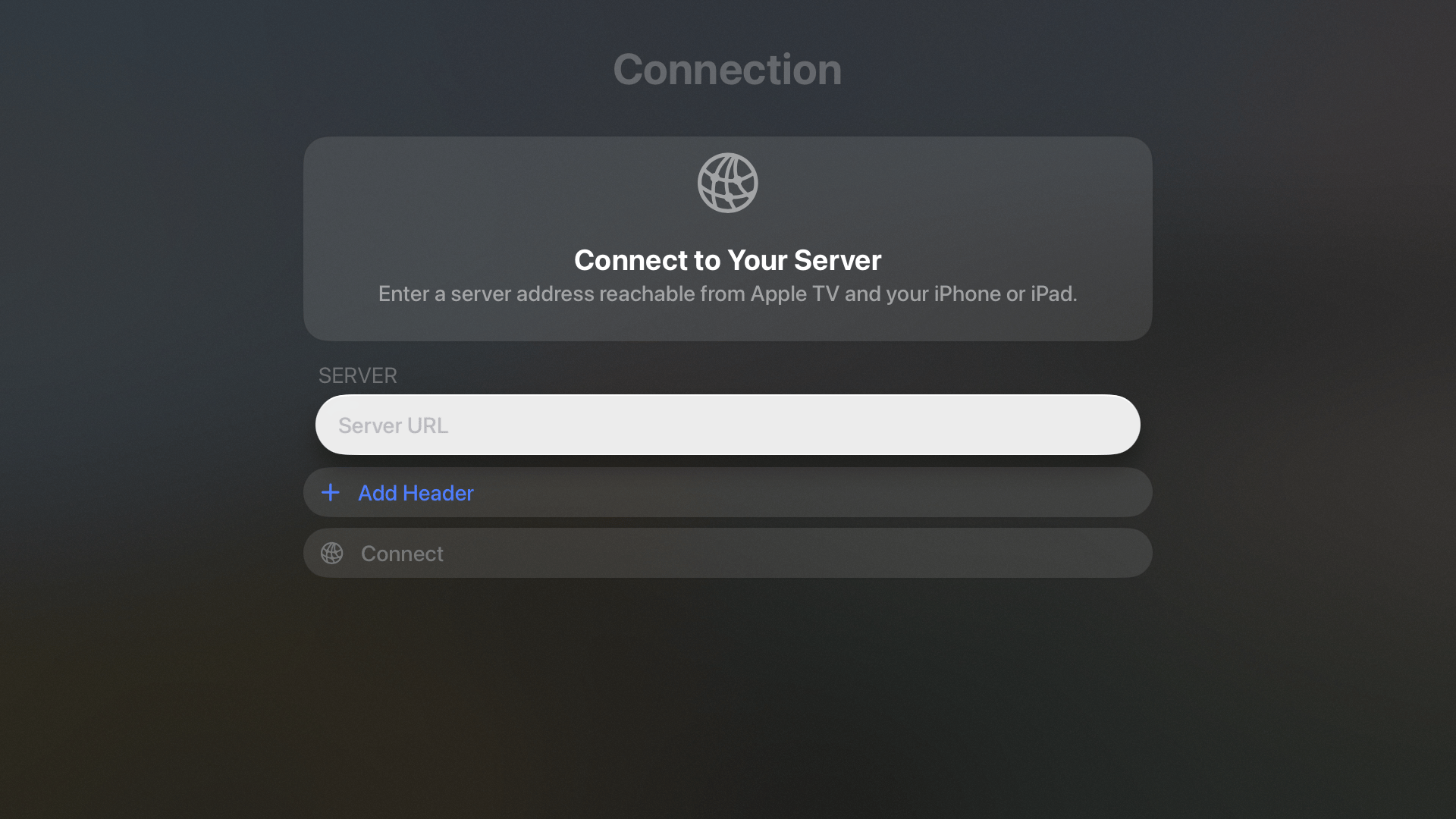
Apple TV asks for your server address on first launch.
- Enter the control plane’s URL in Server URL. Use a LAN hostname, LAN IP address, or HTTPS address that both Apple TV and your assisting iPhone or iPad can reach.
- If an authenticating proxy requires headers on API requests, select Add Header and enter them on Apple TV.
- Select Connect to load the server’s authentication configuration.
127.0.0.1 or localhost refers to the device making the request. Use your server’s actual reachable address when connecting separate devices.
Custom headers stay on the device where you configure them. The nearby sign-in browser does not receive Apple TV’s API headers. If the server sits behind Cloudflare Access or another authenticating proxy, sign in to that proxy in the assisting device’s browser as well.
Sign in with iPhone or iPad
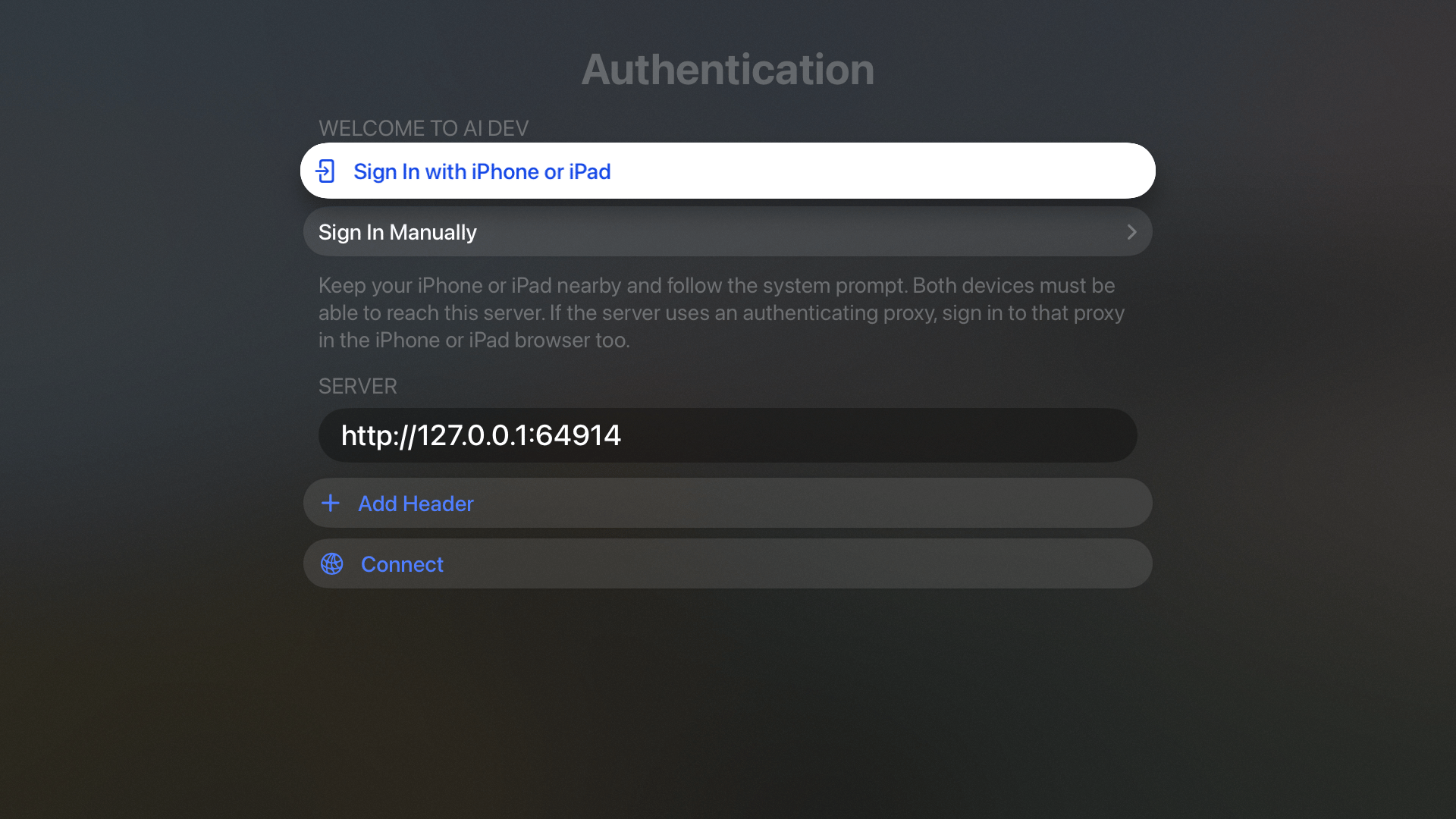
Nearby sign-in on an Apple TV simulator. The loopback URL is a local test address; use an address reachable from both devices for nearby sign-in.
- Keep your iPhone or iPad nearby and choose Sign In with iPhone or iPad on Apple TV.
- Follow Apple’s system prompt on the assisting device.
- Complete the server’s web sign-in screen. It offers the configured password or OIDC methods and supports registration or first-account setup when allowed.
- Return to Apple TV after sign-in completes.
Deploy the updated server before using nearby sign-in. The app checks
nearbySignInEnabled in /api/auth/config; older servers without that capability
show update guidance. Manual password sign-in remains available when configured.
See Authentication for server setup and the mobile
authentication protocol.Use the Siri Remote
Open Destinations to choose a feature from the full-screen, sectioned picker. The picker focuses your current destination and restores focus when you dismiss it. All 50 destinations remain available, including integrations, server settings, notification history, and push-management tools.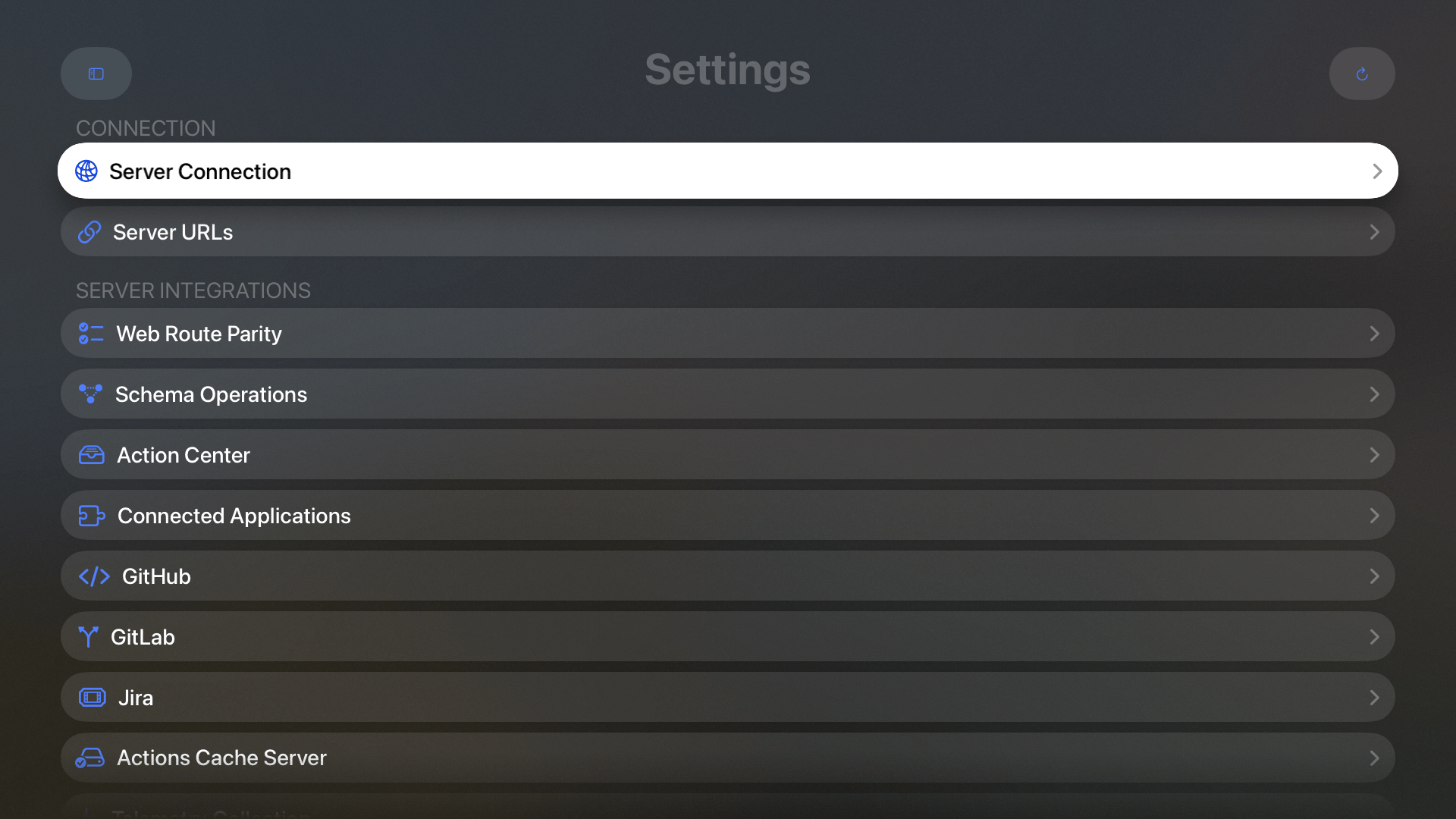
Settings on Apple TV includes connection settings and server management features.
Complete local-device actions on iPhone or iPad
Apple TV shows Not supported on Apple TV with instructions when an action needs a local device capability. Open the same server and saved item on iPhone or iPad to complete these actions:
You can still inspect exported text and URLs on Apple TV. Server-managed data stays shared through the control plane. The TV app keeps server notification history and push-management screens; registering the native client for local alert notifications is available on iOS.
Resume on iPhone or iPad with Handoff
Enable Handoff and sign in to the same Apple Account on both devices. Open a destination or saved item in the app, then use the receiving device’s native Handoff affordance to continue there. The receiving app uses its own control plane credentials. If the activity points to a different server, confirm before switching. Sign in or configure that device’s proxy headers if needed; the app retains the pending saved location through sign-in. Handoff carries the normalized server address and durable saved route identifiers. Credentials, proxy headers, unsaved edits, local attachments, and temporary inspector state stay on the originating device. An editor advertises its saved parent location. Returning from a detail screen advertises the parent destination again. General app Handoff is available between iPhone and iPad. Apple TV’s nearby sign-in authorizes the TV app; use the guidance above to complete unsupported TV actions manually on iPhone or iPad.Build and release the native app
The native app repository generates its Xcode project fromproject.yml. Use Xcode 27.2 and the AIDevelopmentEnvironmentTV scheme for Apple TV development.
tv_archive lane. Enable the tvOS platform on the existing App Store Connect record before the first upload.
Release the server authentication extension before the TV client. Before releasing the client, check nearby sign-in on a physical Apple TV with iPhone or iPad and Handoff between two physical iOS devices. Include an already signed-in browser, cancellation and retry, separate browser/TV sign-out, a signed-out Handoff receiver, and a saved item removed before continuation.
See Authentication, Server settings, and the screenshot gallery.