

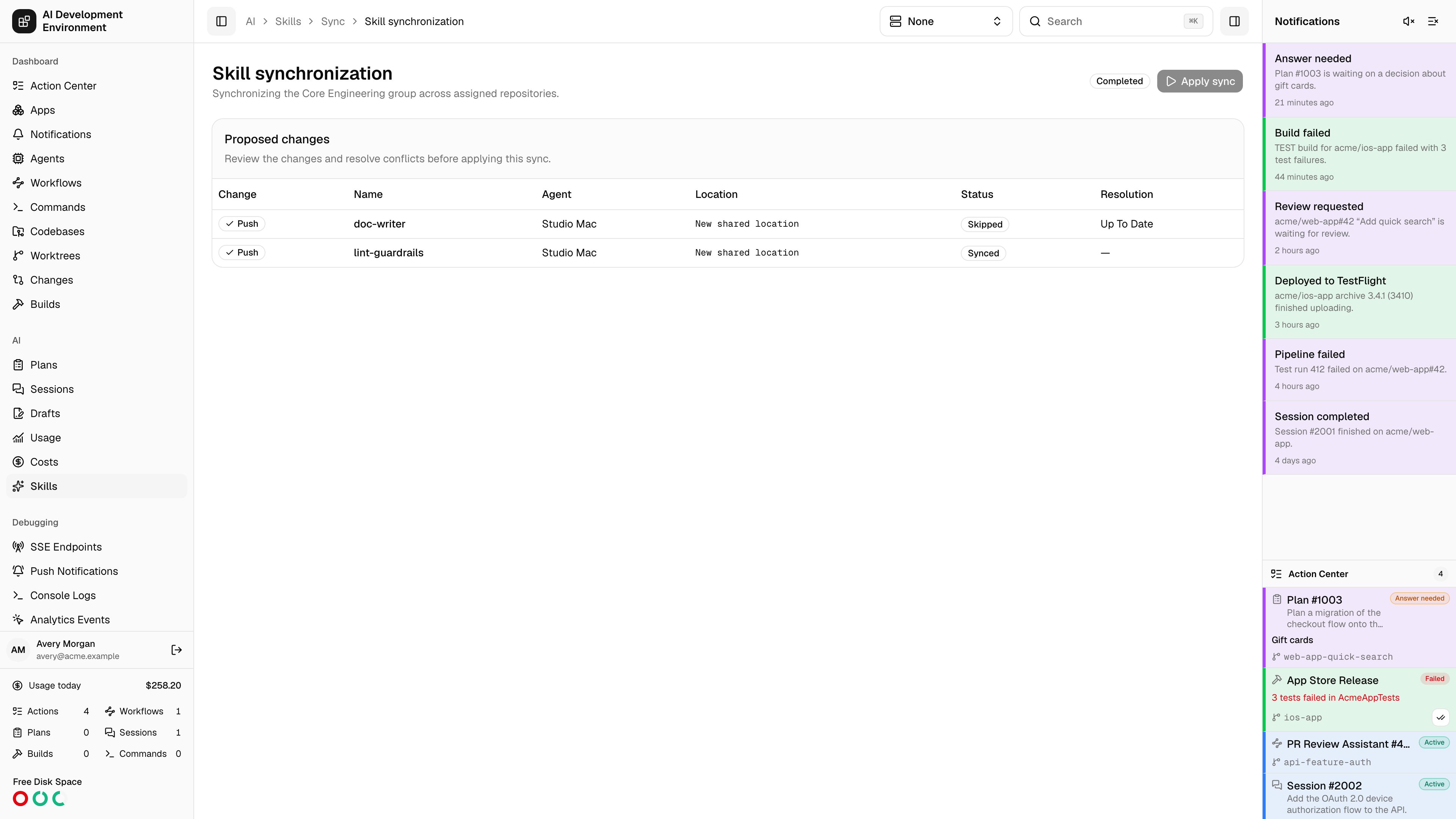
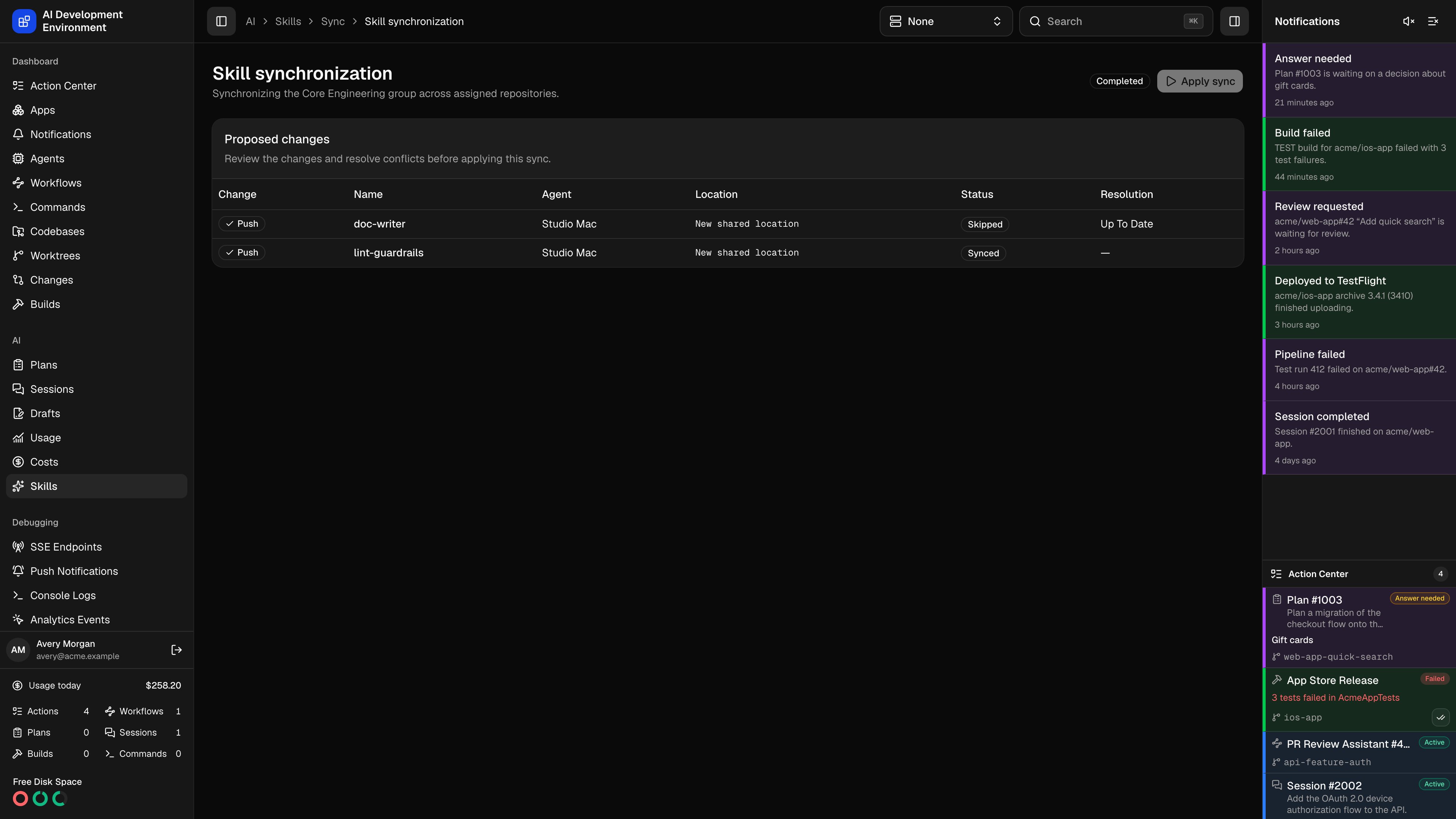
/ai/skills/sync/{id} is the review step between deciding what your skills should be and writing them to disk. A sync scans the enabled AI clients on every participating Mac, compares what it finds against the database, lists every change it proposes, and applies nothing until you say so.
A run is created by Sync all on the Skills page, or Sync group on a skill group.
Phases of a run
Scan
Each participating agent enumerates the skill directories of every enabled client and reports what is installed, at global and project scope.
Read
For anything that differs, the agent reads the full package back so the control plane can compare contents rather than just names.
Resolve
Proposed changes are computed. Anything unambiguous is marked ready; anything that needs a human decision is marked blocked.
Apply
Apply sync writes the imports into the database and deploys packages out to the agents. It is enabled once the run is Ready or Partial.
Agent sync status
A table lists every participating Mac with its connection state, the phase it has reached, and its status for that phase. An agent that goes offline mid-run leaves its item Pending, which holds the whole run in preparation. Skip pending clients appears when that happens: it marks the stalled agents’ items skipped and lets the run proceed with the agents that did report. Skipped agents are excluded from deployment entirely, so their copies are left untouched rather than being treated as deletions.Proposed changes
Every row is one change to one package, in one place.
Alongside each change sits its status — Ready, Blocked, Complete, Skipped, or Failed — the skill name, the agent, and the absolute path (or New shared location for a package that has no home on disk yet).
A copy this app deployed is tracked, and a tracked copy that has drifted is always a conflict — the app will not silently overwrite an edit someone made on disk. An untracked copy is compared against its baseline to decide whether the change belongs in the database or on the client.
Resolving a blocked row
Blocked rows carry their own controls:
Importing a project skill needs somewhere to belong, so a row for one shows a Choose a skill group selector first. Use client copy stays disabled until a group is picked.
Choosing Use client copy or Use edited version makes that package canonical, so the run’s other unresolved conflicts for the same skill name are settled at once — they resolve to the newly canonical database version rather than asking you the same question per Mac.
Manual resolution
Compare and resolve opens a three-way editor: the Database version and the Client version side by side, and a Canonical result you build underneath. A file list on the left spans the union of paths across all three, so a file present in only one version is still reachable.- Start from database or Start from client copy seeds the result, then edit from there.
- Add files uploads additional files into the result.
- Text files edit inline; binary files show their size and executable flag rather than a garbled preview.
- Files can be renamed, marked executable, or removed — except
SKILL.md, which the result must contain.
Applying
Apply sync refuses to run while any row is still blocked. It imports the accepted client packages into the database, then deploys the resulting canonical packages to every non-skipped agent. Progress streams back into the same page, and the run finishes as Succeeded, or Partial when some deployments failed or were skipped.Notes
- The page reloads every ten seconds in addition to its live subscription, so it recovers on its own if a subscription drops mid-run.
- A group sync only touches the repositories that group is assigned to; Sync all covers global and project skills across every enabled client.
Related pages
Skills
Start a full sync and browse what each client has installed.
Skill group details
Start a sync scoped to one group.
Skill editor
Edit the canonical package a sync deploys.
Agents
The Macs a sync scans and deploys to.