

/builds/configurations/[configurationId].
Use the Configurations breadcrumb to return to the configuration list.
Inspect and edit
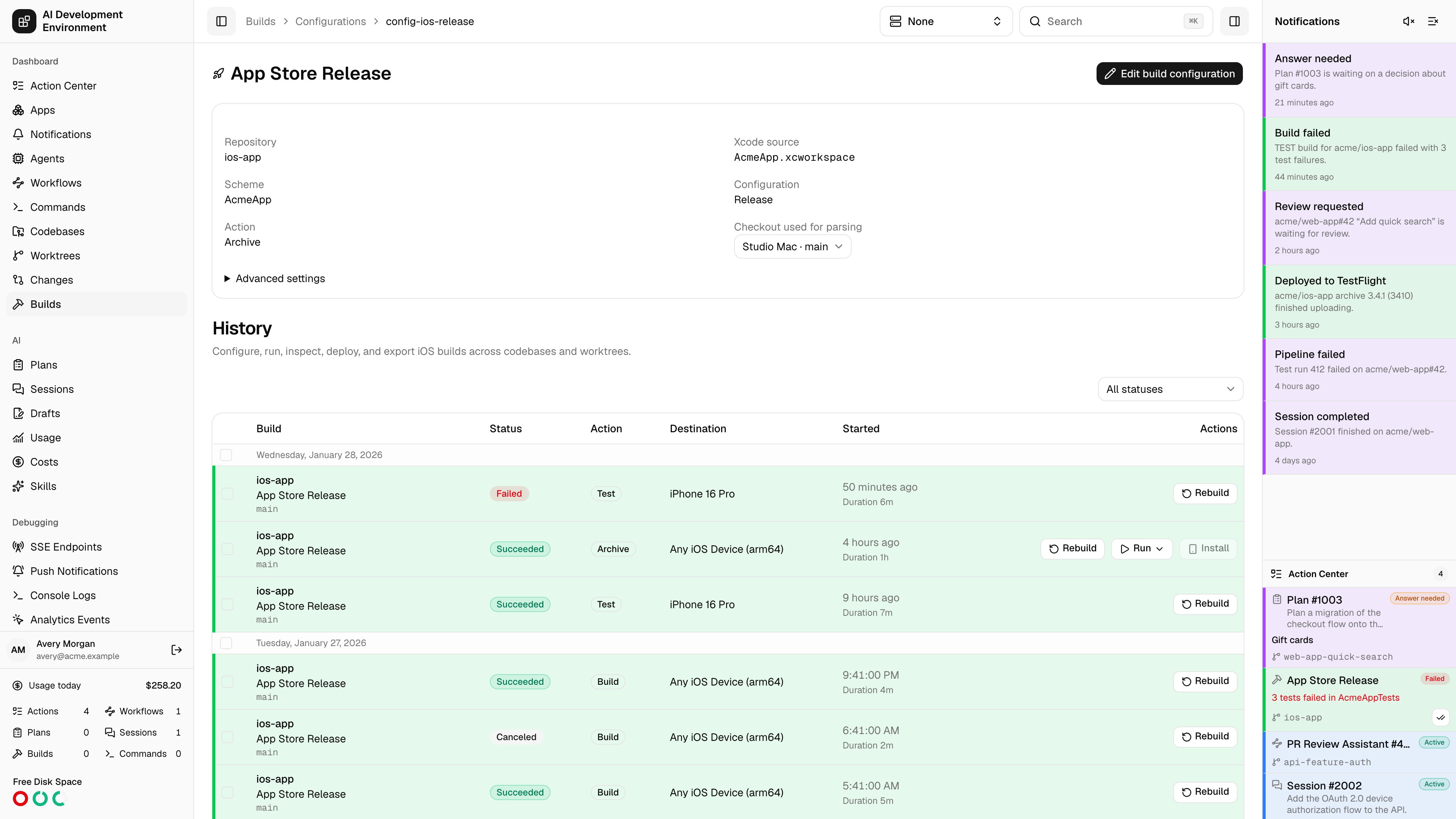
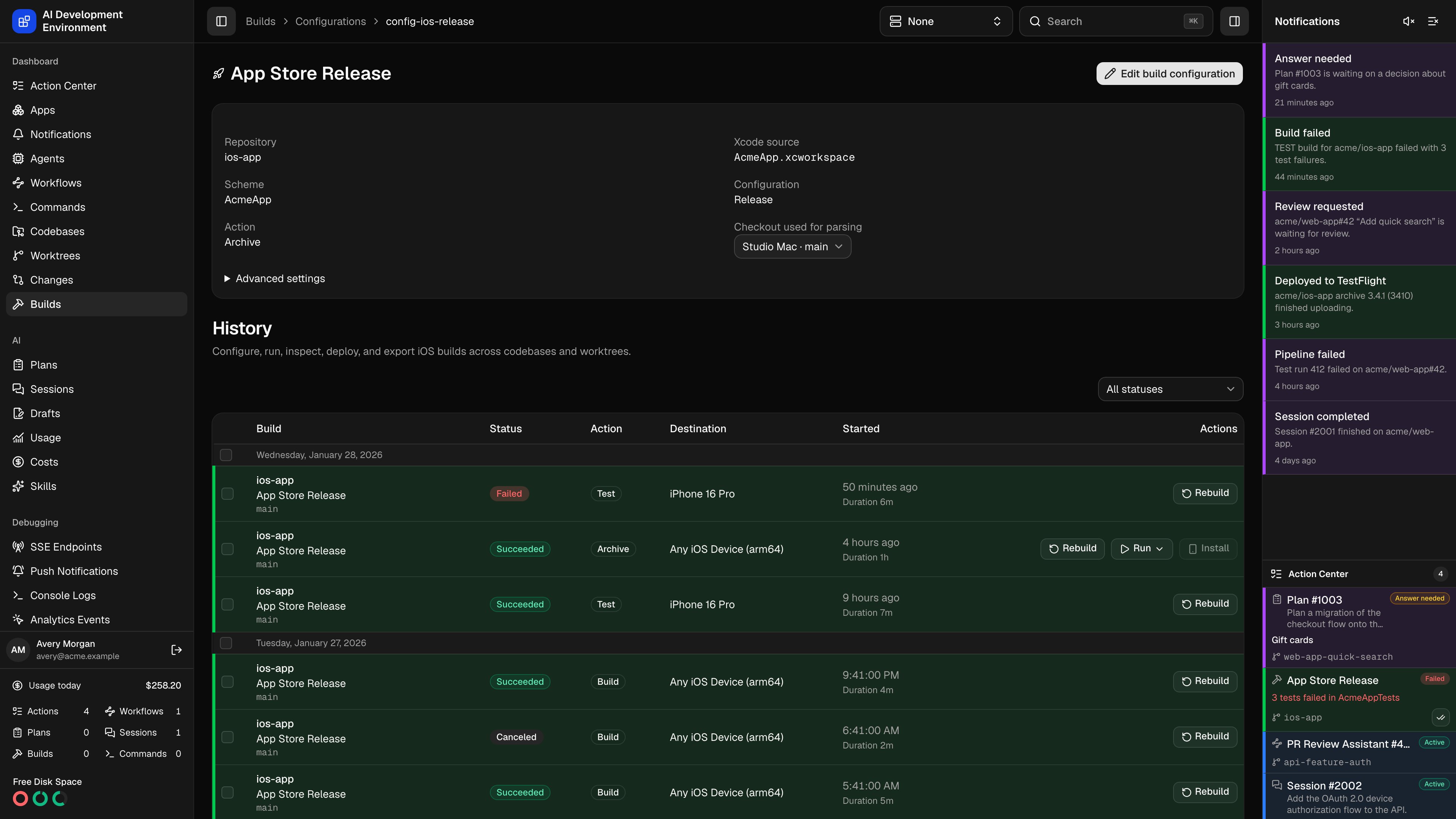
The page shows the configuration’s icon, repository, source path, scheme, Xcode configuration, and default action. Expand Advanced settings to inspect build and export options. Select an available checkout for parsing, then choose Edit build configuration. Source discovery and validation run on that checkout’s agent. A green Valid badge means the selected source, scheme, and Xcode configuration are available in that checkout. Saving updates future builds; existing build snapshots keep their captured settings. The native app offers Configurations on Builds, with configuration details and an Edit action. Repository settings also provide an iOS App project screen for creating and removing configurations.Build history
History is filtered to this saved configuration across its repository’s worktrees and agents. Older records load in pages. Open a build to inspect its logs and artifacts. A build retains the configuration name captured when it started. If the saved configuration is deleted, that name remains visible without a link. Custom identifies an explicitly requested one-time configuration; it does not identify an imported coverage record or a deleted saved configuration.Custom builds
Select Custom in Start Build to enter source and build settings for one run. This creates no saved configuration or configuration-details page. Rebuilding a Custom build uses the settings captured in its snapshot, subject to current repository, agent, destination, and script validation.Related pages
Builds
Start saved or Custom builds and manage scripts.
Repository details
Manage the repository’s iOS App project.